Updated Oct 17, 2026

What's new in VYX

Every update to VYX — the live Hyperliquid order-flow scanner — by day. New features, improvements, and fixes, newest first.

New

Your desk’s regime, drawn over any past window

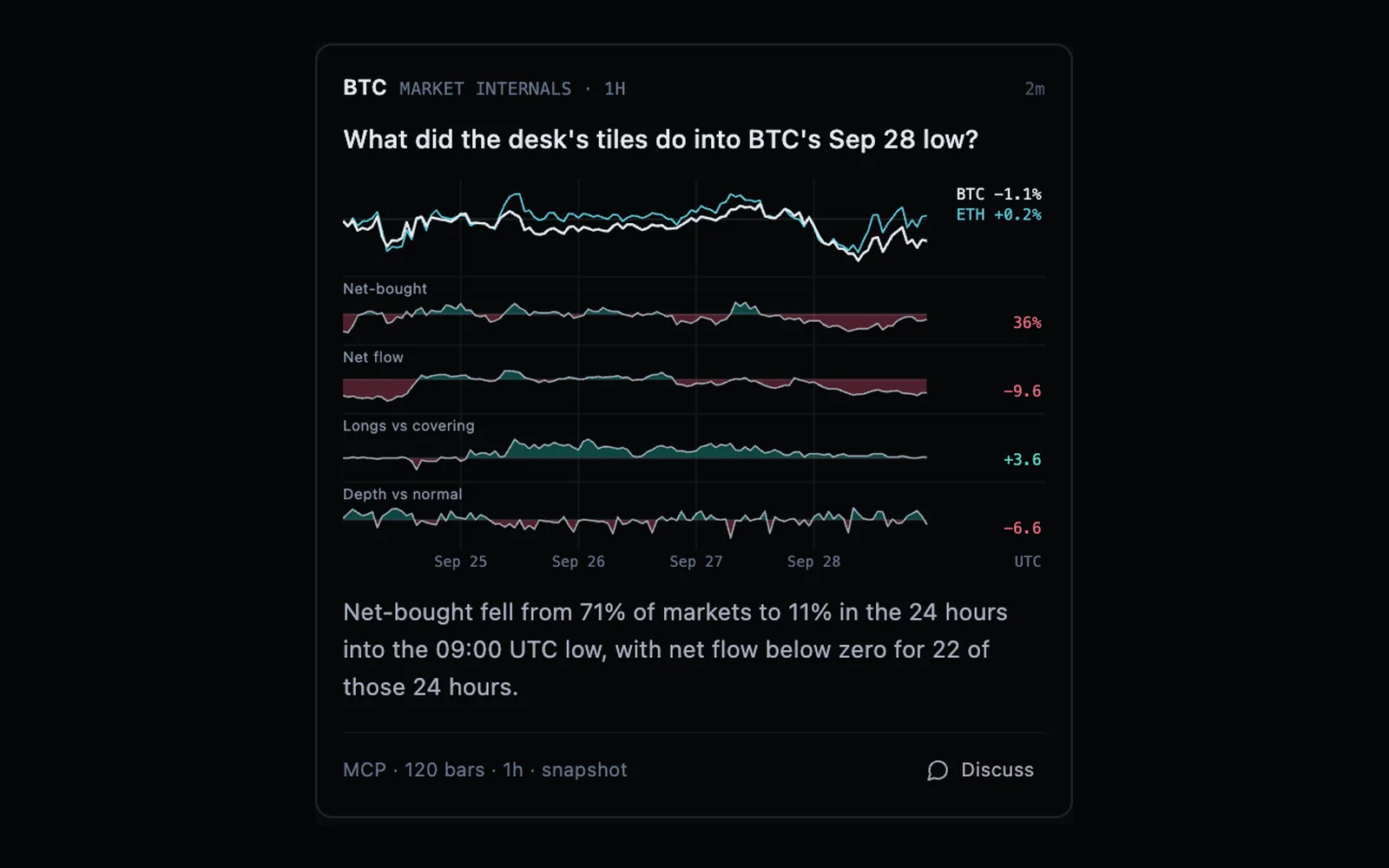
A Workbench study of the Market Internals desk over four days: BTC and ETH lines on top, then Net-bought, Net flow, Longs vs covering and Depth vs normal as shaded rows on one UTC timeline.

Ask your AI to show what your desk’s regime did around a move and it draws every regime row on one timeline over the days you name, with up to three markets above it — point at any moment to read that hour across every row, the same numbers your AI reads.

Improved

Rename a signal from the chat

Ask vyx to rename a signal or any of its indicators — “call it Compressione”, “put my signals’ names in Italian” — and it does, in any language. A screen or regime row that reads that signal by name follows the new name, and so does the signal’s column on your Screen, so nothing built on it breaks or keeps the old name.

Improved

One place for past matches on a phone

The phone’s Tape tab is gone. For a timed list of past matches, open the Screen’s History tab on a desk of your own and turn on Alerts or press Start recording — the server keeps the log from then on, whether or not the app is open. The Tape only caught what fired while you watched.

3 fixes
Fixed

Alerts stay inside your desk’s scope

A desk scoped to a sector, a theme or one of your watchlists now gets match alerts, analyst reads and AI trader decisions only for those markets — before, they still covered every market in the desk’s asset class.

Fixed

New listings in your sector desk’s chat

On a desk scoped to a sector or theme, vyx and your connected AI now read a newly listed market your board already sorts into it — before, their scans could leave it out while your board showed it.

Fixed

Price-alert webhooks on their own

A webhook can now subscribe to just your price alerts — before, only a webhook set to every event heard them, and asking for price alerts alone was refused.

New

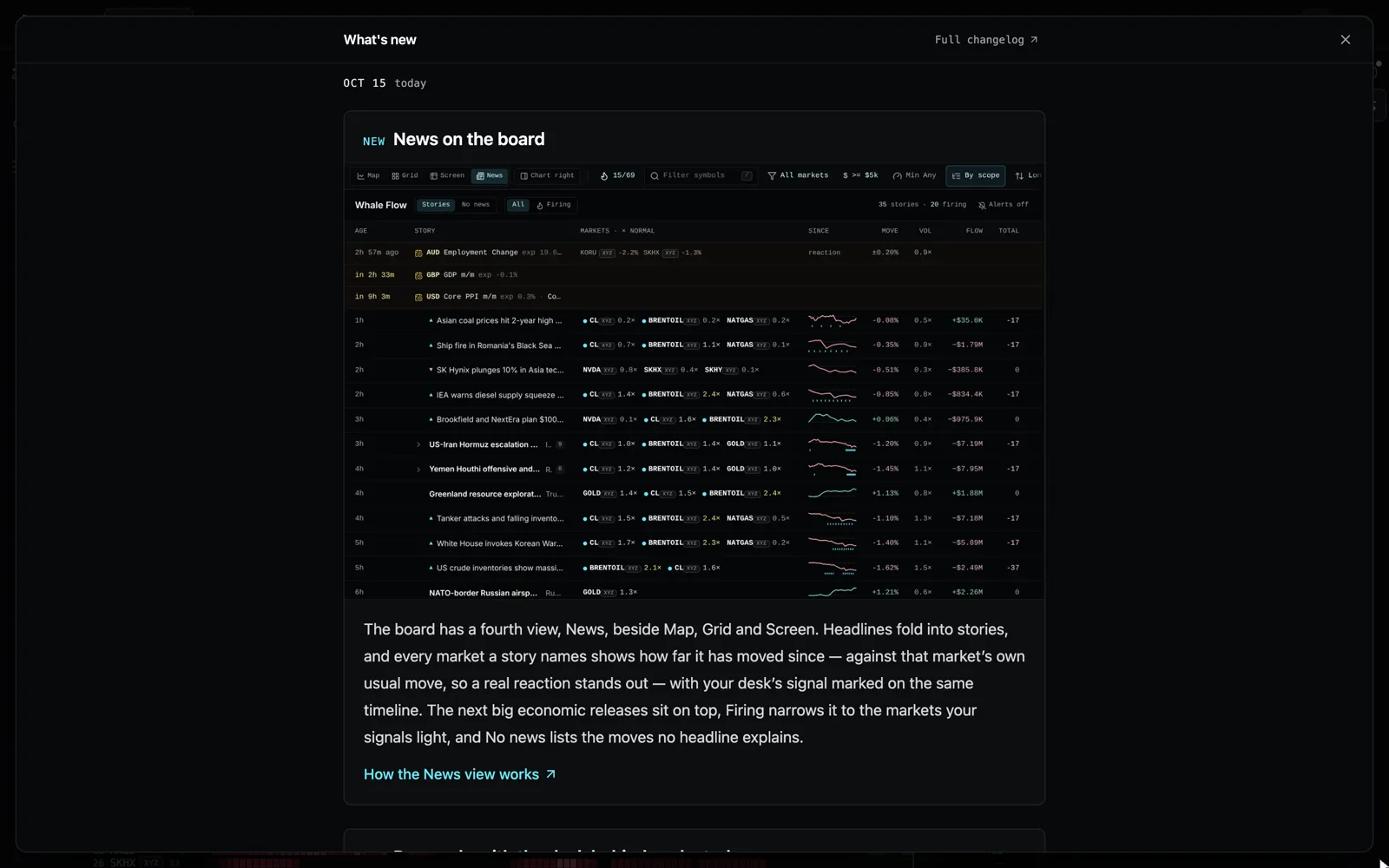
News on the board

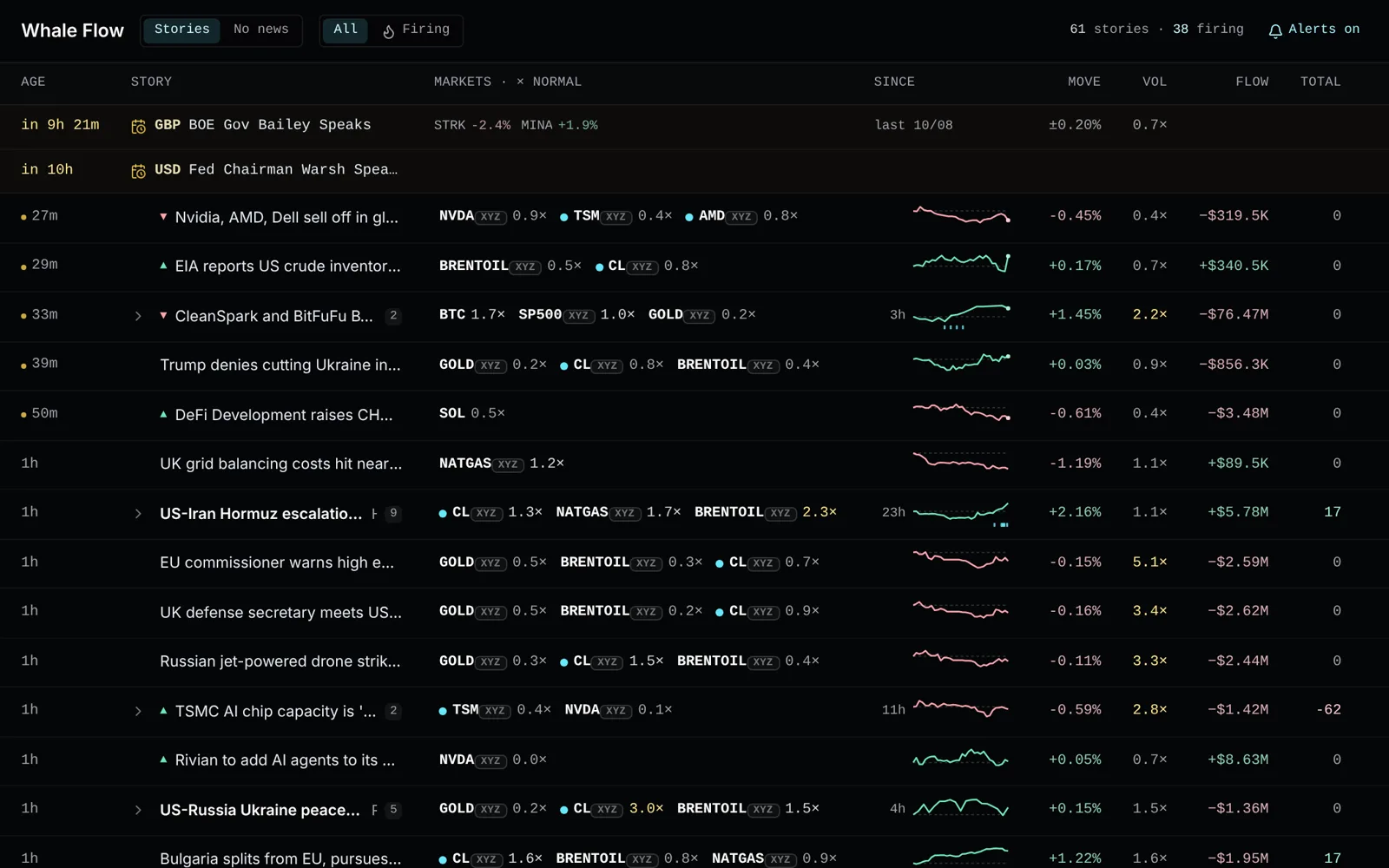
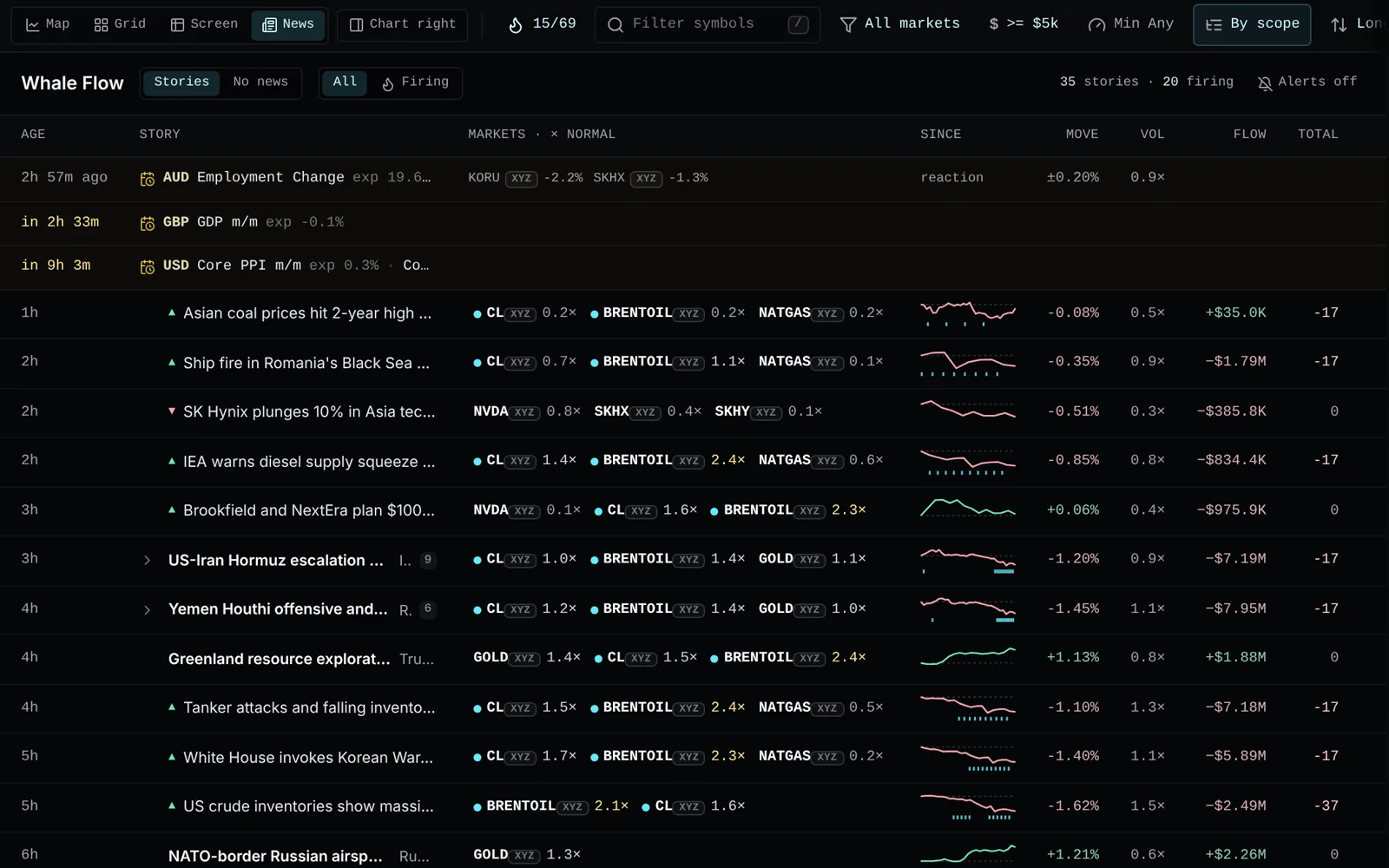
The News view on the Whale Flow desk: the next economic releases on top, then stories such as the US-Iran Hormuz escalation with crude, Brent and gold each marked by its move against normal, a price path since the news with the desk’s signal ticks under it, and the move, volume, flow and score columns.

The board has a fourth view, News, beside Map, Grid and Screen. Headlines fold into stories, and every market a story names shows how far it has moved since — against that market’s own usual move, so a real reaction stands out — with your desk’s signal marked on the same timeline. The next big economic releases sit on top, Firing narrows it to the markets your signals light, and No news lists the moves no headline explains.

New

Ping me when a market wakes up

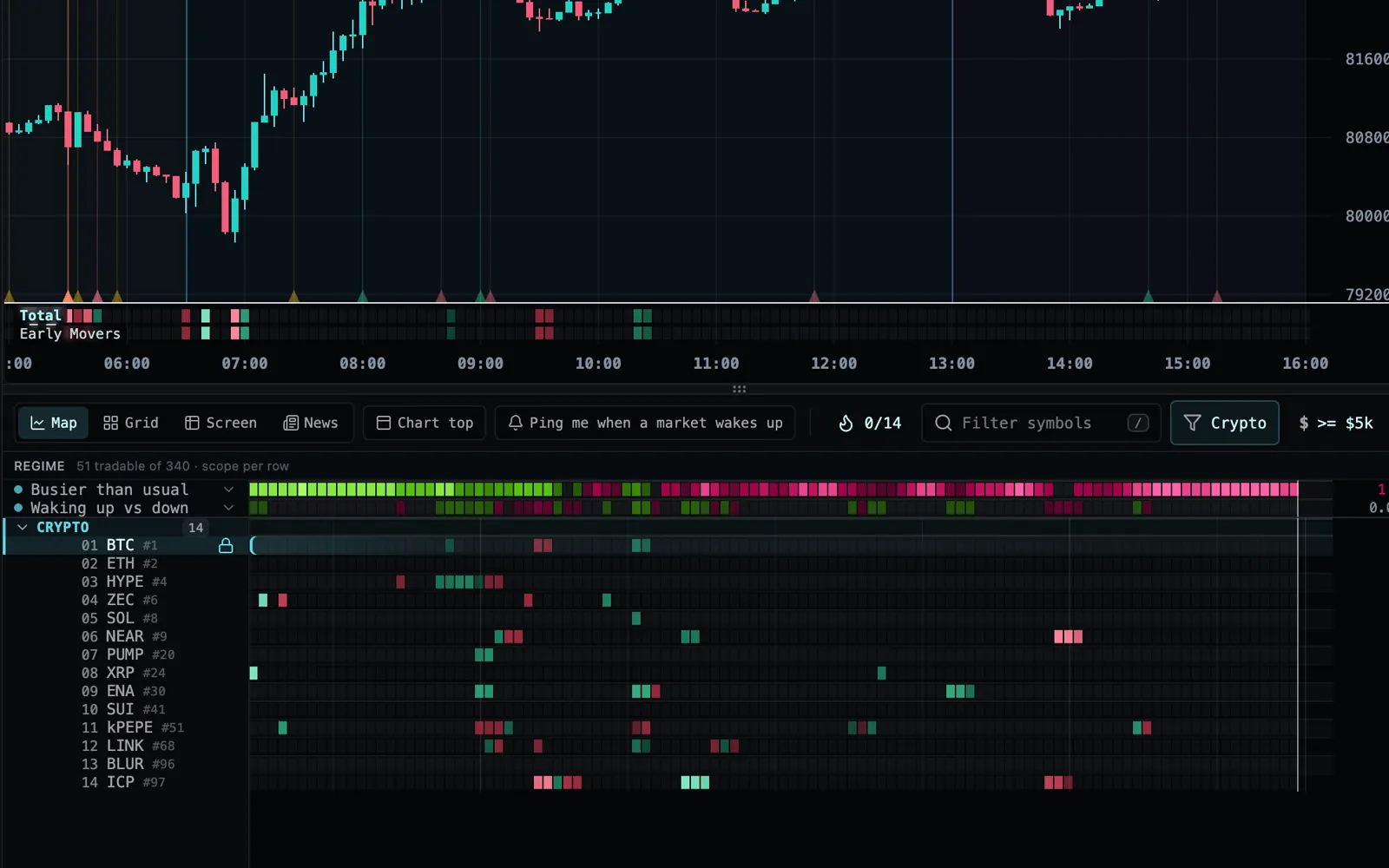
The Early Movers desk with a Ping me when a market wakes up switch on the board’s top row beside Chart top, above the rows reading how much of crypto is busier than usual and fourteen crypto markets lit where trading woke up.

Early Movers now has one switch at the right of the board’s top row: Ping me when a market wakes up. Turn it on and vyx emails you and pushes to your phone the moment a market newly lights on the desk — trading at twice its usual pace while the price has barely moved — tab closed or not. Nothing to set up: the desk’s own read is the alert. It is part of the plans that include alerts.

New

News alerts

The News view on the Whale Flow desk with Alerts on lit at the right of its header, above stories such as a tech sell-off naming NVDA, TSM and AMD, each market marked by its move against its normal.

Turn on the bell in the News view and vyx watches the wire for you, tab open or not: when a headline names one of your desk’s markets and that market then moves at least three times its usual move within 15 minutes, you get an email and a push with the market, its move and the headline. Quiet the rest of the time — each market alerts at most once an hour, and Settings → Notifications lists every desk with it on.

New

Research, with the desk behind each study

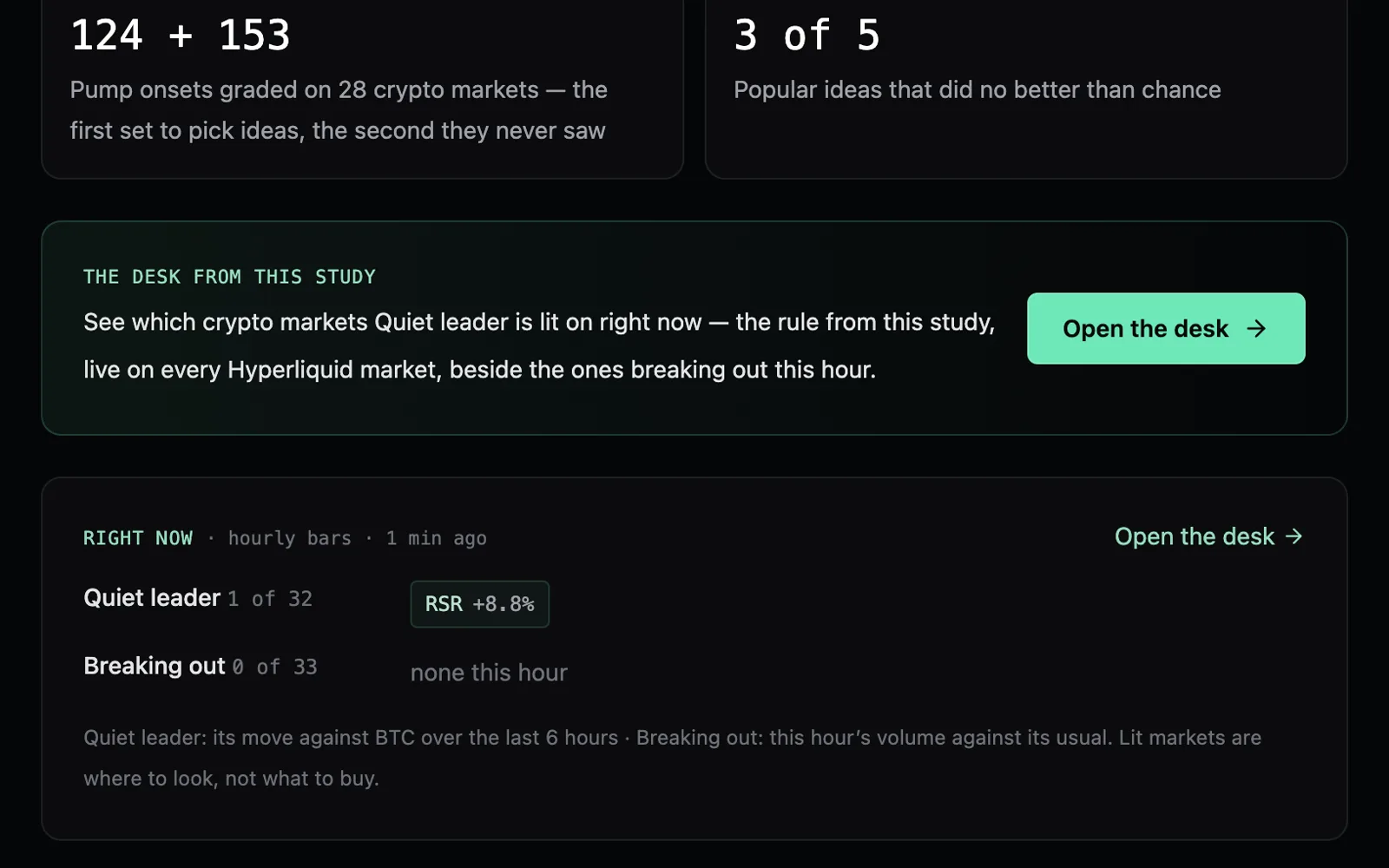
On the research page for which crypto markets break out next: the call to action naming the Quiet Leaders desk with Open the desk, and under it the Right now strip — Quiet leader lit on 1 of 32 crypto markets, RSR +8.8% against BTC over 6 hours; Breaking out none this hour.

Research is back at vyx.app/research: a trading idea graded against real market events on Hyperliquid, beside what chance catches, then on history it never saw — charts, method and limits on every page, and a How-we-test page that explains the method. Each study now hands you its desk: Open the desk puts the very screens the write-up graded on your board, live, and a Right now strip on the page shows which markets they are lit on this hour before you open anything. The first desk, Quiet Leaders, is also on the New desk shelf under Or start from a desk our research built.

Improved

The market read opens with the whole market

Ask your AI for the market read and it now starts with every market at once — how many rose and fell, the median move, volume against normal, net taker flow and how many moved against their own flow — before any asset class. Then one row each for crypto, equities, indices, commodities and FX, with the Market Internals and Market Sentiment signals averaged across the class and the event screens firing in it, and a risk-on or risk-off, trending or chopping call for each class and for the whole market, rule shown. When the classes disagree, it says so. Each playbook condition now says when its first check lands instead of reading blank.

Improved

News stories on a phone

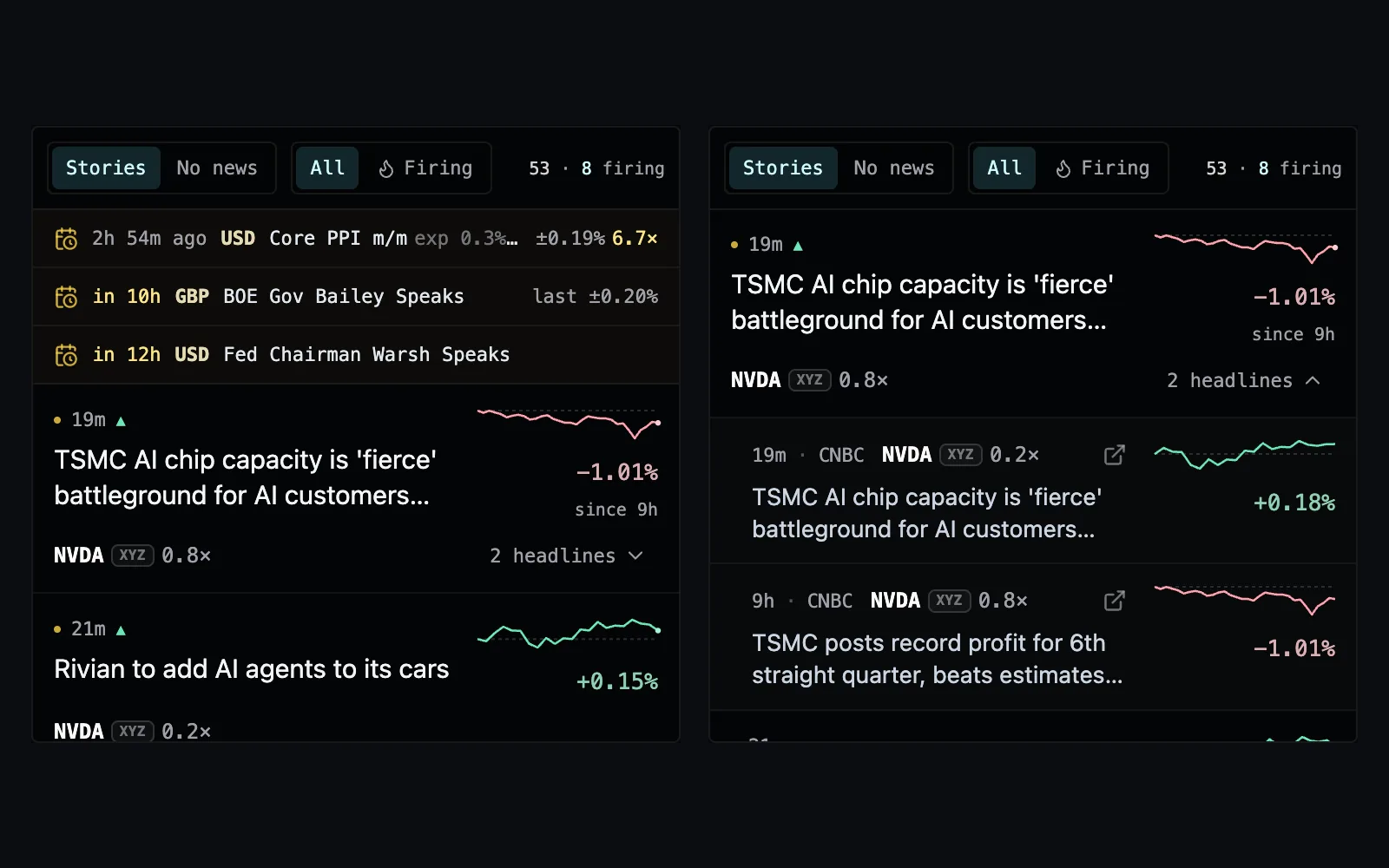
Two views of the News tab on a phone. Left: the next releases on top — US Core PPI, a Bank of England speech, the Fed chair — then story cards such as TSMC’s AI chip capacity, with NVDA at 0.8× its normal move, its price path since and −1.01% since 9h. Right: that story opened, each of its two headlines with its source, its own move and path.

The News tab on a phone now shows the same stories as the desktop’s News view, one card each: how far every market a story names has moved against its own normal, the lead market’s path since with your desk’s signal under it, and the next big releases on top — with No news and All or Firing beside them. Tap a card to bring its market up on the chart above, or open “2 headlines” to read each one from its own time.

Improved

What’s new, full size

What’s new open over the Whale Flow desk: the News on the board post in a wide centred column, its picture of the News view at full width, its words beneath and a How the News view works link under them.

What’s new on the desktop now opens over the whole desk, in the same wide column as this changelog, so every clip and picture of the app is big enough to read. A post about something with its own home — a study, a docs page, a desk — now links straight to it. Press Esc or the ✕ to go back to your desk.

Improved

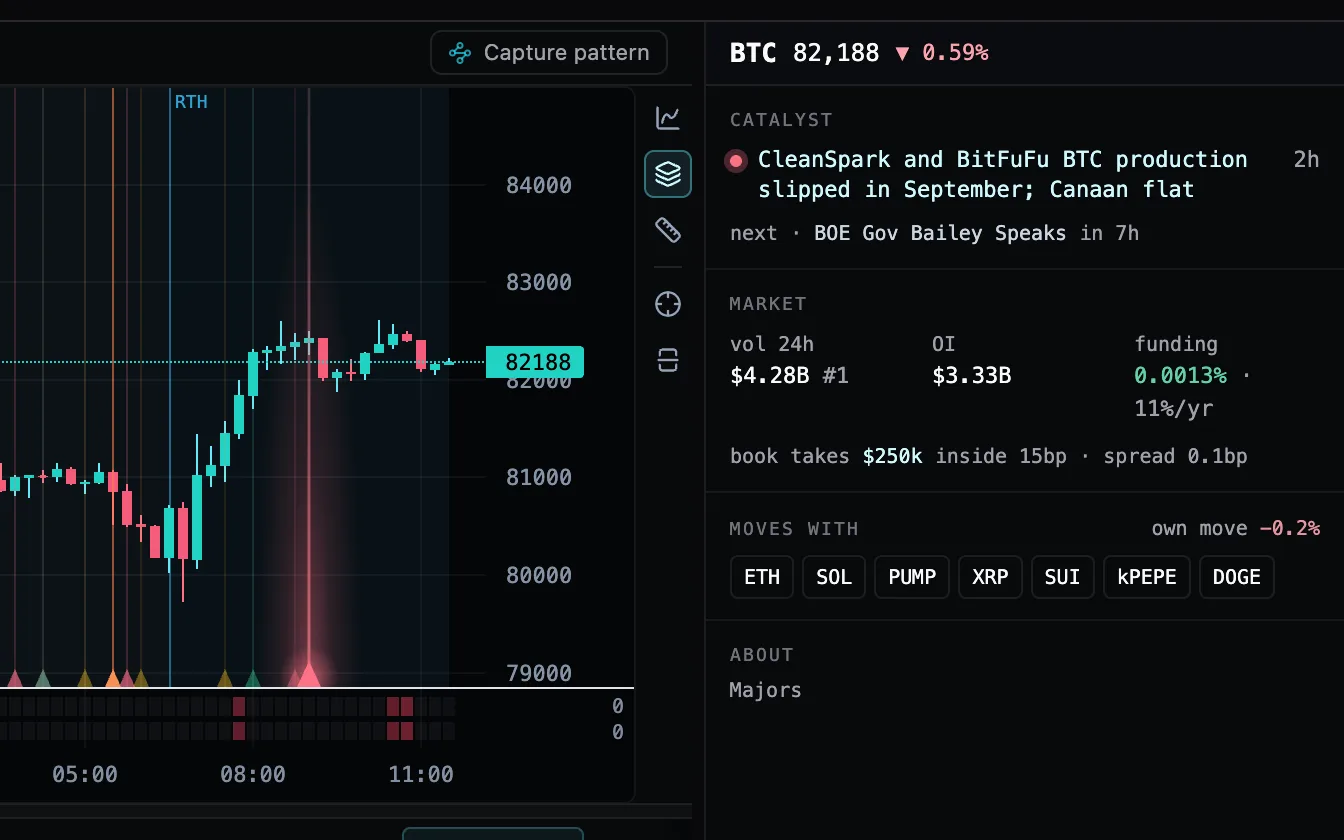
A headline finds its tick on the chart

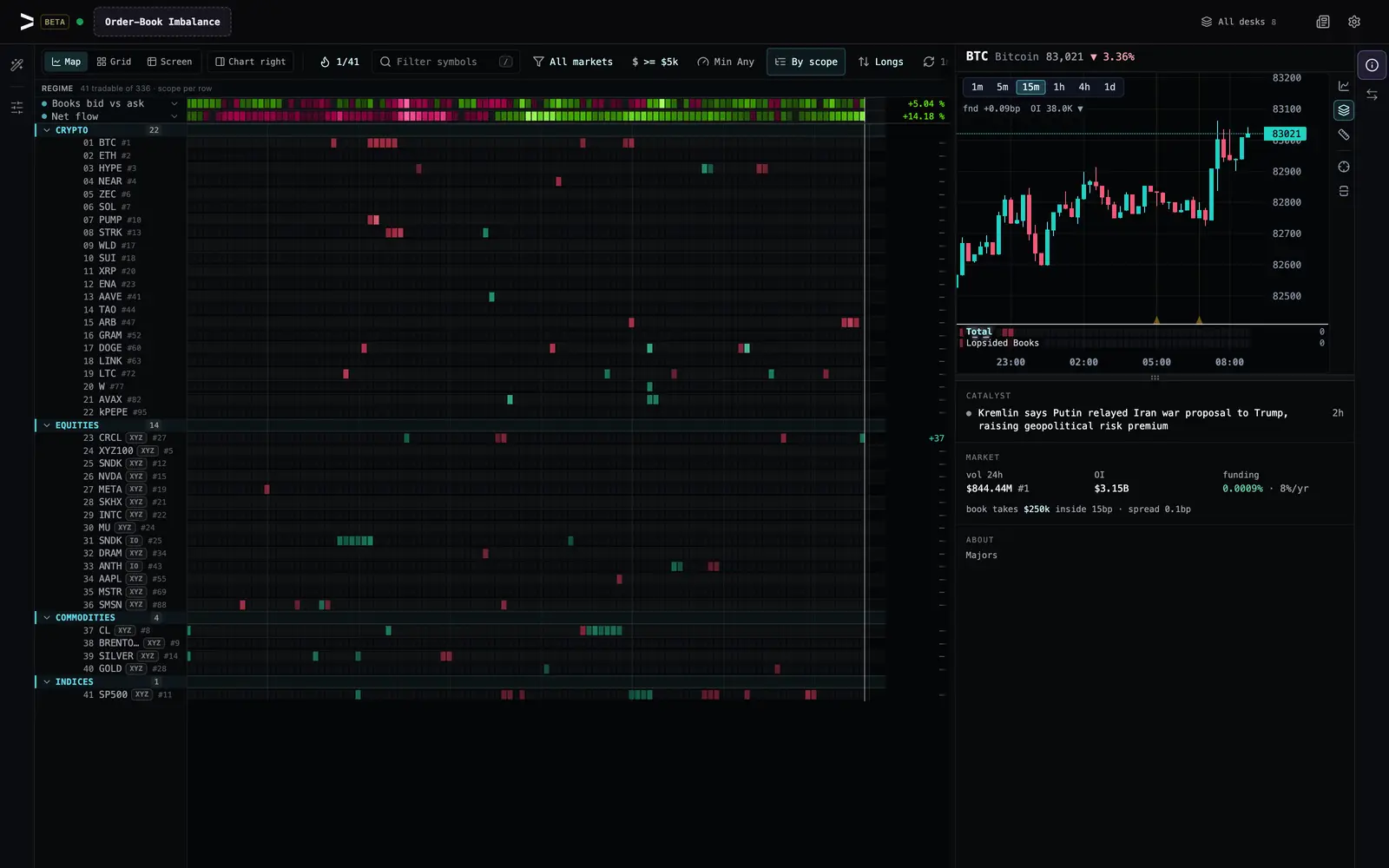
BTC on the 15-minute chart with the Info panel open beside it: the pointer rests on the catalyst headline about CleanSpark and BitFuFu production, its dot ringed in rose, and the matching tick on the chart’s time axis glows rose with a bright line rising from it.

Rest the pointer on the catalyst in the Info panel — or tab to it — and its tick on the chart lights up: a soft glow rises from the time axis, its line brightens and the tick grows, in the headline’s own colour, and the dot beside the headline rings to match. On a chart crowded with news and economic ticks, you see at once which one you are reading. Move away and it goes quiet.

Improved

Quicker back to a desk

Switching back to a desk that runs on another timeframe now pauses the page for less time — on Early Movers the longest pause is less than half as long as it was. And when a desk drops its oldest bars or loads older history, its signals keep the values they already worked out and redo only the few bars the change touches — about a tenth of the signal math they used to redo.

15 fixes
Fixed

News counts what Firing shows

On a busy desk the News view’s All list could drop an older story on a market your signals light, so its firing count came up short and Firing then listed more stories than All had counted. All now carries every story Firing will show, and the count matches it.

Fixed

A new desk stays put with vyx open twice

With vyx open in two browser tabs, a desk you made in one could vanish once the other tab saved — from your desk tabs and from your saved desks — and a desk deleted in one could come back. Each tab now saves only the desks and tabs you change there, picks up the other tab’s new, renamed and deleted desks as they happen, and moves the tab you meant when you reorder them.

Fixed

Must-hold conditions light up

A signal made only of on/off conditions marked Required — “MFI crosses 50”, saved on its own — stayed dark on the board and lit 0% in Proof, though the chat’s check said it held. It now lights wherever every one of its conditions is true, the same as a screen, on the board and in Proof alike. And when you ask the AI chat to fix a condition’s formula, it now changes that formula in place instead of giving up.

Fixed

A chat formula edit keeps your rule

When the chat changed the formula of a rule set as a test on a number — funding below zero, marked Required — the rule could quietly turn into a graded score that lit the other way, dropping its test and its must-hold mark. A formula edit now keeps both while the new formula is still a number. And a distance from an average swapped for RSI no longer reads every market as the buy side.

Fixed

Desks from a link keep their regime rows

Signing up from a desk link — Quiet Leaders from its study, or Whale Flow — gave you the desk without the regime rows on top of its board, and opening any desk from a link while signed in could clear the rows on the desk you had open. Your desk now arrives with every row it had, and keeps them.

Fixed

A desk link opens that desk, and stays

Opening a desk link while signed in — a study’s Open the desk, a link someone sent you — showed the linked desk for a moment, then jumped back to the desk you last had open. The link now wins: the desk it names stays on your board, and your other devices pick it up as where you left off.

Fixed

News moves start at the right headline

A News story with several headlines measured every market from its oldest one — even a market only a later headline named — while the row showed the newest headline’s age, so a move could run from a day earlier than it said. Each market now reads from the first headline that named it, and when that is older than the row’s age, the row says how long ago — in hours on a story a day old, such as 39h where its age reads 1d, so a day-old story no longer hides it.

Fixed

A VWAP you describe is a real VWAP

Describe a signal or a column as “how far price sits from its 24-hour VWAP” and vyx could build one named VWAP that read the volume profile’s most-traded price instead — a different number. It now writes a true volume-weighted average price, the same line the chart’s VWAP study draws, and the chat and your connected AI build it the same way.

Fixed

A 1,000-bar page back reads its oldest bar

When the chat or your connected AI paged back through history 1,000 bars at a time, the oldest bar on the page came back without its open-interest change or its order flow, and the page’s flow total counted one more missing bar than it gave reasons for. That bar now reads the same as on any other page, and every missing-flow count matches the reasons it lists.

Fixed

A signal the chat builds stays lit

When the AI chat built a signal and then, in the same reply, lit another, took one off the board or changed the timeframe, the signal it had just built could switch off again or stay on the old timeframe. The chat now keeps every signal it lit, and a timeframe change moves the new one with the rest.

Fixed

The phone board’s highlight stays on your chart’s market

On a phone, when the board re-sorted — a market scoring onto the top, a new grouping or sort — the highlighted row stayed where it was while the markets moved under it, so it outlined one market while the chart showed another, often the row just above. The highlight now moves with your chart’s market, and scrolling still picks a new one.

Fixed

Averages leave out a candle a restart cut short

When the data collector restarts mid-candle, some of that candle’s tape figures are lost for good — price impact, how many wallets traded, the longest buy and sell runs, the largest prints. The candle itself already read n/a, but an average, high, low, median or rank over the candles around it still counted it as zero, which dragged Market Internals’ “vs normal” reads and any signal built the same way. Those windows now leave that candle out and read the rest; a sum across it reads n/a, since a total missing a candle would come up short.

Fixed

A screen’s history says holds, not buy

Ask the chat or your connected AI for the history of one screen — a signal made only of on/off conditions pointing one way, such as RSI outside 30–70 — and each candle it lit read +100 buy, as if the market were on the buy side. It now reads holds, or how many of its conditions were true and which, the same as the board and a market’s read already say it — in a single signal’s history, a chart selection, several stages lined up side by side, and the indicator table.

Fixed

Create with AI reads “the last day” right

Ask Create with AI for something over the last few hours, the last day or the last week on a 1-, 5- or 15-minute board — price against the day’s volume profile, a three-day high, the four-hour high — and it could read weeks of daily candles instead, leave out the last hour, or compare a closed daily candle rather than the price now. It now reads the span you named from candles short enough to stay current — five-minute ones for a few hours on a 1-minute board, hourly ones for a day or more — and keeps the live price in the comparison, so price vs the last day’s point of control is exactly that.

Fixed

Opening a desk never blanks the screen

Open a desk from All desks whose timeframe still has to load and the chart used to go black and the board drop to an empty grid until it arrived. Now what you were looking at stays on screen, dimmed — chart, board, its rows and counts — with the new timeframe’s chip dashed, and the new desk lands in one step, as changing timeframe already did.

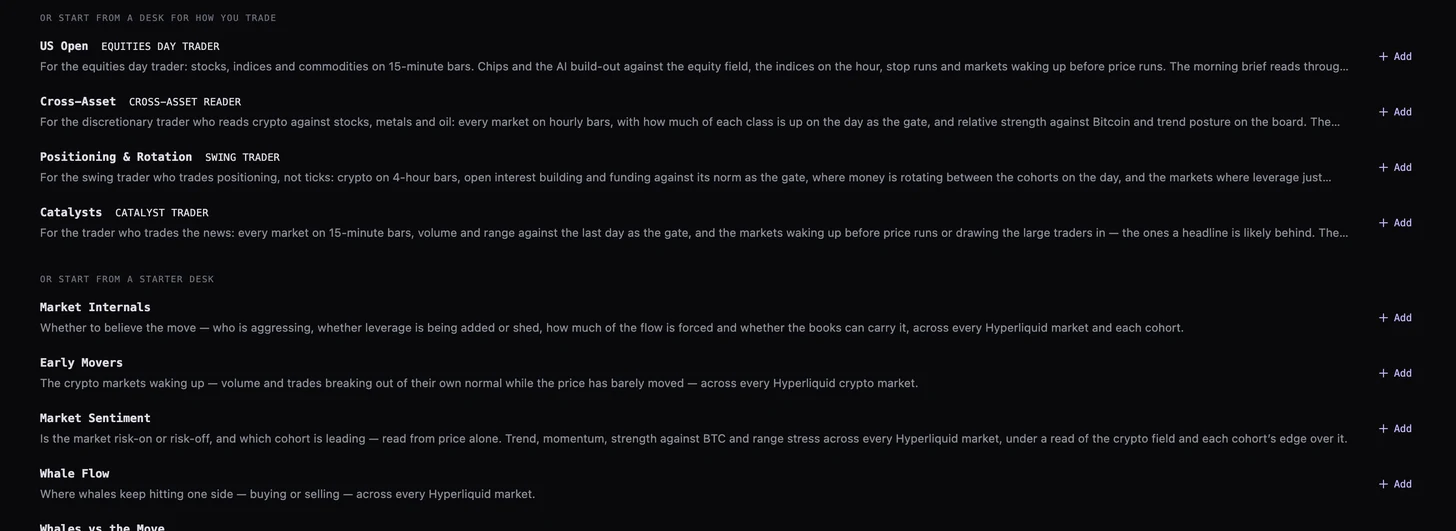
New

Starter desks for how you trade

The New desk view: a shelf headed “Or start from a desk for how you trade” listing US Open (equities day trader), Cross-Asset (cross-asset reader), Positioning & Rotation (swing trader) and Catalysts (catalyst trader), each with a line on what it reads, above the existing starter shelf.

New desk now opens with four desks shaped for a trader type, above the starter shelf: US Open for the equities day trader (stocks, indices and commodities on 15-minute bars, chips and the AI build-out against the equity field), Cross-Asset for the discretionary reader (every class on hourly bars, breadth on the day per class as the gate), Positioning & Rotation for the swing trader (crypto on 4-hour bars, leverage and funding as the gate, the cohorts’ rotation), and Catalysts for the news trader. Add one and it is yours, beside the desks you have — and the market read can be read through it.

Improved

The market read, through your desk

Ask for the market read or the morning brief through one of your desks and it comes back in your universe: the regime over just your markets, where the money went and what was unusual inside them, the playbook conditions that touch them, your own regime rows live, and the markets your signals light right now — beside the house read, nothing rewritten.

Improved

The US open, read in its first 15 minutes

Right after the first 15 minutes of the US cash session close, the market read writes what the open did across every market — which stocks and indices gapped and held or faded, what crypto, gold and oil did into it, where the money went — on 15-minute bars, with a playbook that runs to the US cash close. Ask your AI for view: open.

Improved

A morning brief at the US pre-open

Each weekday at 13:00 UTC (6am Pacific) the market read writes a morning brief for a trader starting the US day: what happened across every market since New York closed, the regime, and a playbook that runs to the US cash close — ask your AI for the brief over the connector or the API.

Improved

The market read leads with the money

The read now opens with the window’s cross-asset split when there is one and the biggest single flow right behind it — so Bitcoin’s or Ether’s money is never missing from a read led by a smaller story — ranks its money stories by the money rather than the move, and no longer calls anything the biggest, busiest or most unless its own numbers say so, or cites a pair that is trading the way it usually does.

Improved

Ask the market read what changed since you looked

Your AI can now ask the market read for only what changed since it last looked — the reads written since, the playbook conditions that flipped, and over the hours since: where the biggest money went, money that reversed, open interest that turned, volume far above normal and the biggest movers — instead of re-reading the whole session every time. Pass since with the time of your last look, or how long ago, over the connector or the API.

Improved

Your AI pages back through history faster

When your connected AI pages further back through a market’s candles, each older page now comes back on its own instead of waiting while your whole desk is scored again for a live read it already has. The market as it is now still comes with the first call, and every older page says how to get it again.

Improved

Proof against your own event

Proof now grades a signal against an event you define — a pump, a breakout, or your own list of market-and-time alerts — and says how often it lit before the event, how many candles early, how often it lit for nothing, and what the same signal catches by pure chance, all in one answer from the desk chat or your connected AI. It can grade a window that ended in the past, so last month grades while its candles are still stored.

3 fixes
Fixed

Proof stops ranking a screen by list order

A screen lights every market it holds on with the same score, so there is no best or worst among them — but Proof compared them anyway, in the order the board listed them, and could call that an edge that clears trading costs. It now says the ranking check doesn’t apply to a screen, and on any signal, markets that share a score count evenly.

Fixed

The chat checks the indicator before naming a side

Ask the chat which side a screen’s markets are on — overbought or oversold, above or below a band — and it now reads each market’s actual indicator value, such as its RSI, instead of the board’s score, so it no longer names one side and then the opposite a message later. A signal made only of on/off conditions all pointing one way — a screen or not — now lists the markets it holds on rather than calling them buys (one whose conditions point opposite ways, such as a bullish and a bearish cluster, still reads buy or sell, as the board paints it) — and where only some of its conditions are true, it says how many and which, so “RSI over 70 and volume above average” no longer reads as a match on a market where only the volume is high. Where one holds inside a market’s Total the read also says what that Total is without it, so a screen that holds on both sides, such as RSI outside 30–70, is never taken for the market’s side — in a market’s history too, bar by bar, including where that vote cancels the rest to flat, and in the morning catch-up. Ask for the board’s sell-side or buy-side markets and it picks them by the board’s own colours, then names the markets a screen moved — so an oversold market an RSI screen holds on is named in a sell-side answer, and a bullish-cluster or new-high screen’s markets still answer a buy-side ask. Your connected AI reads the board the same way.

Fixed

The chat sorts the board by an indicator

Ask the chat to sort your board by an indicator — “sort all markets by 1h RSI” — and it now ranks the markets against each other by that indicator, lights it on its own (naming the signals it switched off, so you can turn them back on) and sorts highest first. Before, it could add the indicator beside your other signals and say the board was sorted when the order had not changed.

New

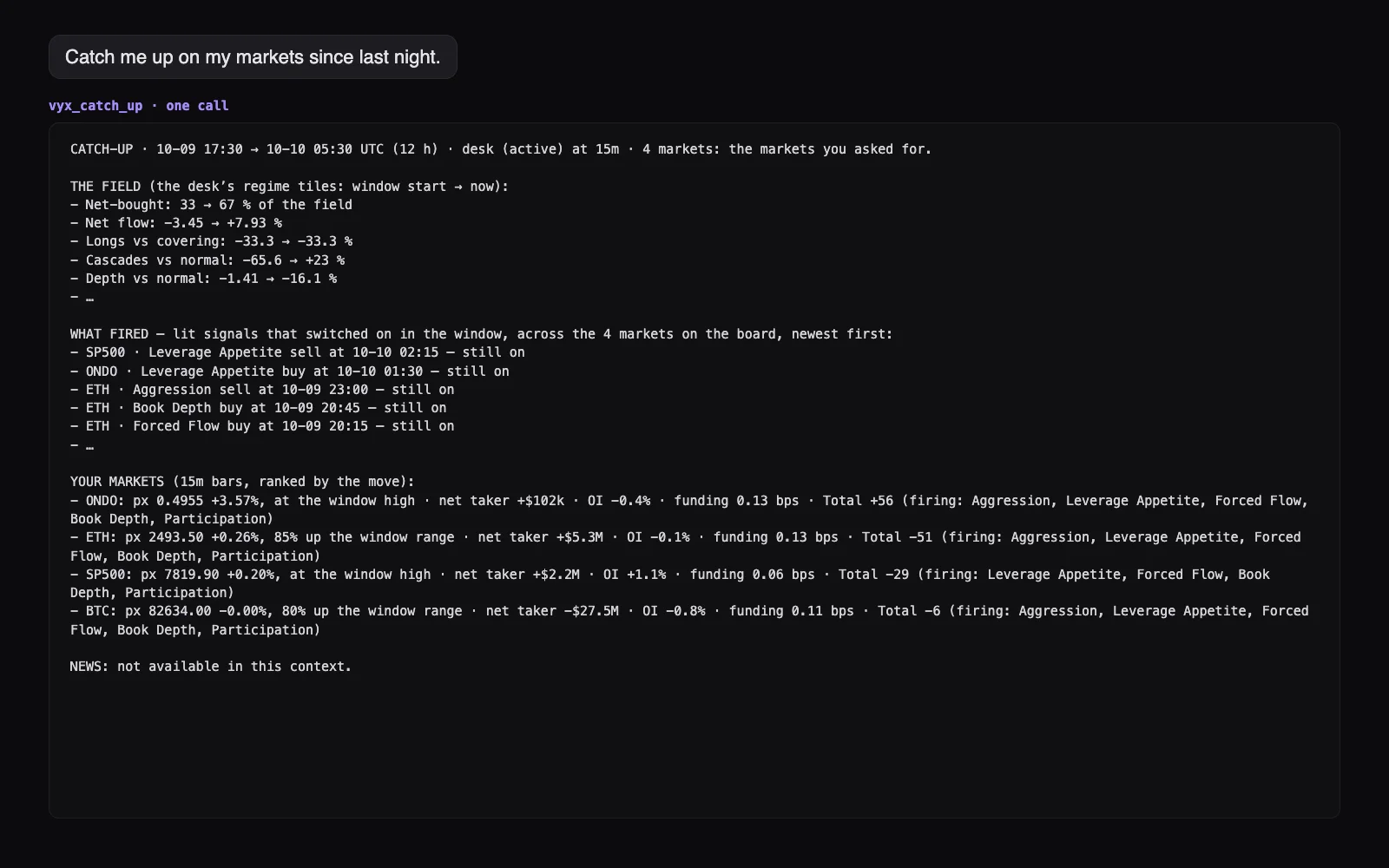
Catch up in one call

A connected AI asked to catch up: one answer listing how the desk’s regime readings moved overnight, the signals that switched on per market, and a line per market with its move, taker flow, open interest, funding and score.

Ask your connected AI what you missed and it now answers in one step: how the desk’s regime readings moved, which of your signals switched on and where, how each of your pinned markets moved with its flow, open interest and funding, and the news in between — instead of reading the board and then every market one by one.

Improved

Your AI tells the story of each session

Your connected AI’s market pulse now carries the market read: ask for it and your AI gets the story of the session that just closed — Asia, London or New York — across every liquid market on Hyperliquid: crypto, stocks, indices, gold and oil, currencies. Which groups moved together and which broke apart, where the money went, who is building positions and who is leaving, and the headlines that ran alongside. Each storyline comes with what would confirm it and what would break it by the next open, and once that time passes, which one happened. Every number in it is measured, and it never tells you to buy or sell.

Improved

Early Movers opens faster

Switching to the Early Movers desk used to hold the page for a few seconds on a slower laptop or phone while it worked out every market’s usual volume; it now takes about a third of that time, and no single pause is longer than about a second. Any desk or signal you build on a market’s typical value over recent bars, or where this bar ranks among them, scores faster the same way — with exactly the same numbers.

7 fixes
Fixed

Enter presses the button you’re on

With the order ticket open, Enter on a button you reached with the keyboard — a column’s Move left or Move right, a menu item, the order preview’s Discard — now presses that button and never the ticket’s Send, and keys pressed inside an open menu stay in that menu. Enter with nothing selected, or after clicking a button, still sends as before.

Fixed

The phone Screen stays on your chart’s market

On a phone, opening the Screen tab no longer switches the chart to another market by itself. The Screen’s marker and its Columns sheet now sit on the market your chart shows, and stay with it as the list fills in and re-sorts. A market your chart shows that the Screen doesn’t list — opened from a link, say — rides on top as its own row marked not on Screen, so the marker and the Columns sheet read that market and never the first row’s; swiping, scrubbing or tapping a row still moves the chart as before.

Fixed

The phone chart names its market again

On a phone, the top line of the chart now reads the ticker and then the market’s full name — Bitcoin Dominance, NVIDIA Corporation — the same name the desktop shows, so an index such as Bitcoin Dominance no longer looks like the Bitcoin price.

Fixed

Desk links open on the market they name

A desk link that names a market, such as oil, a stock or an index (vyx.app/trade?workspace=imbalance-scan&symbol=CL), now opens on that market on a phone too, instead of on the last market of the board. A market below the desk’s liquidity floor is pinned to the top of the board, so it always has a row.

Fixed

The phone’s Now button stays off the market’s name

On a phone, the Now button that shows once you scroll the chart back in time now sits in the chart’s empty bottom-right corner, where the time and price axes meet, so it no longer covers a long market name such as WTI Light Sweet Crude Oil. Tap it to jump back to the newest bar, as before.

Fixed

No false buying across a data restart

Net buying and selling over several bars — change(cvdClose, n), and any average, sum or high of a bar’s delta — used to read the moment our market data restarted as a burst of buying or selling bigger than all the trading in those bars. A delta that reaches across that bar now reads n/a and says why, and reads normally again once its window has moved past it.

Fixed

Quiet markets no longer show fake bursts of buying

On a thinly traded market, the first bar to trade after a bar with no trades used to read all the net buying since our data began as that one bar’s flow — a $15 trade could show as $42,000 of buying, sometimes on the wrong side. A bar with no trades now holds the running total where it was, so the next bar’s delta, change(cvdClose, n) over a quiet stretch, and the chart’s delta bars read only what actually traded.

New

Screen columns you can chart

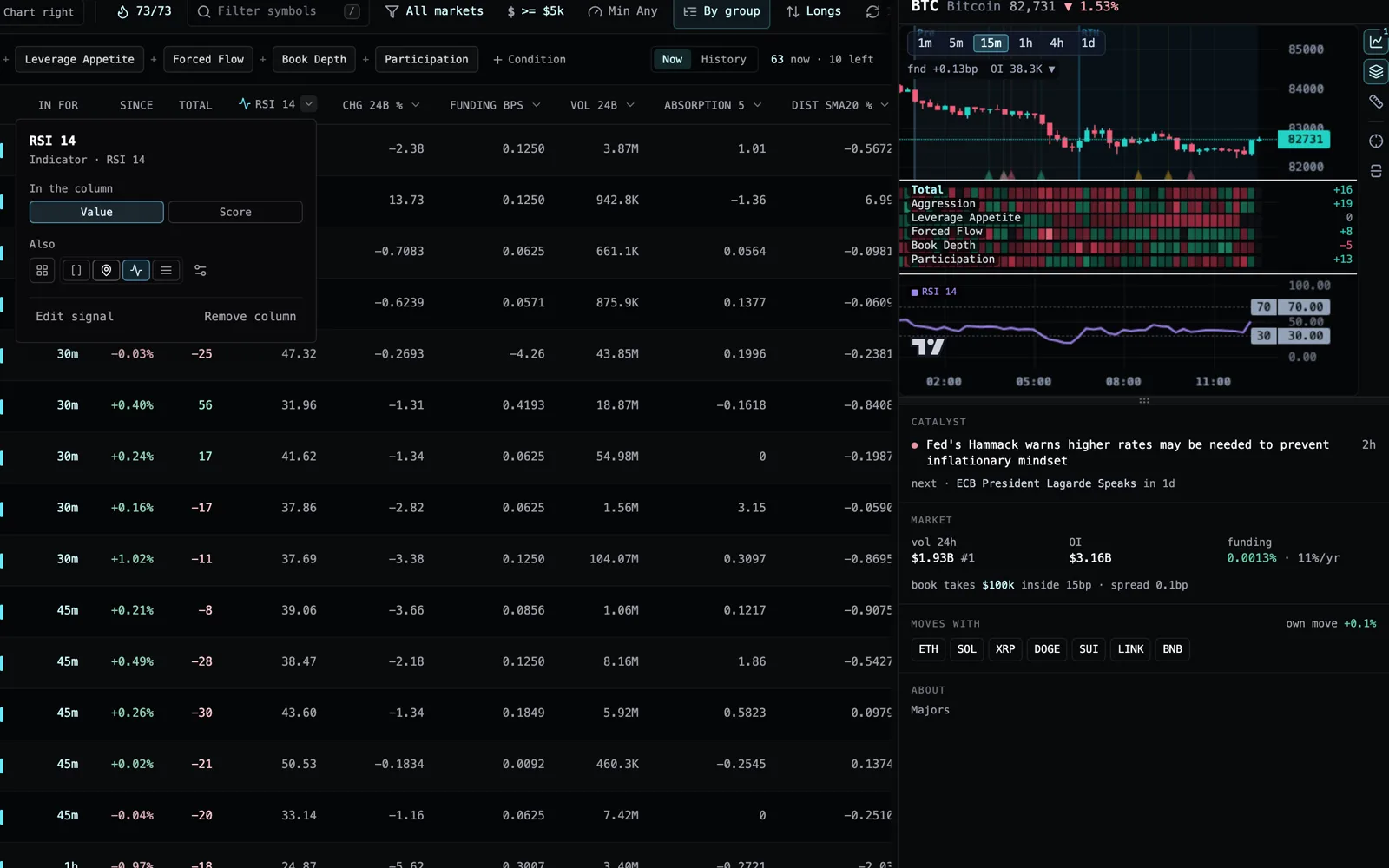
The RSI 14 column’s menu open on the Screen, with Line turned on, and RSI drawn in a panel under the BTC chart.

Every column on the Screen is now a signal, so it can do everything a signal does. Open the arrow beside a column’s name and turn on Line to draw it in a panel under the chart, or Strip to add it as a row there; switch the column between the signal’s value and its score; or put it into the board’s ranking with Score. A column on its own never changes how the board ranks markets.

Improved

Your AI sees what is unusual for this hour

Ask your connected AI for the market pulse and it now leads with the coins doing something out of character for the hour that just closed — volume, net buying or selling, how many traders took part, book depth, spread — each measured against that coin’s own normal for that hour of the day, not against other coins. It also knows which session is open, what economic releases are due today, can read the whole Asia, London or New York session at once, and sees what the options market prices for BTC, ETH, SOL, HYPE, XRP, AVAX and TRX: the move it expects over the next hour and day, and whether downside protection costs more than upside.

Improved

Changing timeframe never blanks the desk

The BTC desk mid-switch from 15m to 1h: the 15m chart and the board are still on screen, dimmed, with the 15m chip lit and the 1h chip dashed while it loads.

Switch to a timeframe that still has to load and the chart, the board, its row order and its counts stay where they were, dimmed, while the new chip waits dashed. When the new timeframe arrives, everything changes together in one step, so a slow connection no longer leaves you looking at an empty grid.

Improved

Put your Screen columns in order

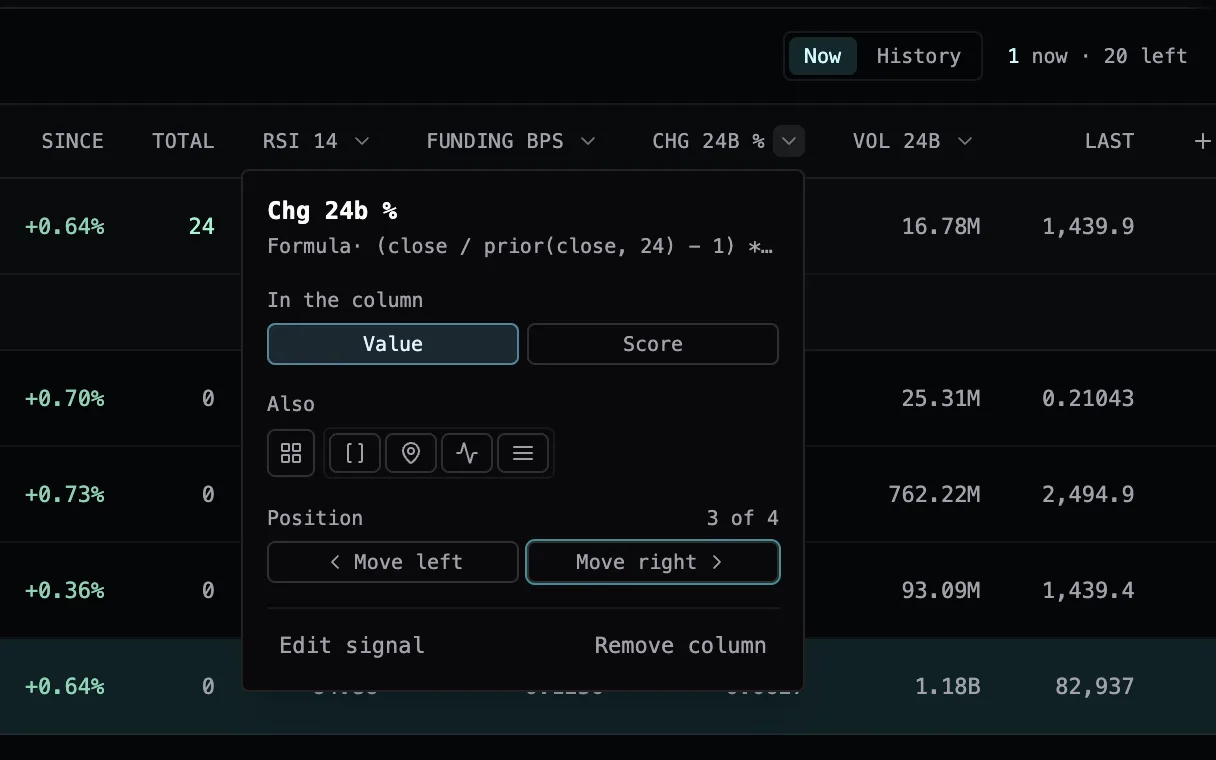
A Screen column’s menu open under its header, showing Position 3 of 4 with Move left and Move right buttons above Edit signal and Remove column.

Drag a column’s header on the Screen to move it left or right, or use Move left and Move right in the column’s menu, which works from the keyboard too. On a phone, Move up and Move down sit in each column of the Columns sheet. The order is saved on the desk and follows you to every device.

Improved

Crypto-wide news on every crypto chart

A story about crypto as a whole — an exchange outage, a wallet breach, a stablecoin rule — now marks every crypto market’s chart and the crypto-linked stocks, not just the coins it happens to name. Your AI sees the same stories when it checks a market’s news.

Improved

One window to add signals and columns

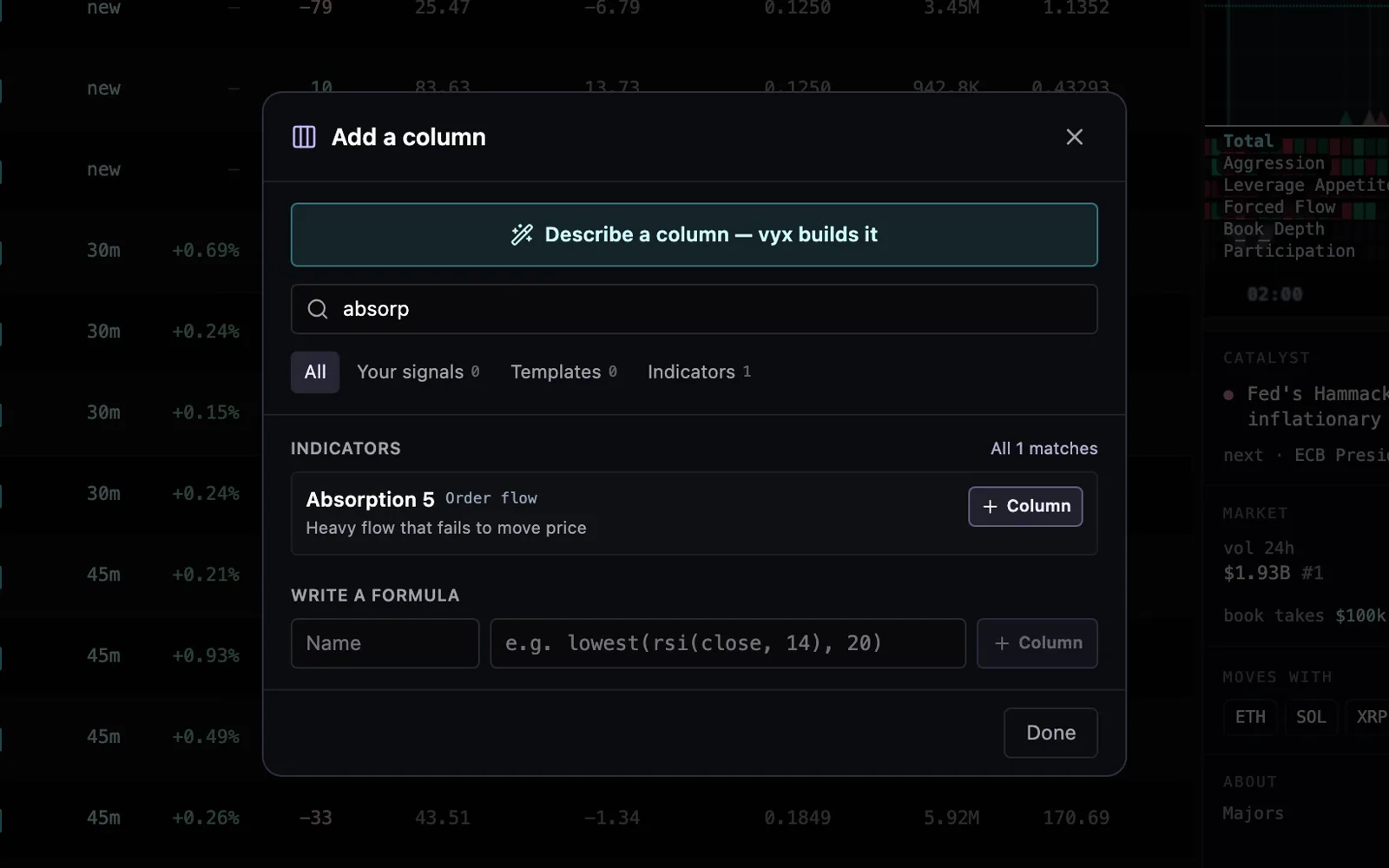
The Add a column window: Describe a column at the top, a search for absorption, tabs for All, Your signals, Templates and Indicators, the Absorption study with a Column button, and a field to write a formula.

Add a signal now lists everything in one place — your signals, the templates and every indicator study from the chart — with tabs to narrow it and a search that works inside each tab. Describe what you want and vyx builds it. A Screen column’s + opens the same window, and whatever you pick becomes the column; you can still type a formula.

Improved

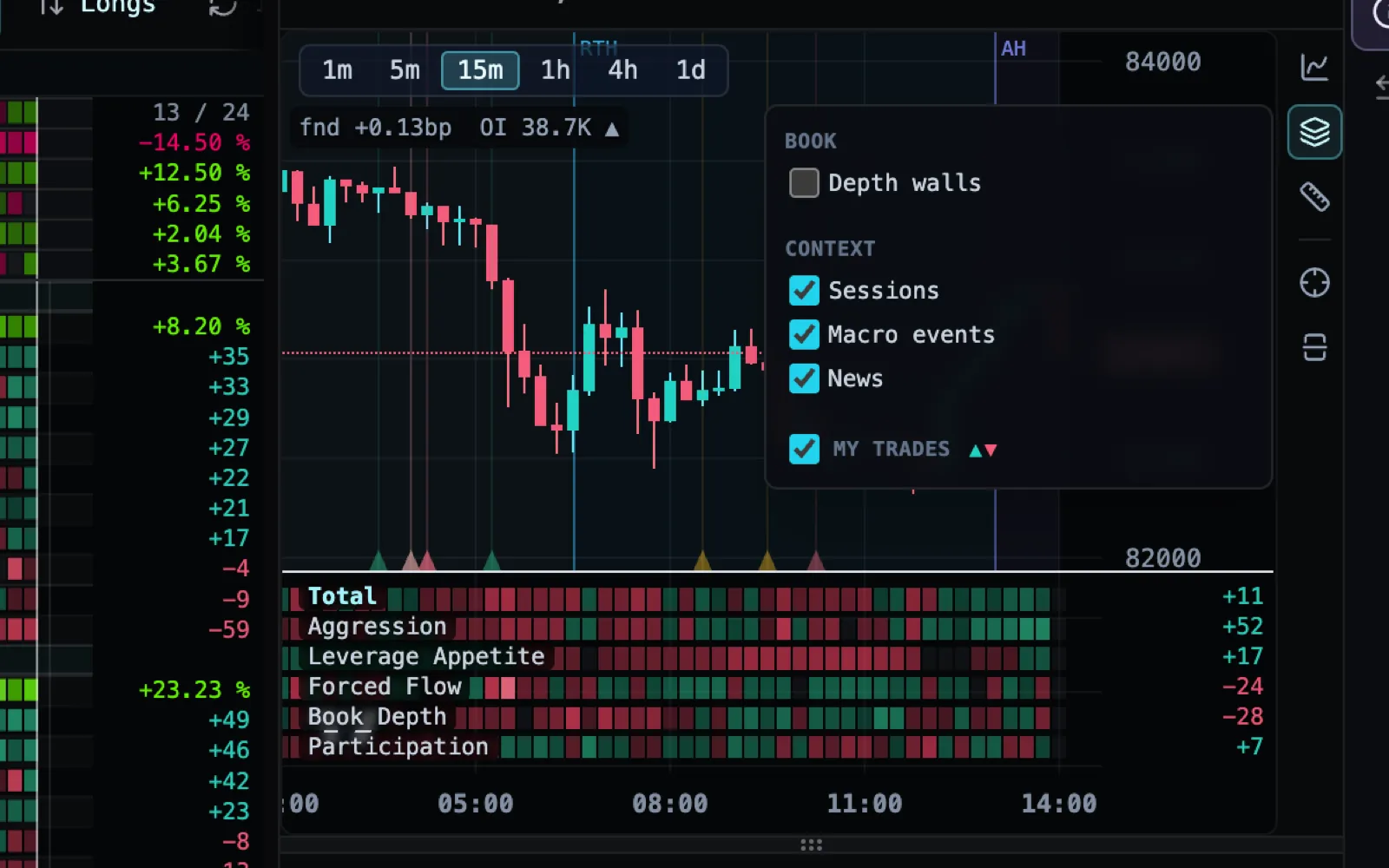
Sessions, Macro events and News in the chart’s Layers

The BTC chart with the Layers menu open: Depth walls under Book, Sessions, Macro events and News ticked under Context, and My trades ticked below.

The Layers button in the chart’s tool rail now holds Sessions, Macro events and News beside Depth walls and My trades, so you can show or hide the session shading, scheduled releases and a market’s headlines right from the chart. All three start on. Your desk’s signal rail still lists them too, and the two stay in step.

Improved

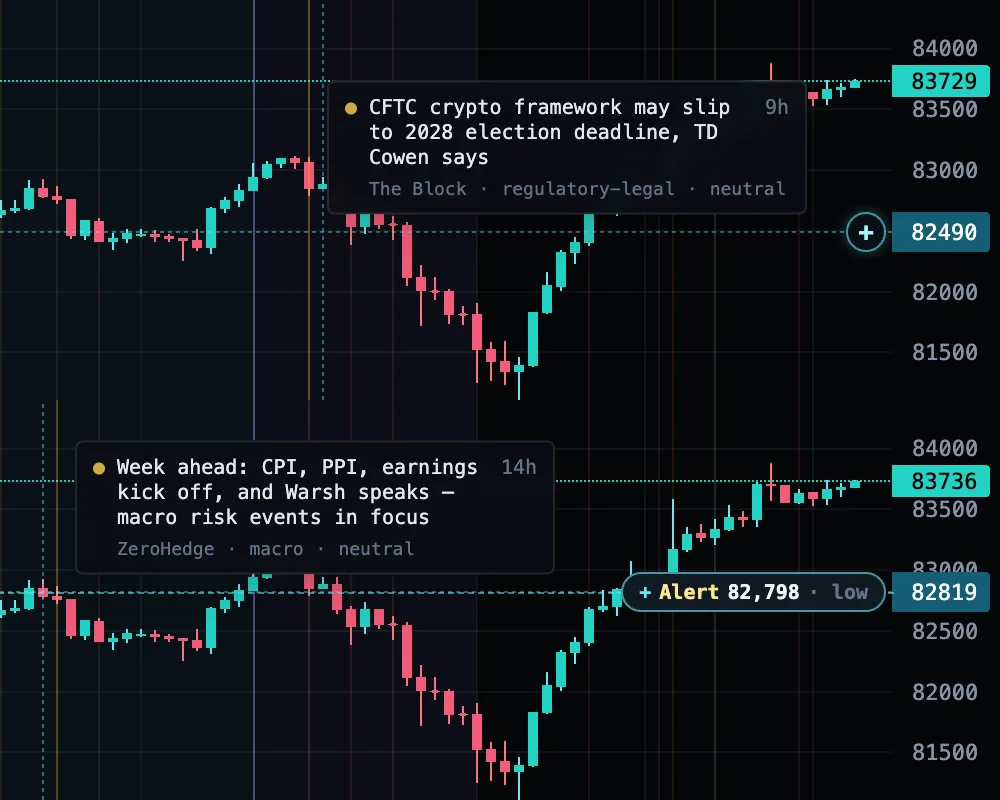
A small + on the desktop chart

Two views of the BTC chart on desktop. Top: the pointer over the candles, with only a small + beside the price scale at 82,490. Bottom: pointing at the + opens it into "+ Alert 82,798 · low".

On desktop, the handle that follows your pointer up and down the chart is now the same small + the phone uses, sitting beside the price scale instead of a wide label over the candles. Point at the + and it opens to show what one click does at that price, an alert or the order you are staging, and right-click still gives every option.

Improved

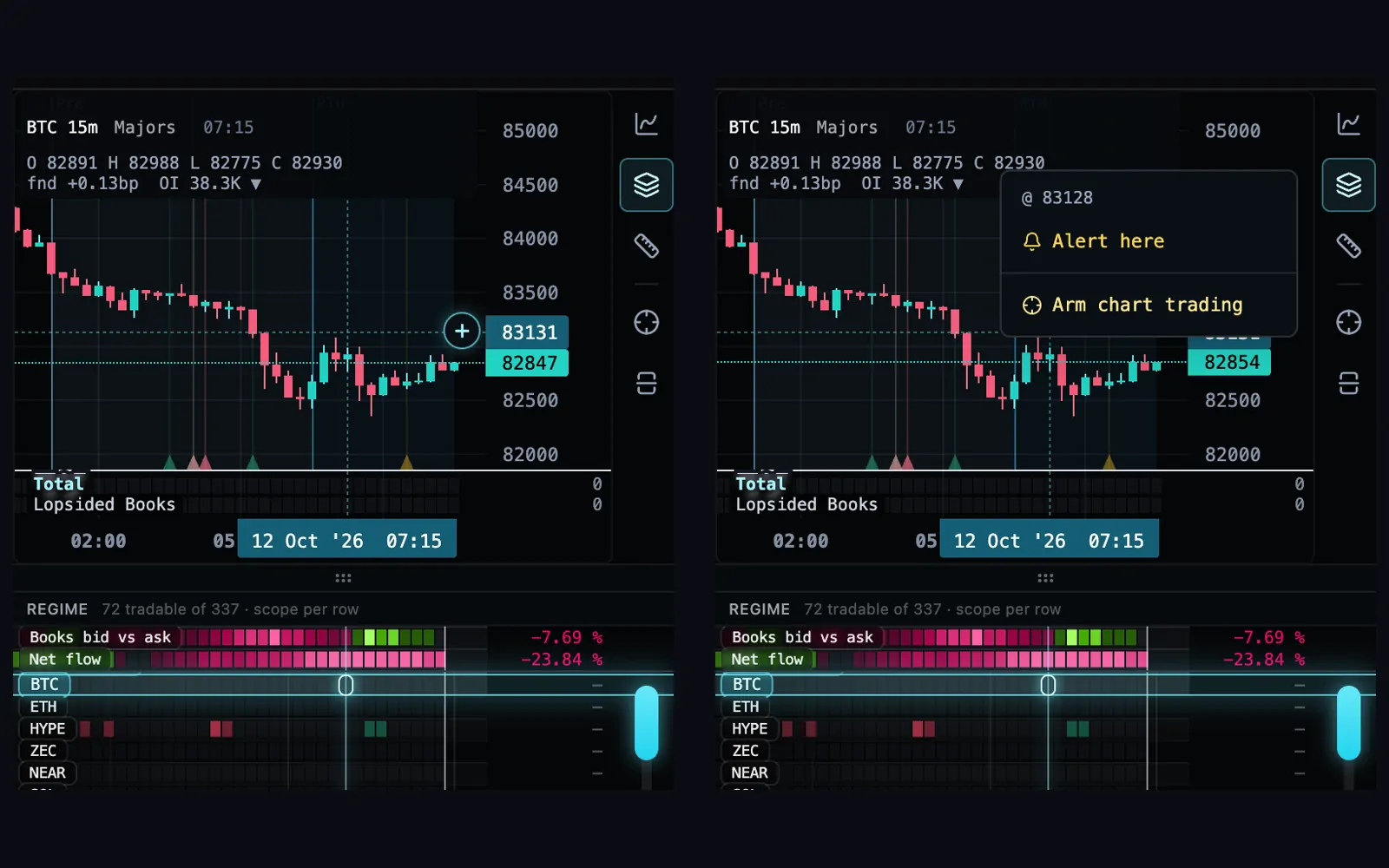
Crosshair and + on the phone chart

Two phone views of the BTC chart. Left: a long-press shows the crosshair at 83,131 with a small + beside the price scale, and the board’s BTC row marks the same bar. Right: tapping the + has opened a menu at that price with Alert here and Arm chart trading.

On a phone, a long-press on the chart now brings up just its crosshair, and the board below follows it from the very first press. A small + sits on the crosshair’s price line: tap it to set an alert or place an order at that price. Holding no longer pops a menu, and nothing floats over the candles.

Improved

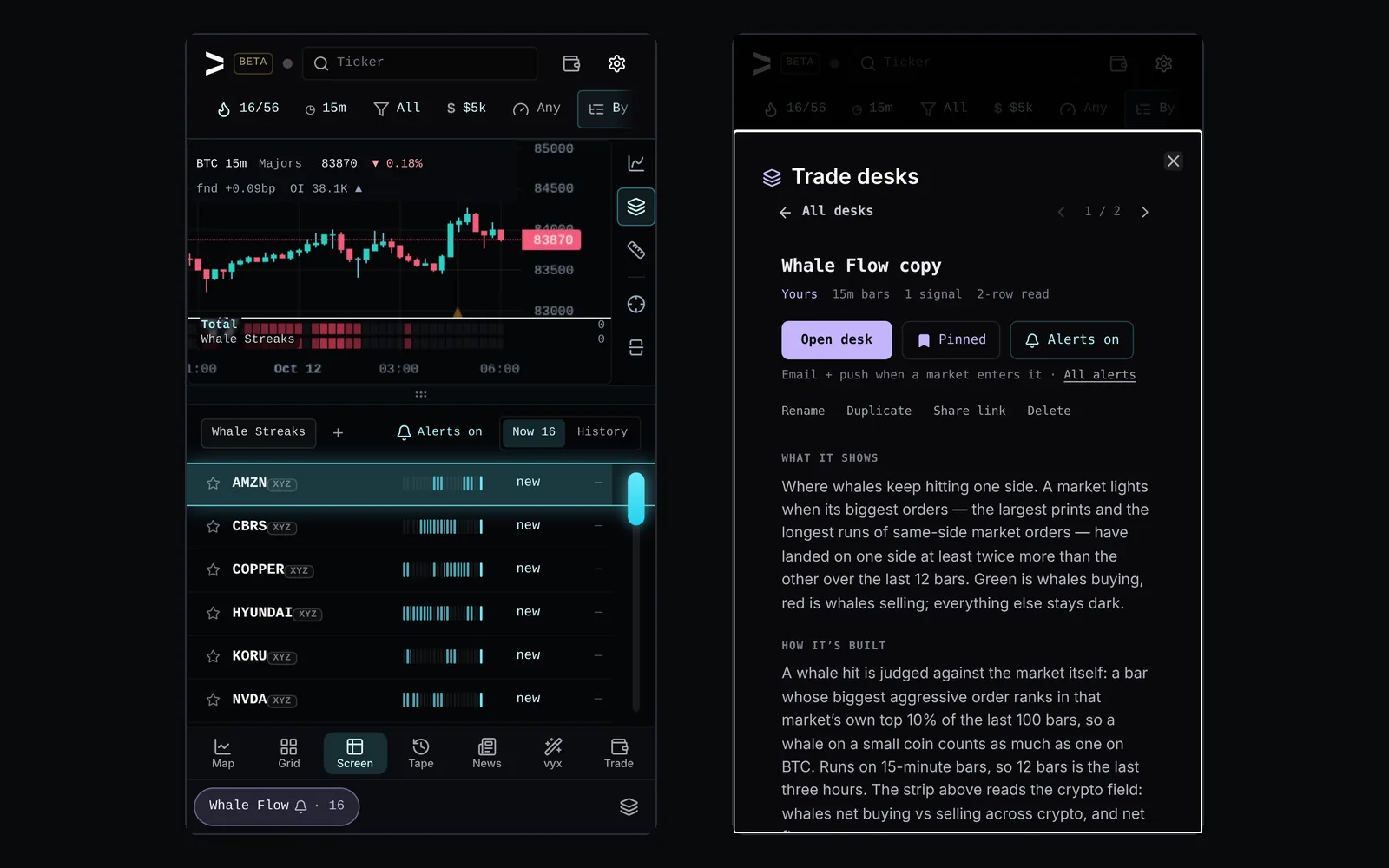
See and switch a desk's alerts on a phone

Two phone screens: a desk's Screen with Alerts on beside Now and History and a bell on the desk's tab at the bottom; and the desk's page in Trade desks with an Alerts on button beside Open desk and Pinned.

A desk of yours that emails and pushes you when a market enters it now says so on a phone: a small bell on its tab at the bottom, and the same Alerts on / off switch on its Screen that a computer has. Every desk's page in Trade desks carries the switch too, beside Open and Pin, with a link to all the alerts you get.

Improved

Faster signal history for your AI

When your AI reads how a signal scored over a market’s history, or the levels a signal draws on one market, it now gets the answer in a fraction of the time. The bars and scores it reads are exactly the same.
7 fixes
Fixed

Funding boards your AI reads

When your AI reads the order-flow pulse, the funding and squeeze boards now measure funding from Hyperliquid’s normal hourly rate rather than from zero. A market sitting at that default rate no longer shows up as a funding extreme, or as crowded longs about to be squeezed just because it had a red hour.

Fixed

Watching the next bar with vyx

Ask vyx to watch the next bar and it now tells you when that bar closes and what it has done so far, instead of reading you a bar it already described as if it were new. Ask again once it closes and vyx reads how it ended.

Fixed

The vyx tab with reduced motion

On a phone set to reduce motion, the vyx tab now shows a hollow ring while vyx is working and a solid dot once it has answered, so the two no longer look the same without the pulse. A screen reader hears which one it is.

Fixed

Formulas that name the field you meant

When a formula uses a name vyx does not know, the message now says the right one: openInterest points you to oi, oiChange to oiDelta, fundingRate to funding, liquidity to the book depth (cumBookNotional), liquidations to liqNotional, cvdChange and volumeDelta (buys minus sells) to change(cvdClose, n), a bare delta to that bar’s buys minus sells as well as the book’s deltaImb, cumulativeDelta to the CVD line, deltaPct and deltaMa to that delta as a share of the bar’s volume and its moving average (or, written on a series like deltaPct(close, 14), to that series’ own change), maxDelta to how far it ran inside the bar, ofiDelta to change(ofi, n), rsi14 to rsi(close, 14), prev(close) to prior(close, 1), and a typo to the closest field — or, where you wrote a call, the closest function — never to one that measures something else. You and your AI get it right on the next try.

Fixed

Proof’s market-kind and cut lines

When Proof grades a signal by market kind, BTC and ETH against the rest, or by liquidity, a group whose fires rest on too few independent candles is now marked too thin to call. Your AI no longer reads a wide range as real attention where Proof’s own verdict still says the sample is too small.

Fixed

Each news story once

When a news site rewrites a headline after publishing it, the story now shows once, under its latest headline with one read of it, on your chart, in Catalysts and when your AI checks the news. It no longer appears twice with two different calls on the same article.

Fixed

Your AI follows up on built-in desk signals

Your connected AI can already score a signal from a built-in desk you have not added, such as Whale Streaks from Whale Flow. Now it can also read that signal’s history on one market and its level zones, on the same timeframe the desk uses, and nothing is saved to your account. Before, those two follow-up reads said the signal did not exist.

New

Close a support conversation when it's sorted

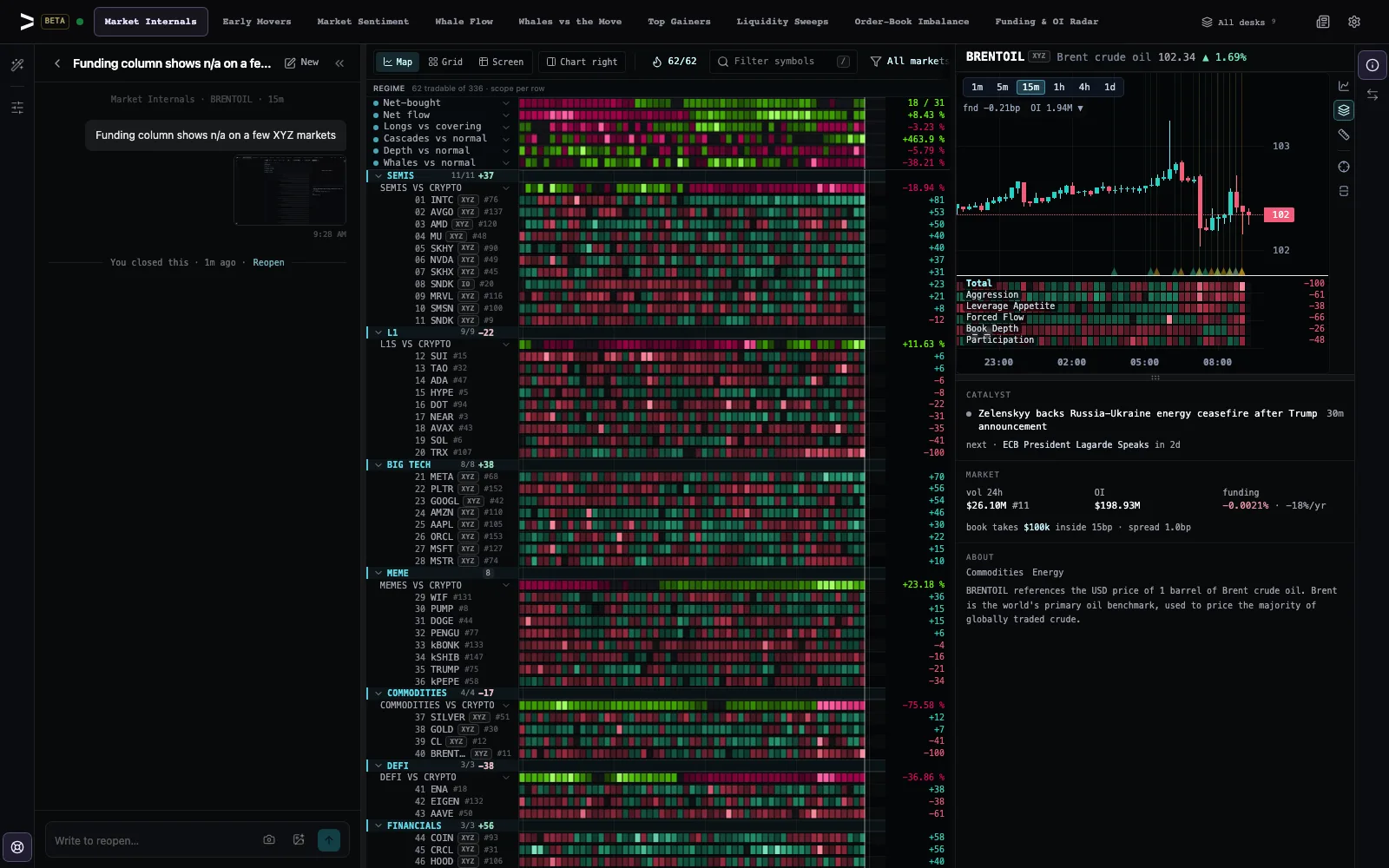
The vyx desk with the Support panel open on the left: a conversation about the funding column, its screenshot, and a line under it reading "You closed this · 1m ago · Reopen", with the reply box now saying "Write to reopen…".

Each conversation in Support is now open or closed. Once your question is answered, press Close at the top of the conversation and it moves out of the way, marked Closed in your list. We may also close one after we answer it. If anything comes up again, just write in it, or press Reopen, and it opens again.

New

Grade a signal on crypto alone

Ask Proof for crypto only — in the desk chat or from your own AI — and it grades just those markets, so each candle is measured against crypto’s own moves rather than a board mixed with equities and indices. Every grade now also shows how the signal did on each kind of market, on BTC and ETH against the rest of crypto, and on the most and least traded markets, each against that group’s own usual moves and with how often it fired and a 95% range, so a result that rests on a handful of fires reads as one.

Improved

Starter desks are simply yours

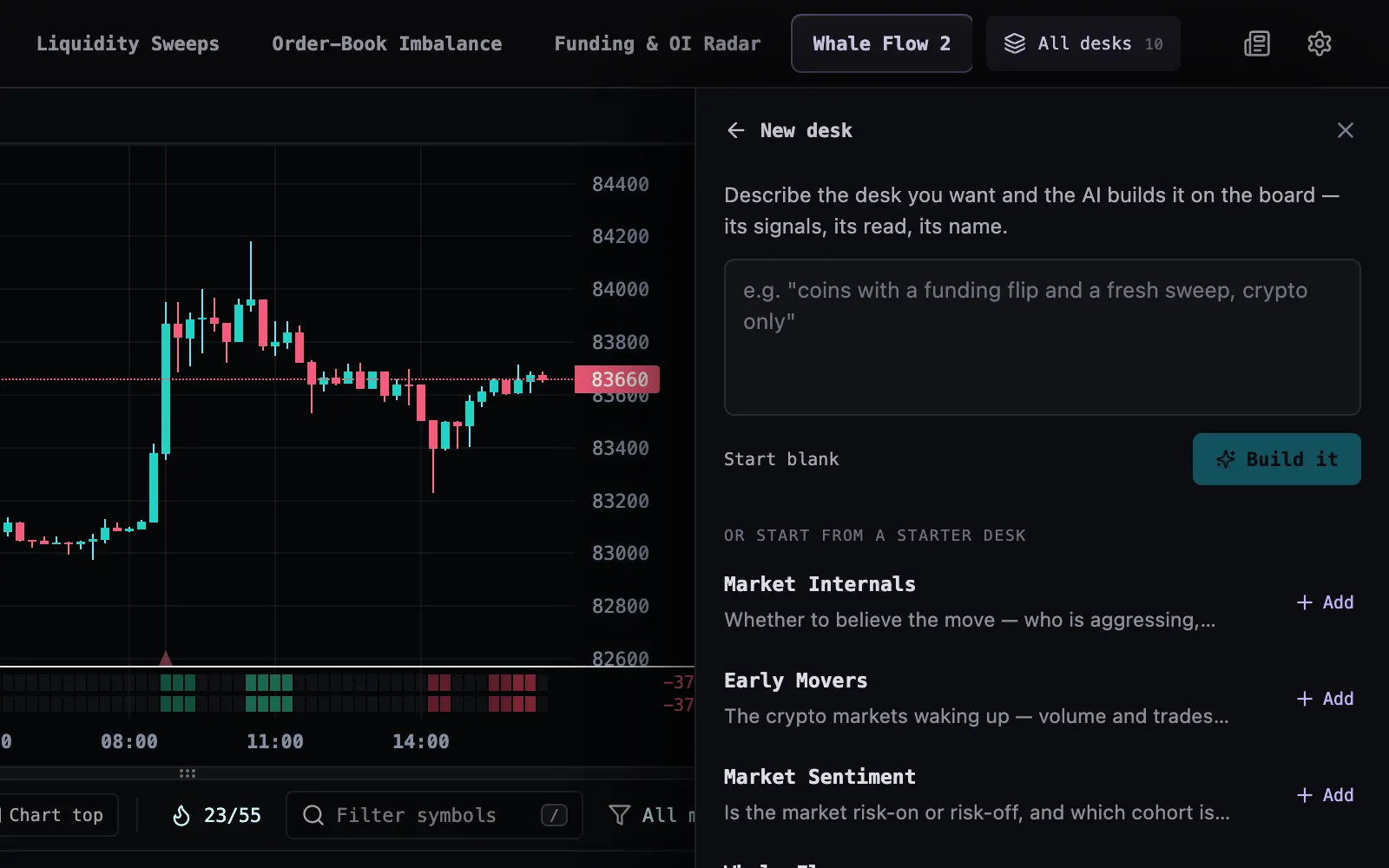
The vyx desk with All desks open on New desk: below the box to describe a desk and Start blank, a list headed "Or start from a starter desk" shows Market Internals, Early Movers and Market Sentiment, each with an Add button; a fresh "Whale Flow 2" tab sits at the end of the desk tabs.

Your starter desks, from Market Internals to Funding & OI Radar, are now your own desks like any other: change one and it saves there, with no edited dot and no Reset to original, and Delete just deletes. To start again from a starter as it ships today, open New desk in All desks and press Add beside it, and a fresh one joins your tabs next to yours.

Improved

The Workbench is back

The charts and studies vyx makes — and the ones an AI you connect files, its setup cards included — have their own place again: the Workbench, a tab in the desk’s left rail (beside Chat on a phone), on every plan. The vyx panel is back to being a chat with vyx about your desk.

Improved

Add columns to a built-in desk

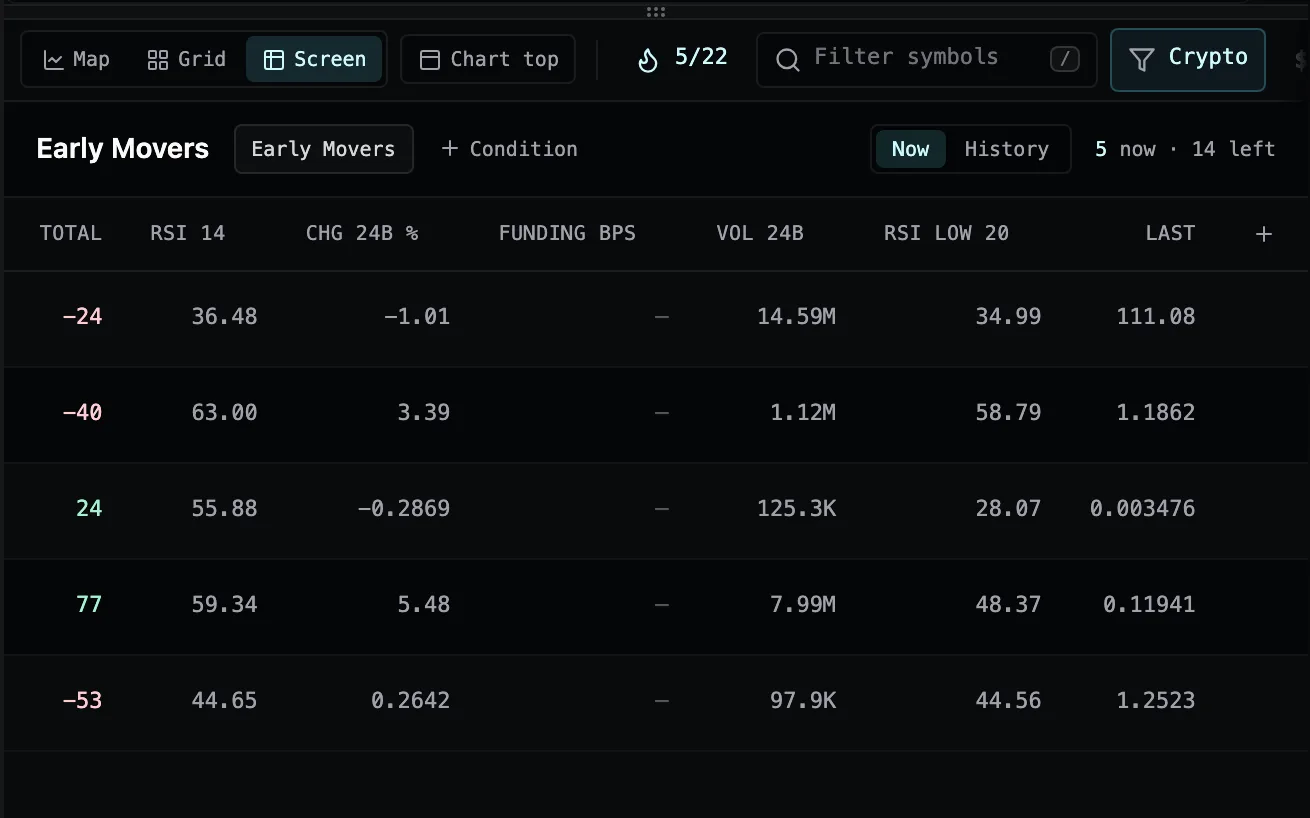
The Screen view on Early Movers with a new column, RSI low 20, added between Vol 24b and Last, and the + at the end of the header row ready to add another.

The + at the end of the Screen's columns now works on every desk. On a built-in desk such as Early Movers, adding or removing a column makes the desk your own copy in the same tab, as any other change to its board does, and Undo puts the original back. Before, the + sat greyed out until you cloned the desk yourself.

Improved

Step through your support conversations

Inside a Support conversation, the up and down arrows at the top move to the previous or next one in your list, so you can read through every reply without going back to the list each time. On a keyboard, J and K do the same.
9 fixes
Fixed

ChatGPT connect steps

The steps for adding vyx to ChatGPT — on the vyx panel, in the docs and in the chat — now follow ChatGPT’s current menus: Plugins, then + and Add custom MCP server. The panel’s Open ChatGPT button lands on Plugins.

Fixed

What's new no longer hides under the phone's clock

In the iPhone app, What's new, Support, Signals and the reference docs now open below the clock and battery, so their title, links and close button are always in reach instead of sitting under the status bar.

Fixed

A signal row that reads n/a says why

Under the chart, a signal row that cannot score now says why beside its name: on BTC, Relative Strength vs BTC reads "not applicable on BTC, the market it measures against", and hovering a bar a row could not score, such as one still warming up, shows that bar's reason. Before, the row sat blank with a bare n/a, so it looked broken or still loading.

Fixed

The Screen follows your pointer and shows your lock

In the Screen view, moving the pointer over a market now shows its chart straight away, the same as on the Map and Grid, and clicking a row locks the chart on it: the row lights up with a lock icon, and a second click releases it. With a market locked, ↑ and ↓ step down the Screen in the order you see it, on Now and on History alike. Before, the chart only changed on a click, a market locked on the Map stayed locked with nothing in the Screen showing it, and the arrows stepped through the Map's order instead.

Fixed

The Screen's History opens again in Chrome

On your own desk, pressing History on the Screen did nothing in Chrome, Brave and Edge once the log had anything in it: the button lit and the list never changed. It now lists every market that entered and left the screen, with the time each one did.

Fixed

vyx reads a built-in desk as you see it

On a built-in desk you have not changed, such as Early Movers, vyx now reads the board as it is on your screen: crypto only, grouped and sorted the way the desk ships. Before, it could tell you every market was in view while the board showed only crypto. Ask it to change the board, say to show all markets, and the desk becomes your own copy in the same tab with the change made, as your first edit there does.

Fixed

Editing a pattern reads its other timeframes

A pattern whose signals read another timeframe, say a 4-hour RSI on a 15-minute desk, now reads those candles when you edit it, even if it only runs as an alert and nothing on the board uses that timeframe. Before, the edit panel scored those signals as blank, so its evidence was off, saving a new range or weight could drop that part of the pattern, and a pattern built on such a signal alone said it had no shape.

Fixed

vyx sees your tag and watchlist scope

Scope the board to a tag like Meme, or to one of your watchlists, and vyx now reads exactly the markets you see and names the scope when you ask. Before, it said every market was in view and scanned ones your board was hiding. Ask it for "just memes" or "only my Majors list" and it sets the scope for you; "show all markets" clears every part of it, like the All markets button. The scope is now part of each desk too, so every desk keeps its own.

Fixed

Proof no longer passes a signal that lights everything

Proof now measures the markets a signal lights against every market on the board at the same candles, lit or dark. A condition that is true on every candle, or a coin flip, reads 1.00× and no edge instead of passing as attention, so a validated signal really picks out the markets about to move. An on/off screen is now also compared with the markets it leaves dark, and a candle where it lights a single market counts. Every built-in desk was re-graded the same way, and each desk’s page now says how far its lit markets moved and how that was graded.

New

Early Movers: the markets waking up

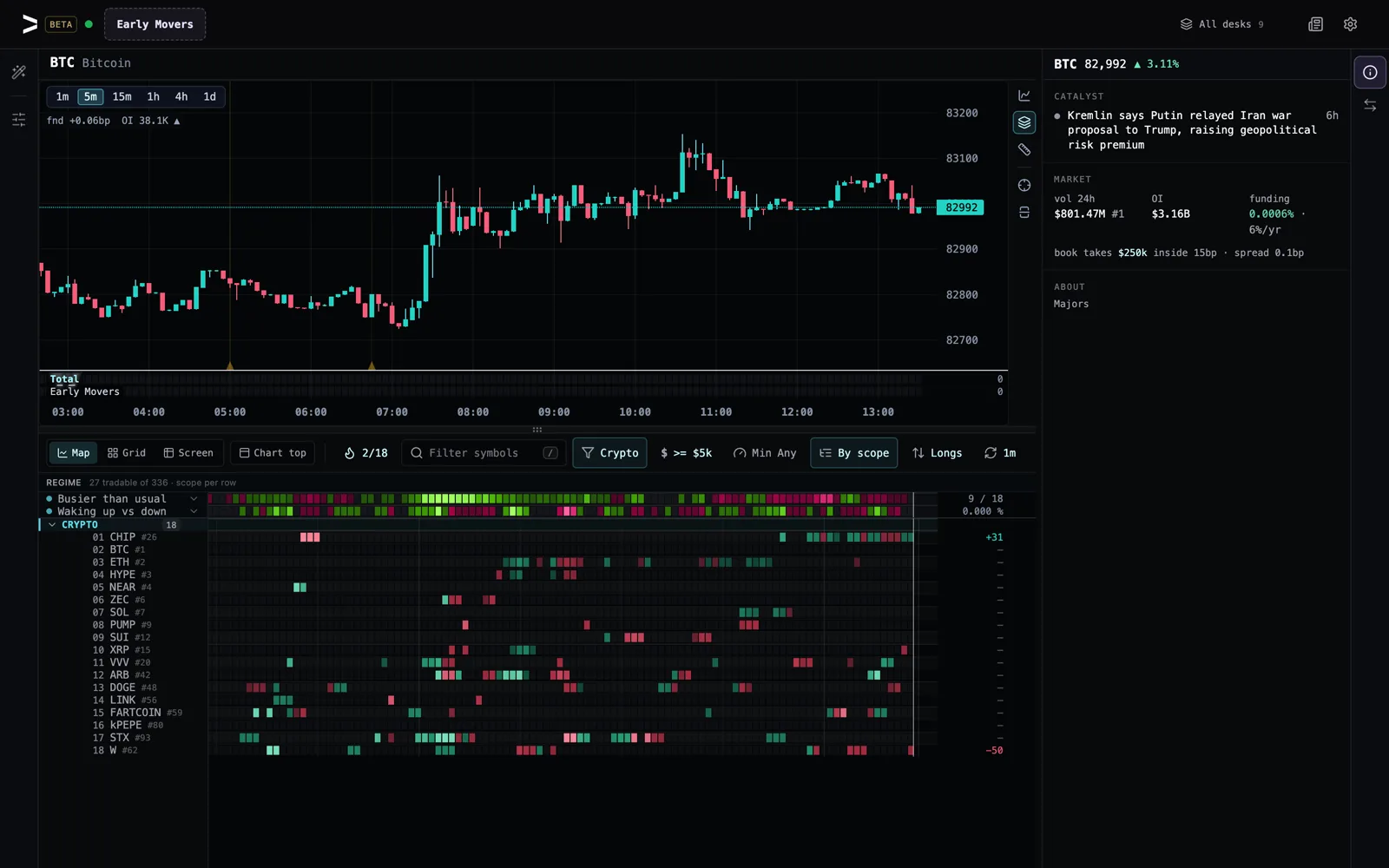
The Early Movers desk on vyx: eighteen crypto markets on 5-minute bars, lit green or red on the bars where trading picked up to at least twice its usual pace while price was still quiet, under two rows reading how much of crypto is busier than usual and how many markets are waking up against waking down.

A new built-in desk for the crypto markets waking up before price runs. A market lights when its last 15 minutes traded at least twice its usual volume and twice its usual number of trades while its price has barely moved yet; the strip above shows how much of crypto is busier than usual. In testing on two different weeks, lit markets moved about 1.35× as much as the rest over the next hour. The colour is only how those bars leaned — it says where attention is arriving, not which way price goes. Open All desks and pin it to your tabs.

New

Screens show the stage path

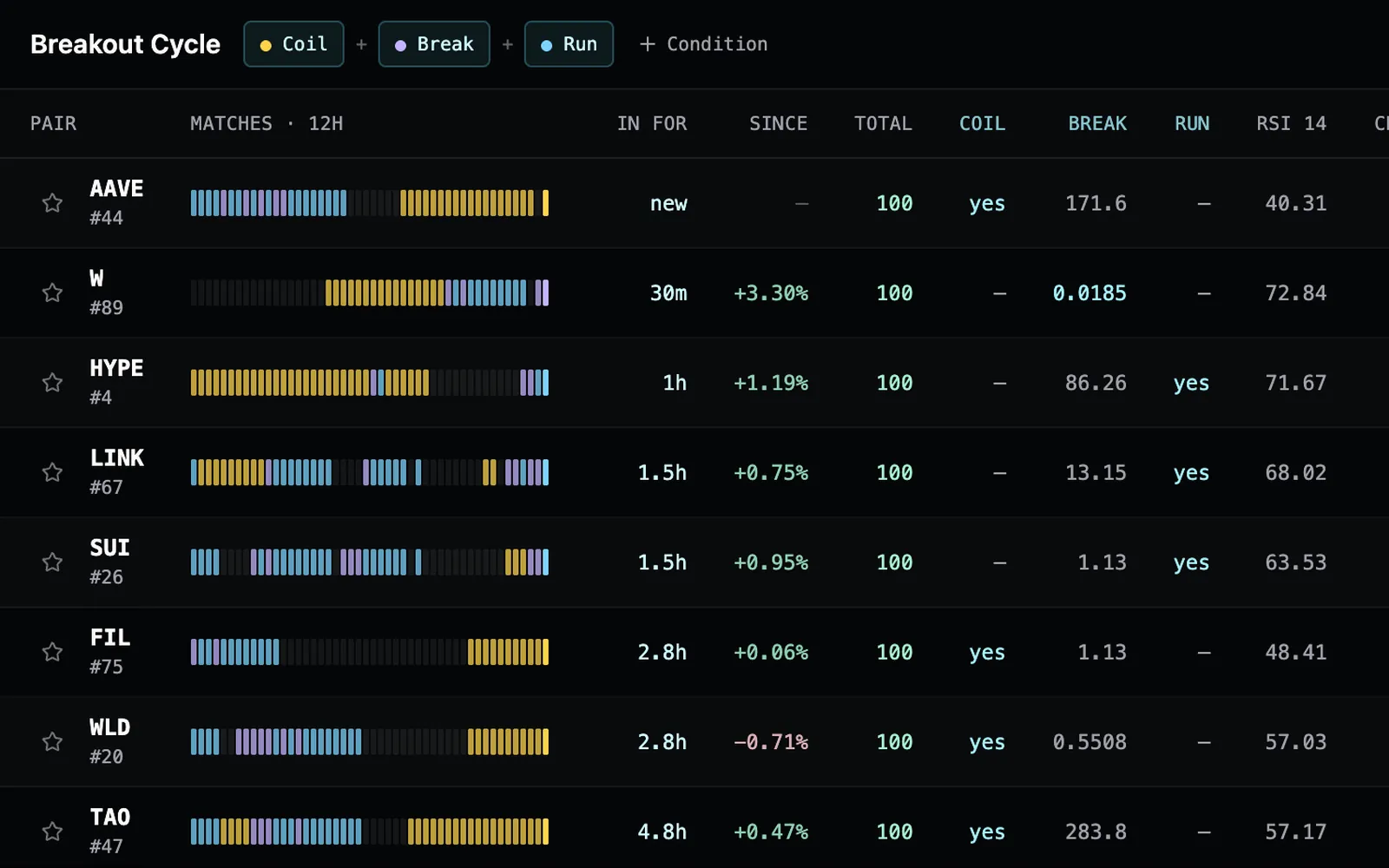
The Screen face on a three-stage desk: each market's 12-hour match strip in amber for Coil, violet for Break and sky blue for Run, so HYPE reads as six hours coiled and then a break, and FIL as a break and run followed by a fresh coil.

On a desk of two or more screens, the Screen face now colours each market's 48-candle match strip by the screen that held on each candle, with the same colour as a dot on each screen's name. A desk built as stages — coil, then break, then run — reads as the path every market is on, instead of one colour for all of them.

New

Ask vyx as much as you like on Free

On the free plan the vyx panel now opens straight on the chat, with no daily limit on questions. vyx answers on the live board in plain words — one thing happening right now, with the chart moved to it — then offers three next questions to tap.

New

Open a lesson on its own desk

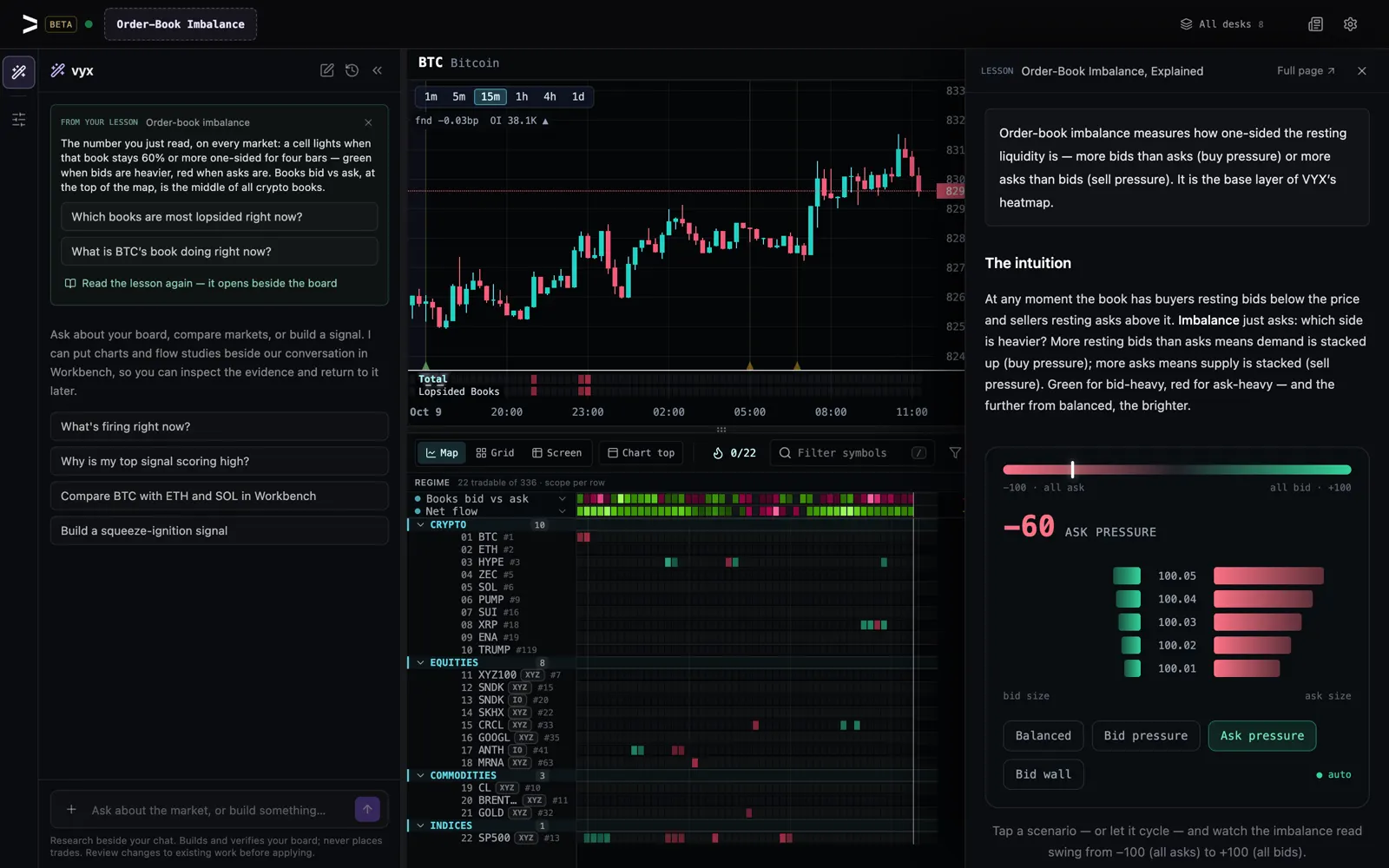
The Order-Book Imbalance desk with a From your lesson card at the top of the vyx panel and the order-book imbalance lesson open in a drawer beside the live board.

Open VYX on any of our lessons now opens the desk that runs it — order-book imbalance on Order-Book Imbalance, funding on Funding & OI Radar — and the vyx panel starts with a From your lesson card: where the idea shows on that board, two questions to ask vyx about it live, and the lesson itself in a drawer beside the board, so reading again never means leaving the desk.

New

Your AI can replay a signal bar by bar

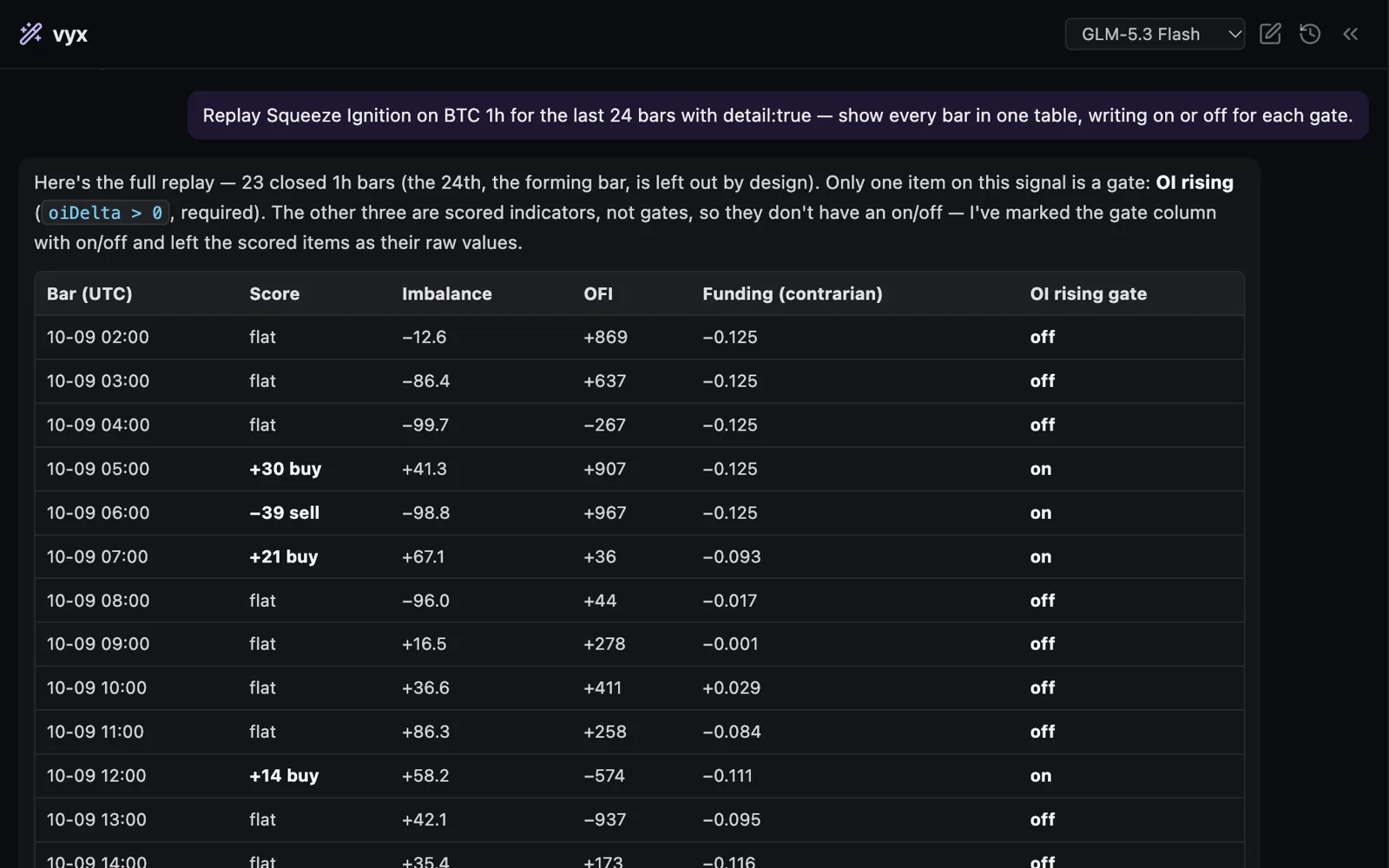
The desk chat replaying Squeeze Ignition on BTC hour by hour: each bar's score beside the Imbalance, OFI and funding values, and whether the open-interest gate was on or off.

Over the connector, a signal's history can now show every indicator's value and whether each condition passed on each closed bar, several signals side by side with when each switched on and off, and any formula field beside the candles — so your own AI can reproduce a vyx firing in its own backtest, and the header says what the venue may still correct.

New

Any desk's regime read, back in time

Your AI — over the connector or in the desk chat — can now read any of your saved desks' regime tiles over a past window without switching to it: one row per closed bar with its exact open and close time in UTC, so a past trade or alert lines up with what the desk's read said when it happened.

New

onset(): the first bar a condition holds

A transition that should fire once — on the bar a market hands off from one state to the next — is now one word in a formula: onset(condition) is true on the first bar the condition holds and quiet while it keeps holding. Before, you spelled the condition twice with prior(). It reads the same in the editor, the desk chat, your connected AI, Proof and history.

New

Tune a window in one grade

Your AI — in the desk chat or over the connector — can now grade one draft across a list of values in a single call: write the number as $N in the formula, pass the values to try, and Proof returns one table, one row per value, with the best by attention named. Before, tuning a window or a lag meant a saved signal and a grade for every value.

New

Replay a draft bar by bar

Your AI can now replay a signal it has not saved yet — in the desk chat or over the connector — bar by bar on any market, several variants side by side, or one variant once per value of a window. You no longer have to save a test signal just to see where it fires.

New

Why is my screen dark

Ask Proof to ablate a screen — in the desk chat or over the connector — and it grades each condition on its own, then the conditions stacked one by one, and names the step where the lit share collapses: a condition that can never pass, or two states that never happen together. One call, where it used to take a dozen test signals.

New

A guide to states, transitions and events

The docs now walk through building a stage machine on vyx: screens as market states, the memory functions behind them, a transition as a first-candle event, and how to prove each piece over history with Proof, a sweep, an ablation and a bar-by-bar replay before you trust it.

Improved

Switching desks and timeframes is quicker and steadier

Switch desk or timeframe and the board now fills the screen in one go, in about a second on a fast connection, instead of showing a short strip and filling the rest in over several seconds. A timeframe you have already visited comes back as you left it, and the timeframes of the desks in your tabs load ahead in the background, so they are ready when you click. A market that joins the board mid-session, when its liquidity crosses the size filter, now fills in straight away instead of sitting as an empty row until you reload.

Improved

On a phone, vyx's chart is one tap away

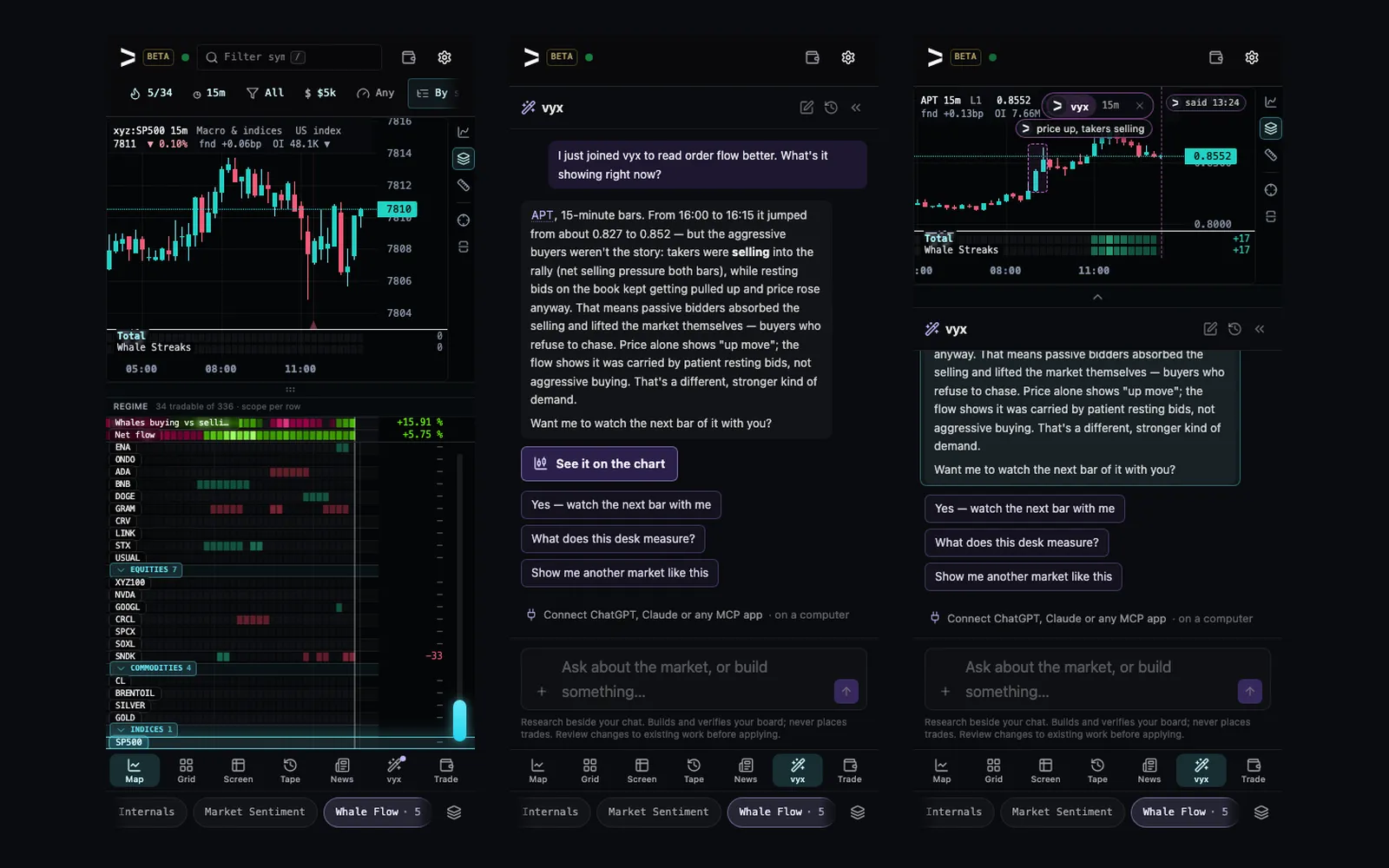
Three phone screens: the board and chart right after the first question with a dot on the vyx tab; vyx's answer with a See it on the chart button above the three next questions; and the chart docked above the conversation with vyx's note on it.

On a phone, vyx keeps your board and chart in view while it works out an answer. The vyx tab pulses while it works and keeps a dot once it has answered, and your chart stays where you have it. Open the tab and See it on the chart brings the chart, with what vyx marked, above the conversation; fold it to one line when you want the room. The offer to connect your own AI now names ChatGPT, Claude and any app that speaks MCP, sits as one line under the answer on a phone, and Not now hides it for good.

Improved

See what vyx is doing while it answers

While vyx works on an answer, one quiet line under your question now says what it is doing — reading the board, reading a market's order flow, marking the chart, thinking it over — instead of a lone dot, and the answer writes itself in as it arrives. On phone and desktop.

Improved

Delete is harder to mis-tap on a phone

When you delete a signal on a phone or tablet, Cancel and Delete are now two full-size buttons with a clear gap between them, instead of two small ones side by side, so a slip of the thumb no longer takes a signal off every desk. The same goes for deleting one of your signals in Add a signal. With a mouse nothing changes.

Improved

New connector options reach your AI without a reconnect

AI clients remember the connector's tool list from the moment you add it, so a new option on a reading tool used to be refused by your own client — "was unexpected" — until you reconnected. The reading tools now accept options they do not know, so the next ones we add simply work. Reconnect once after this update to pick it up; the docs show how for ChatGPT and Claude. Tools that change your account or place orders stay strict on purpose.

Improved

The trade column gets its own rail

The desk 1600 pixels wide: the board running floor to ceiling on the left, the BTC chart at the top of the trade column on the right with the market's Info under it, and the new rail at the right edge with Info lit above Trade.

The right edge of the desk now has a rail like the left one, with Info and Trade. Press either to open the column on it, or press the lit one to fold the column away — the rail stays, so the column is always one press back, and it opens on Info until you have worked the ticket. On a wide screen the chart now starts at the top of that column, above Info and Trade alike, so the board runs the full height of the desk; on a laptop it starts above the board. The Chart button moves it either way, even with the column folded.

Improved

Faster market reads for your AI

When your own AI reads a market over the connector — its scores, its structure and its candle history in one call — the answer now comes back several times faster, most of all on accounts with a large library of saved signals, where one read could take close to a minute.

Improved

Your AI lists signals fast, and quotes units

Over the connector, your signal list is now a short index — each signal's name, how many indicators it has, when it last changed and which desks it is lit on — with any one signal a single ask away, whole; every number your AI reads names its unit and the bar it covers, a value that cannot be known reads n/a instead of 0, and a deleted signal's reply names the desks it came off. Reconnect your AI to pick up the new list.

Improved

Clear a family of test signals in one call

Over the connector, your AI can now delete several signals at once, or every signal whose name contains a piece of text — it lists what would go first and deletes only when you confirm, naming each one. A research session that left thirty _TEST variants behind is one call to clean, not thirty.

21 fixes
Fixed

Big grades finish instead of running out of memory

Grading over 1,000 candles from the chat or your own AI no longer runs out of memory on a wide board: four drafts side by side, a six-value sweep or an ablation now grade across every market on your desk, even one set to All markets. In the rare case a grade is still too big for the full window, it comes back over fewer candles and its first line says how many and why.

Fixed

The chat finds what it said about OP

In a long conversation, ask the chat about a coin with a short ticker — OP, ETH, SOL, ENA — and it now finds what it told you about it earlier. Before, its look-back matched those letters inside other words (OP inside stop, top and open), so the real mention was crowded out and the chat could say it had never discussed the coin.

Fixed

Relative strength in timeframe peeks and patterns

A signal built on residBps, betaBtc or btcRet — how a market moves apart from BTC — now scores in the rows under the chart while you peek another timeframe, and in the patterns you save and match on the board. Before, a peek scored it against BTC on your committed timeframe, and a pattern saw it as a flat line on every bar.

Fixed

Higher-timeframe signals fill in once their candles arrive

A signal that reads another timeframe with tf() — tf(rsi(close, 14), 240) and the like — no longer reads quiet when the desk opens before that timeframe's candles have loaded. It used to stay quiet until the next candle closed; now it fills in as soon as they land. It also scores in your saved patterns, on the board and in the pattern alerts that run while vyx is closed, where it used to be a flat line — and in a signal read your AI files on the Workbench, where every bar used to come back blank.

Fixed

Signal settings open on a phone

On a phone, tapping a signal's gear in Trade desks now opens its menu on top, so you can edit, re-weight, remove or delete the signal right there. Before, the menu opened hidden behind the sheet and the tap seemed to do nothing. The same goes for the built-in rows and each signal's chart settings.

Fixed

Your AI finds past readings where they are

When your AI reads a desk the way its analyst does, the reply now points it to the dated regime history (one row per closed bar, in UTC) instead of leaving it to guess from bars-ago counts. And when it asks for a market's candles before a date, that window now comes first, with the live read below it clearly labelled as now.

Fixed

Your AI counts the desk trader's calls

When your AI reads a desk's setup cards, the record by author now counts the desk trader's own calls — stopped, voided and pulled ones included — beside the analyst's and its own. Before, those calls were listed but counted under nobody, so the record it calibrated on could be missing a third of the desk.

Fixed

Chat replays a signal on the timeframe you name

Ask the desk chat to replay a signal "on BTC 15m" and it now reads and scores 15-minute bars, even when your desk runs on the hour, and says so in its answer. Before, it quietly answered on the desk's own timeframe.

Fixed

Proof grades the way the board scores

Proof now normalizes every item exactly as the heatmap does — an item the board measures against the market's own history is no longer ranked against the field in Proof, strength items get their field, and a bar the formula cannot compute yet stays out of the grade instead of counting as zero — so a signal's verdict and its board paint come from the same numbers.

Fixed

A signal's history reads as the board scored it

Over the connector and in the desk chat, a signal's history now brings the other timeframes its tf() items read, warms up deep enough for smoothed indicators and own-history baselines, and follows a saved screen it references — so a replay matches the board bar for bar, and its header says the one thing it cannot be exact about.

Fixed

Your AI reads long-window signals as the desk does

A signal item measured against the market's own history now gets the same 60 bars of its past on every AI surface — the connector, the desk chat, desk analysts, alerts and the trader — as it does on your heatmap, so a 96-bar item scores the same in both places instead of against a shortened history, and an item looking back up to 200 bars now scores there instead of reading blank.

Fixed

Index markets say what they are

Bitcoin Dominance, the crypto market-cap aggregates and the US index markets now carry their name over the chart — hover it for what the market tracks — and when your AI reads one it is told in the venue's own words what it measures, so Bitcoin Dominance no longer passes for the Bitcoin price. A signal with no part that can be computed on a market now reads n/a to your AI instead of a neutral 0.

Fixed

A number vyx cannot compute reads n/a

Wherever a signal reads a value a bar does not carry — the forming bar's tape, a field the bar lacks, relative strength on BTC itself, a window still warming up — the signal rows under the chart, the inspector, the chat, the connector and Proof now say n/a and why, and that bar sits out of the score. Before, it could read as a quiet 0 and vote.

Fixed

Your AI names a market the same way everywhere

Over the connector, the one-market read now accepts symbol like every other read does, instead of answering as if no market had been named; and when no market is given it says which argument to pass.

Fixed

A bar reads the same on every page

When your AI pages back through a market's candles over the connector, the first bar of each page now carries its change in open interest like every other bar — before, the same closed bar read differently depending on where the page started.

Fixed

Liquidity Sweeps' net-sweeps row matches your AI

The Liquidity Sweeps desk's "Lows swept vs highs swept" regime row now counts the last 24 bars instead of 96: the longer count reached further back than the board your AI reads, so the desk and your AI showed different numbers on the same bar.

Fixed

A formula names the word it cannot take

Name a part of a formula p, z or any other word the language already uses and the save now says which word, that it is a formula variable or function, and offers a free name — instead of a save that failed with no reason to act on.

Fixed

Replays remember as far back as the board

A signal that looks back to an event — a transition that fires within a few candles of the last state, or anything built on barsSince or valueWhen — now replays bar by bar exactly as the board scored it from the first candle of the window. Before, the early candles of a replay read n/a when the event sat further back than the replay had loaded.

Fixed

New tool options work before you reconnect

When vyx adds an option to a connector tool — a sweep, an ablation, a draft replay, a bulk delete — an AI that has not reconnected since often sends it as plain text. vyx now reads it as what it is instead of refusing it, so the new option works the first time your AI tries it.

Fixed

Deleting a signal asks first and names its desks

On a desk, a signal's gear now says Delete everywhere… and asks before anything goes: it lists every desk the signal comes off, marks the one you are on, starts on Cancel, and offers to remove it from just this desk instead. Before, one click took it off every desk at once. Deleting from Add a signal names the desks too.

Fixed

The chart keeps its candles when you switch timeframe

Switch timeframe and the chart now keeps every candle it has already loaded while the board's history comes in beneath it, instead of dropping its oldest candles and putting them back a few seconds later.

New

The chat points at the chart

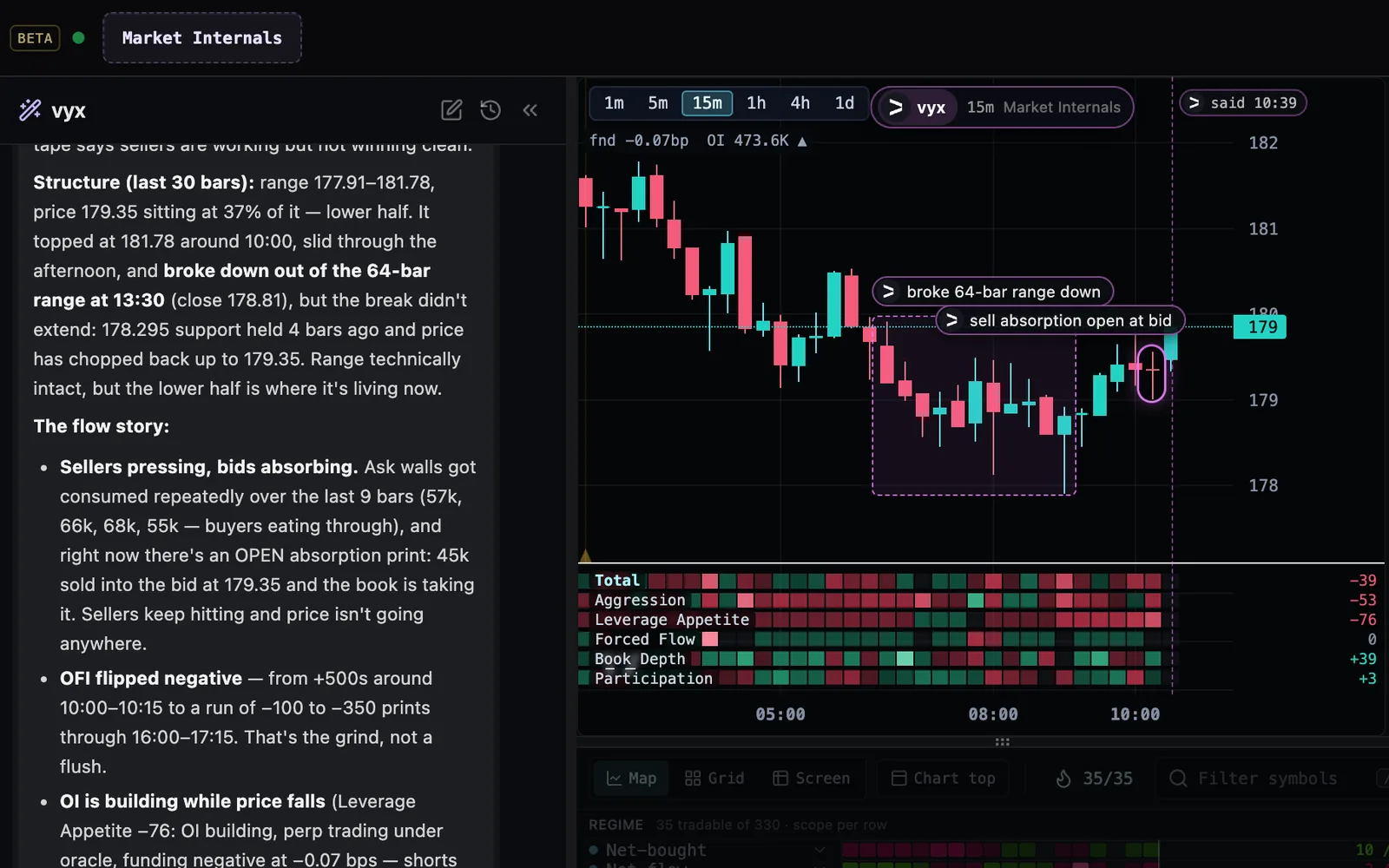
The vyx chat on the left explaining a range break on AAVE; the chart on the right shows AAVE at 15 minutes with the stretch of candles boxed and labelled “broke 64-bar range down”, one candle ringed as “sell absorption open at bid”, and a vyx chip naming the view.

When the chat’s answer is about a spot on a chart — a range that broke, a candle that got bought, a level — it now marks it. Hover the answer and your chart shows that market the way the chat read it, with its marks; click to keep it. A setup card your own AI files can carry marks too, drawn beside its plan when you hover the card — and your AI reads them back with the card, so it knows what it pointed at before it revises the call.

New

A formula reads a saved screen by name

Write signal("Emerging") in any formula and it is 1 on the candles every condition of that screen holds — so a multi-stage read is separate saved screens, each reading the one before it: developing && barsSince(signal("Emerging")) <= 20. Edit a screen and every formula reading it follows; it grades through Proof, scores on the board and in alerts, and your own AI can build with it. A formula written in named parts also expands much further before it is refused, with the refusal now pointing at signal(). A name a built-in shares with a desk’s copy of it reads as one screen, and an edit that would make two screens read each other is refused when you save it, not discovered later.

Improved

Your AI reads the pulse with its units

When your AI reads the order-flow pulse, it now learns which markets that covers — the most-traded crypto perps deep enough to trade, not all of Hyperliquid — and what every number means: funding per hour, book imbalance in percent, the hour each figure comes from, and that a market’s rank is its trading volume, not its place on the board. So what it writes for you quotes the numbers right.

Improved

Desk switches freeze less

Switching desks now holds the page up for a third to a half less time. Each signal on the board reads only the numbers it uses from every bar instead of working out all of them, and the pinned desks waiting in the background get ready in small pieces, so the page keeps answering your clicks while they do.

Improved

The chat remembers long conversations

In a long conversation, the chat now looks back through the earlier part whenever you refer to it — “the desk I asked for at the start”, a name, a number you settled on — and answers from what was actually said, instead of losing the start of the conversation and asking you to repeat yourself.

Improved

Connect ChatGPT or Claude from the vyx panel

The vyx panel now offers your AI's connector: the link to copy, the one setting to paste it into, and a button that opens it — so ChatGPT or Claude reads this same live board with you, on your own plan. Not now folds it to a single line at the foot of the panel that opens it again, and it never shows once an AI is connected to your account.

5 fixes
Fixed

Comparing drafts over 1,000 bars

Grading two to four draft signals side by side over 1,000 bars — from the chat or your own AI — could still run out of memory when the drafts read another timeframe with tf() next to order-book or tape data. Each timeframe now loads only what its tf() reads, so the comparison finishes, and sooner; Proof on a single signal that reads another timeframe loads less too.

Fixed

Relative strength over past bars

A signal built on residBps, betaBtc or btcRet — how a market moves apart from BTC — now scores on past bars when your AI reads its history, its levels or an analysis chart, or when you hand the chat a chart range. Before, those reads saw a flat line on every bar while the live board scored the same signal.

Fixed

Relative strength on the daily chart

Relative Strength vs BTC, and any signal reading how a market moves apart from BTC, now scores on the daily chart when the chat, your connected AI or a desk analyst reads your desk. The day still forming has no closing price yet, so those reads sat out on every market; they now use the live quote there, as every other price on that bar already did. A stretch with no trades on a stock market no longer blanks the reading for the twelve bars after it, either.

Fixed

Placed regime rows always show

A regime row placed under a board group now reads in the regime band while the board is grouped another way, or not at all, and moves under its group’s divider the moment you group the board that way. Before, it showed nowhere. Your own AI can now take a placed row back to the band too, and it is told whether your board is grouped so the row sits under its divider.

Fixed

Stop works while the AI is thinking

On a big ask the AI chat could think for several minutes behind a single word, and pressing Stop did nothing until it wrote more. Stop now lands within a few seconds, even mid-thought. A reply that goes a minute and a half without writing anything is cut short and asked to act on what it has — and if it still can’t, the chat tells you plainly and suggests a smaller ask, instead of leaving you watching one word.

Oct 8, 2026

Talk to us from the desk
New

Talk to us from the desk

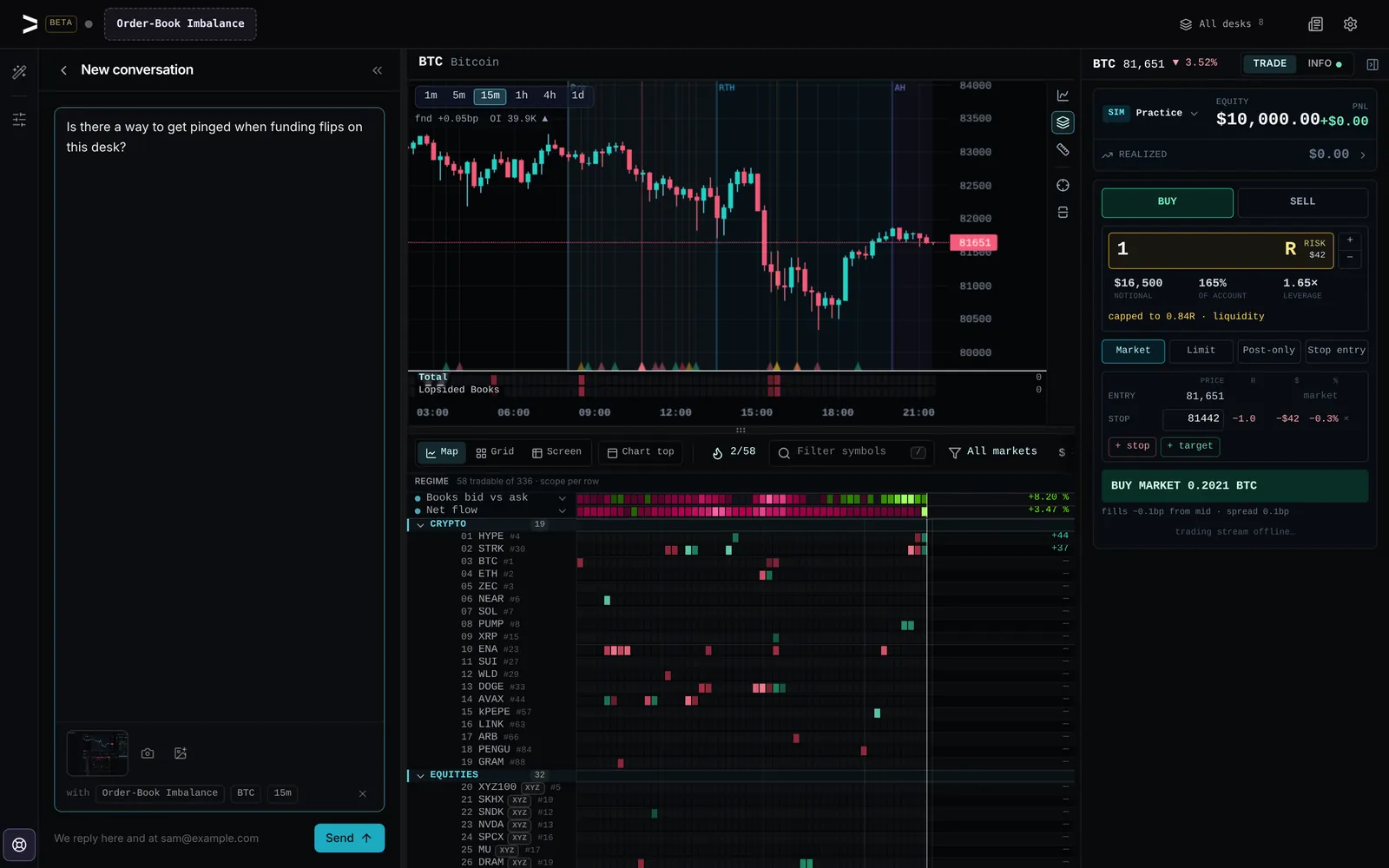
The desk with Support open in the left panel: a new conversation being written, with a thumbnail of the automatic screenshot of the app and the desk, market and timeframe chips under it, and the Support life-buoy lit at the bottom of the rail.

Support now sits at the bottom of the desk’s left rail — on a phone, behind the gear. Just write: a screenshot of the app and the desk, market and timeframe you were on go with your message, and you can take either off, or paste or pick your own screenshots. A person reads every message; the answer lights a dot on Support and arrives by email too, and replying to that email lands back in the same conversation.

New

Volume profile in your formulas

Signal and regime formulas can now read each market’s volume profile: poc(n) is the price that traded the most over the last n candles, and vaHigh(n) / vaLow(n) bound the value area where 70% of the volume traded. Scan every market for price above value (close > vaHigh(24)), value moving up (poc(24) > prior(poc(24), 24)) or a return inside the previous value area, and tf(poc(24), 60) reads a 24-hour profile on any timeframe. An AI connected to vyx can build with them too.

Improved

Phone settings, one screen each

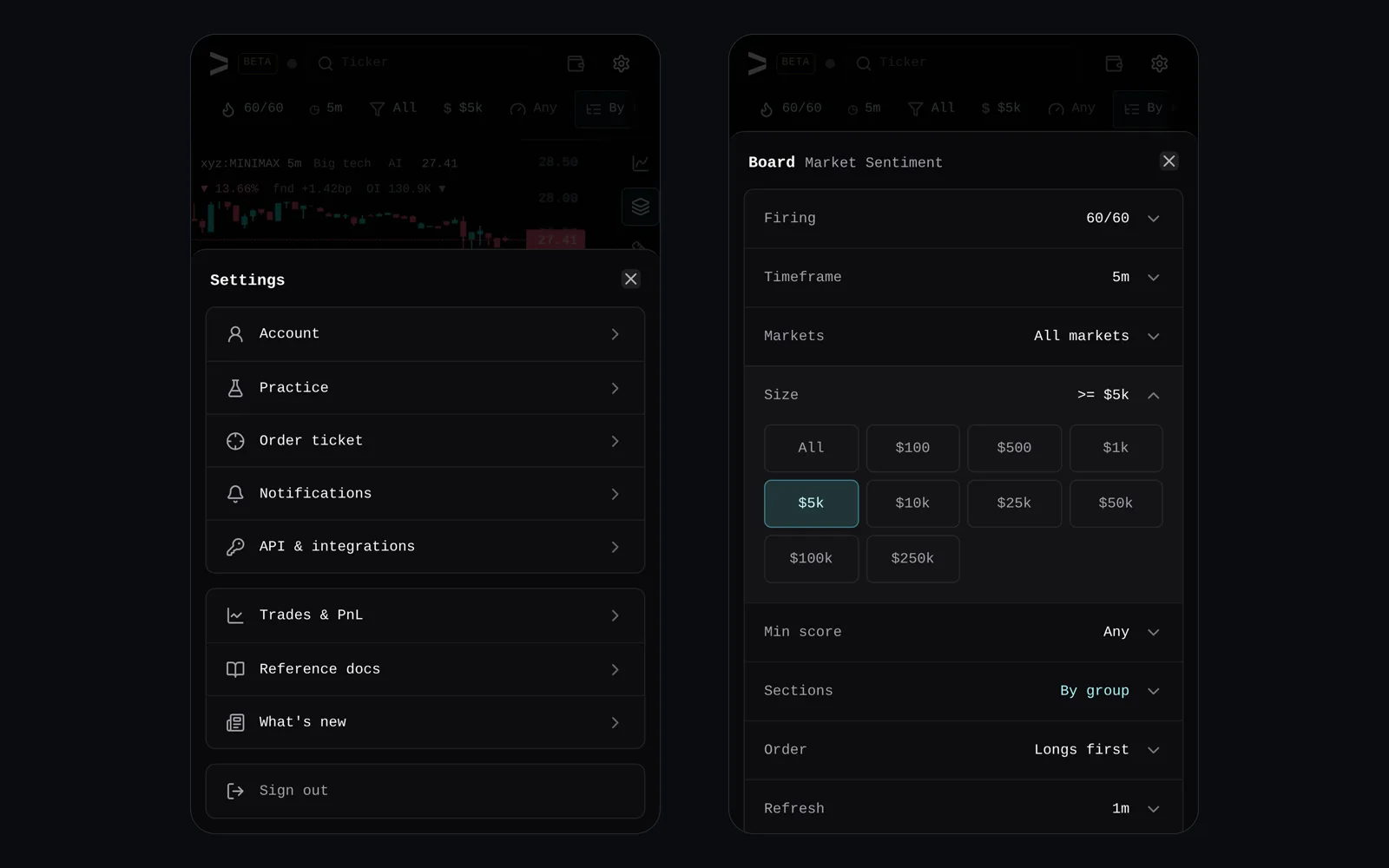
Two phone screens: the Settings sheet behind the gear, listing account, practice, order ticket, notifications, API, Trades & PnL, docs, What’s new and sign out; and the Board sheet opened from the size chip, its size picker open above the min score, sections, order and refresh rows, each showing its value.

On a phone, tap any control under the app bar — timeframe, markets, size, min score, sections, order or refresh — and the Board sheet opens on that setting, with every other board setting listed beneath it showing its current value, so the whole shape of the board fits on one screen and a change shows on the board behind it straight away. The gear is now just your settings: account, practice, order ticket, wallets, notifications and API, then Trades & PnL, reference docs, What’s new and sign out — the same list as on the desktop, and one screen instead of four.

Improved

What your AI reports, in Support

If your own AI is connected to vyx, every report it files with us — a bug, wrong data, something it could not do, an idea — now shows in Support as its own conversation, with our answer under it. The dot lights when we answer, and you can reply right there to talk it over with a person. When we write to you first, that lands in Support too, not only in your email.

Improved

Your AI keeps a desk’s description current

An AI connected to vyx can now rewrite a desk’s description and its ⓘ explainer in place — just the parts that changed — so when it relights a desk’s signals or regimes, the desk still says what it actually runs. It is also told when a change has left the old text behind.

Improved

Follow a report your AI filed

A bug or idea your AI files with us now shows where it stands as we work it — accepted and queued, being worked on, then fixed — instead of reading “open” until the day it ships. Ask your AI to check your reports at any time.

Improved

Board numbers on the chart’s black

The numbers at the right edge of the regime band and the board now sit on black, in one straight column with the chart’s own, so when you scroll back in time the heatmap ends where the candles end and no reading prints over a colored cell. The price axis is slimmer too, giving the chart and the heatmap more room, and on a phone every row now shows its latest number at the right edge.

Improved

Connect your AI without leaving the tab

Connecting Claude, ChatGPT or another AI to vyx while signed out used to send you off to sign in and start the connection over. Now you create a free account or sign in right on the connect screen, and it moves straight on to approving the connection.

11 fixes
Fixed

AI-built conditions that can actually fire

When the AI chat or your own connected AI builds a signal, an on/off condition can no longer be set up so it never fires, always fires or fires backwards — it is sent back to fix it first — and Proof now grades every condition exactly the way the board paints it, naming any that never passed.

Fixed

Workbench studies on every desk

Asking the chat to compare markets or chart a study in Workbench now works on the built-in desks too. It used to stop and ask you to save a desk of your own first; now the study lands in your feed on the desk you are looking at.

Fixed

The chat only says it saved what it saved

The chat could tell you a signal was created and live when nothing had been saved, so it seemed to vanish later. It now names a signal only once the save went through, and says plainly when one did not. Desk changes it makes after switching desks land on that desk, and on a desk set to Crypto its scans and Proof stay crypto.

Fixed

Proof over 1,000 bars works on any signal

Grading a saved signal or a draft over history — from the chat, or from your own AI through the connector — could fail outright on a 1,000-bar window when the signal read another timeframe with tf(): the run ran out of memory before it graded anything. Proof now reads history a few markets at a time, so the full window grades on any signal and any desk size, and signals that read another timeframe finish sooner.

Fixed

Signals that look back at another timeframe fire

A formula that reads a higher-timeframe state through barsSince or valueWhen — “the 4h trend flipped up in the last four candles”, say — or a moving window over a tf() expression never lit, so a test of one state following another always came back “never happens”. These now score candle by candle like any other signal, on the board and when the chat grades them.

Fixed

Positions still load when the venue is busy

When Hyperliquid was briefly too busy to share your trade history, asking your connected AI for your positions failed outright and told it nothing was reported. Now your positions, equity and resting orders still come back; only the label for which desk opened each one waits, and your AI is told to ask again in about 30 seconds.

Fixed

No sign-up page while you are signed in

A brief network or server hiccup could drop the sign-up page over your desk and make you type your password again. Your desk now stays put while VYX re-checks your session, and the sign-up page only appears once you are really signed out.

Fixed

Zoom, then pan, without a pause

On a trackpad, a swipe that followed a zoom on the chart could keep zooming instead of panning — and a zoom right after a pan kept panning — until you rested your fingers on the pad. The trackpad’s glide after a flick was being read as part of the next swipe. Now a sideways swipe pans and an up-down swipe zooms straight away, glide or no glide, and a pinch never carries over into the swipe after it.

Fixed

The iPhone home-screen app reaches the bottom edge

With VYX added to an iPhone home screen, iOS 26 stops the app a status bar short of the bottom of the glass, which left an empty band under your desk pills. The desk, and the sheets that slide up over it, now run all the way down to the edge. Open the app fresh once to pick it up.

Fixed

Typing on an iPhone no longer zooms the desk

On an iPhone, tapping the ticker search or any other text field zoomed the whole desk in and left it half off the screen after you finished typing. The desk now stays at its size while you type, and you can still pinch to zoom whenever you want to.

Fixed

A short phone board points at the right market

Narrow the phone board to a handful of markets — a ticker search that leaves two, say — and the focus marker now sits on the market the chart is showing, instead of sticking to the first row or a section header while the chart showed another. With every row on screen there is nothing to scroll, so the side rail steps aside and tapping a row moves the marker, and the chart, to it.

Improved

Pinch to zoom the heatmap

Pinch the heatmap to zoom it, just like the chart: two fingers on a phone, or a trackpad pinch on a desktop. The chart and the heatmap zoom together around your fingers, and the page itself no longer zooms in under you.

2 fixes
Fixed

A long chat question always gets an answer

A question that sent the chat looking through many markets could run out of steps and post nothing at all. Its last step now always answers from what it found, says what it could not check, and saves what you asked for if it is ready — or tells you plainly that it is not saved yet.

Fixed

Building a desk in chat finishes the job

Asking the chat to build you a desk could stop right after it made the signals — no description on the desk and no reply saying what it built. The chat now carries on after saving: it writes the desk’s ⓘ card and tells you what is on the desk and how to read it.

Improved

The chart names its market

The row above the chart now shows the market’s ticker and full name — NVIDIA Corporation, Bitcoin, S&P 500 Index — even while the trade panel is open, so you can see what you are charting without looking across the screen.

Improved

Sharper order-book and funding reads for your AI

When your AI reads a market, a big resting order now comes with its price and is checked against the live book, so it is never told a wall is still there after it was pulled — and funding is read against the rate that market normally sits at, so the everyday default is no longer mistaken for crowded traders.

Improved

Alerts on delisted markets tell you

If Hyperliquid delists a market you have a price alert on, the alert can never fire — so VYX now switches it off and tells you by email and push, and marks it delisted in your alerts list, instead of leaving it armed and silent.

2 fixes
Fixed

Your order ticket stays put

If you had set up a wallet for an AI trader but no trader was using it, the trade panel could open on that wallet in read-only mode and hide your order ticket. It now opens on your own book every time. You can still view that wallet from the wallet switcher once your own wallet is connected, or manage it in Settings › Wallets.

Fixed

Price alerts fire on every market

Price alerts on stocks, commodities and the other newer Hyperliquid markets now fire within seconds with your tab closed, by email and push, just like crypto alerts already did. And with a tab open, an alert on a market you are not charting now chimes the moment it fires, instead of up to five minutes later when the candle closed.

1 fix
Fixed

One tab per desk you have changed

Once you change a built-in desk it is yours, and a link to it now opens your version. Opening Whale Flow or another built-in from a link on our site used to bring up the untouched original beside yours, so it could end up as an extra tab with the same name. If you already have extras, open All desks and delete the ones you do not need.

New

Neon board colors

The board grouped into Crypto and Equities, painted in lime and hot pink, with the color menu open and Neon selected.

A new Neon palette paints board rows in electric lime and hot pink, the sharpest split between buying and selling pressure, and it stays easy to read with red-green color blindness. Pick it from any row's color menu.

Improved

Funding & OI Radar is a built-in again

Funding & OI Radar returns to All desks, so the built-ins now cover leverage too: it lights the markets where open interest just jumped or flushed, with funding against its norm in the strip above. If you unpinned it yesterday, pin it again from All desks.

Improved

Regime rows in Neon

Regime rows now paint in Neon by default on every desk, so the read stands out from the board beneath it. Any regime row you have already given its own colors keeps them.

Improved

Sign up with a password, straight in

New here? The sign-up card now opens on email and password, and your desk opens the moment you create the account, with no email to wait for. Prefer no password? The emailed six-digit code is one tap below.

Improved

Sign-in code up front

Your sign-in code now shows in the email's subject line and at the top of the email, so on a phone you can read it from the notification and finish signing in right in the tab you started in.

Improved

Equity says what it leaves out

When your wallet holds coins Hyperliquid doesn't count as margin, like BTC, the equity figure says so on the line beneath it ("+$250 in BTC · not margin"), and Settings › Wallets shows the wallet's full value with what is tradeable beside it.

3 fixes
Fixed

Peeking a timeframe shows the real chart

Holding a timeframe chip used to pull a stripped-down copy of every market — no price, volume, open interest or funding — so most signals and every regime tile read a zero they had no business reading. A peek now loads just the market you are charting, in about half a second, and shows that timeframe on the chart and the indicator strip under it. The heatmap and regime band stay on your committed timeframe and dim while you look, so nothing on screen is the wrong timeframe pretending to be the right one. Clicking a chip still moves the whole desk.

Fixed

Candles clear the chart readout on phones

On a phone, the highest candles no longer hide behind the price, funding and open-interest readout at the top of the chart — the chart leaves room for it, including while you scrub a bar.

Fixed

Wallets no longer read $0 when flat

A Hyperliquid wallet with no open position keeps its USDC in spot, and Settings › Wallets and the desk's equity read it as $0. Both now show what the wallet actually holds.

Oct 3, 2026

Seven built-in desks
New

Seven built-in desks, and a page for every desk

The desk library slid out from the right edge of the desk, open on the Whales vs the Move page: a picture of the desk’s board, its name, Built-in, 15m bars, one signal and a two-row read, its description, Open desk and Pinned, with arrows to step to the previous or next of seven desks.

All desks now slides out from the right: every desk you can fly, each with its own page — a picture of the desk, the numbers it was graded on, what it shows, how it is built and how to use it — and arrows to step from one desk to the next. Seven are built in: Market Internals, Market Sentiment, Whale Flow, Whales vs the Move, Top Gainers, Liquidity Sweeps and Order-Book Imbalance. The other desks are retired — no longer offered, but any you already use keeps working.

New

Whales vs the Move: whales leaning against the tape

The Whales vs the Move desk: rows lit green and red where whales kept hitting one side while price moved the other way, the rest of the board dark, under a strip reading whales against the move and whale buying against selling across crypto.

A new built-in desk lights the markets where whales have been buying into a fall or selling into a rise over the last three hours — green when they are buying the dip, red when they are selling the rip, brighter the bigger the move they are leaning against. In testing these markets moved about 1.6× the field over the next hour, the widest of any desk; which way is open.

Improved

A tap on the phone board stays put

Tapping a row on the board on a phone no longer throws the inspector over it. Scroll to move the focus as before; a stray touch while you scan now does nothing at all.

Improved

A wider chart and board on a phone

The chart’s price scale on a phone no longer keeps an empty strip to the right of its labels. It is now just wide enough for the longest price on the board, and the chart and the board below it get that width back.

Improved

Your AI can open any built-in desk

A connected AI can now list the built-in desks, read one exactly as it ships today, and start a desk of your own from it — the same as Start from a template in the app. When a desk on your account is an older copy of a built-in, it is told so, and whether the built-in has changed since, instead of reading your old copy as the current desk.

Improved

Your AI flags formulas that look back too far

Checking a formula with a connected AI now says plainly when it looks back further than the AI can read, and how far to shorten it, instead of blaming missing data. The same warning appears when it saves a signal or a market row, so nothing you build reads blank to your AI.

5 fixes
Fixed

Your AI reads the whale desks

Whale Flow and Whales vs the Move judged a whale against a window longer than the history your AI and the desk analyst read, so to them the desks looked empty while your board looked fine. A whale is now judged against the market’s own last 100 bars, which every reader has, and Market Sentiment’s long trend read is a 100-bar mean instead of a 200-bar one for the same reason.

Fixed

Panning back toward now keeps your view

Pan the board back through history and then forward again, and it used to throw the view to the newest bar as soon as you came within a screen of now — panning back and forth kept landing you at the right edge. Now the board picks the live feed back up underneath you and the view stays exactly where your hand left it. Press Now when you want to jump to the newest bar.

Fixed

An update no longer loses your place in history

The desk updates itself to a new version while you are looking elsewhere. If you had panned back, it used to come back on the newest bar every time; now it comes back on the exact window you were reading. A reload you do yourself still opens on now.

Fixed

The app opens quickly after an update

When vyx had shipped since you last opened it, the app downloaded the whole new version while it was still opening — on a phone that could hold you on the loading screen for ten seconds or more. It now waits until your desk is up, then fetches only the parts that changed, in the background.

Fixed

Scrolling back on a phone keeps the chart

Flick the chart back through history on a phone and it used to go blank once the board left the live edge — the candles waited on the whole board’s history page, and on a slow connection that could take most of a minute, after which the view snapped back to now. The chart now loads its own candles for the bars you are looking at, keeps loading until it reaches them, and holds your place while the board catches up.

New

Arrange and pin your desk tabs

The desk with three pinned tabs — Market Sentiment, Order-Book Imbalance, Market Internals — and the All desks list open, a filled bookmark beside each pinned desk and an empty one beside the rest.

Your desk tabs are yours to arrange: drag a tab to reorder it (or focus one and press ⌘← / ⌘→), and open All desks to pin exactly which desks keep a tab. Unpinning parks a desk without deleting it — it stays in the list, and the desk you are on always keeps a tab until you switch away.

New

Three event desks: Volume Surges, Thin Books, Solo Movers

Three new desks under Start from a template, each lighting a market only when its own event fires against that market’s last 200 bars. Volume Surges marks bars trading far above their norm, Thin Books marks books with little resting between price and a move, and Solo Movers marks markets breaking away from BTC on their own. In testing, lit markets moved 1.3–1.5× the field over the next half hour — they tell you where to look, not which way.

Improved

One rail for the desk’s panels

The desk’s left side is now one column of icons — your AI chat, then the desk’s own views and Signals — with one panel beside it. Press an icon to open its view; press the lit one to fold the panel away and give the board the width.

1 fix
Fixed

Sign-in says plainly when it can’t be reached

When sign-in can’t be reached, the form now says so in plain words instead of a raw browser message like “Load failed” — so it’s clear the code request didn’t go out and is worth retrying, not a problem with your email address.

Improved

What’s new has its own button

On desktop, What’s new now has its own button beside the settings gear and opens as a panel right under it — a dot on it means something shipped since you last looked. The add-a-signal shortcut that sat there is gone; add signals from the signal rail, as before.

2 fixes
Fixed

Two-finger pan on the chart

A sideways two-finger swipe on a trackpad pans the chart again, as smoothly as it pans the board. Since the smooth-zoom update, the slight up-and-down drift every real swipe carries was read as a zoom that cancelled the pan, and a swipe over the chart redid the whole desk's hover readouts on every frame. Now each swipe either pans or zooms, whichever way it starts, and the desk catches up the moment you stop.

Fixed

A resting add keeps its own stop and target

Holding a position and resting a limit add with its own stop and target on Hyperliquid? Those levels belong to the add — Hyperliquid only places them once it fills. Your connected AI no longer takes them for the position's: moving the position's stop or closing the position leaves the add and its stop and target in place (a close now names what is still resting), the break-even guard moves the position's own stop, and the observation deck draws only the position's levels.

Improved

Chart tools in one place

The BTC chart with a drawn trade plan, and the tool rail down its right edge: Indicators, Layers, Measure, then Arm lit amber and Plan, with Plan showing its name and its W key.

Every chart tool now sits in one rail down the right edge of the chart: Indicators, Layers, Measure, then Arm and Plan. Point at one for its name and key. The rail has its own column, so a tool never covers a price label or an order line.

Improved

No more update pop-up

The “New version available” pop-up in the corner of the desk is gone — we ship several updates a day and it kept interrupting. When a newer version is ready, the updates you don’t have yet show in What’s new with an Update to get this button, and the gear’s dot tells you they’re there. Otherwise the desk still updates itself quietly when you switch away or step away.

Improved

Funding and open interest always on the chart

Funding and open interest now always read in the chart header beside the candle prices — no switch to find first. Layers is down to Depth walls and My trades: the Mark / oracle line sat a few basis points from the candles and hid under them. To watch that gap, build a signal on premiumBps — it scores your board too.

3 fixes
Fixed

Limit orders below the market send

A practice-book limit or stop entry is now checked for risk from its own price rather than the market price. A 1R buy limit below the market is no longer refused as if it risked 5R. A stop entry above the market can no longer slip past your total-risk cap while reading smaller than it is.

Fixed

A drawn plan stages the stop you saw

A trade plan drawn with Plan now stages exactly the stop its label showed. If the chart rescaled while you held the drag — a live price move, or the ticket opening beside it — the ticket could pick up a stop further away than the one you drew, and size the order smaller to match.

Fixed

Live heat reads your real stop risk

On a connected Hyperliquid account the heat gauge always read 0.0R, so the total-heat cap never held a live order back. It now counts what the stops resting on the venue would lose if they fired, plus what a resting entry with a venue-held stop would risk if it filled. The gauge, each position's R, and the cap on your next order all use that figure.

New

Draw a trade plan on the chart

Draw a trade plan straight onto the chart: pick Plan (or press W), drag from your entry to your stop, and the box becomes your order — risk in red, targets in green at 1R, 2R and 3R on a live account, each closing its own share. Drag any level to reshape it, then Send places exactly what the box shows.

New

What’s new, inside the desk

What’s new now lives inside the desk: open it from the settings menu to see each update, with a short clip of the change in the app where there is something to see. A small dot on the settings button tells you when something has shipped since you last looked.

New

Resting orders on the chart

Your resting limit orders are on the chart where they rest. Drag one to move it, or tap its ✕ to cancel it.

Improved

Arm the chart before it trades

The chart no longer trades by accident. It opens for reading — your position and orders still show, but nothing moves when you drag across them — and trades only once you press Arm beside Indicators (or Q). Press it again, or Esc, to put it back.

Improved

Market Internals loads lighter

Market Internals now opens and scrolls back with about a third less data, so its board and its older history arrive sooner on a slow connection. Older history you have already loaded comes back from your browser after a reload instead of downloading again.

Improved

Your AI tests a signal before saving it

Your AI now grades a signal idea over history before it saves anything. The in-app chat and a connected AI (through the vyx connector) can test up to four versions side by side on the same 1,000 bars, see how much of the board each one lights and whether the markets it lights move more than the rest, and keep only the one that holds up. They also skip data fields Hyperliquid doesn’t publish, and describe a desk from its own explanation of what its colours mean.

Improved

Your AI checks a regime row before saving it

A connected AI can now check a regime row for one cohort — memes, AI, a watchlist — or a row measured against crypto before saving it, and see exactly what it will read and across how many markets. Each regime row it reads now says what its high or low means (above zero, a share of its markets, or ahead of its baseline), so your AI stops calling a row high when it only means above zero.

Improved

Lines show what the exchange did

Every line you move now shows what the exchange did with it: hollow while it is on its way, solid once the exchange holds it, and back where it was, with the reason beside it, if it was refused.

Improved

The price handle names its order

The chart’s price handle says the one order it will place, like “+ Buy limit 83,469” or “Stop → 82,368”, and a single click places it. Stop here and Target here now move the stop or target you have instead of adding a second one.

Improved

Send spells out the order

A staged buy limit on the chart beside the ticket: one size field reading 1 R ($50 risk) with notional, account share and leverage underneath, and the Send button reading BUY LIMIT 0.2049 BTC @ 82,868.

Send now spells out the order, like “Buy limit 0.12 BTC @ 83,149”, and the size block is one field in the unit you think in, with the other three read back quietly underneath.

Improved

Smoother zoom and keyboard panning

The chart glides instead of stepping: the wheel zooms smoothly around the pointer, and ← / → pan the chart from the keyboard (Shift for a whole screen).

Improved

Levels snap to candle highs and lows

A stop, target or order you drag snaps to a nearby candle high or low, so it sits exactly under the swing; hold Alt to place it freely. Every chip reads back live as you drag, and a resting order or entry shows its distance from the market.

4 fixes
Fixed

Book Depth reads the newest bars

Book Depth on Market Internals now reads the real order book on the newest bars. Before, every bar that arrived while the desk was open read as an empty book, so the freshest bars looked thin on every market.

Fixed

Dragging an order’s label works again

Dragging a resting order, stop or target on the chart moves it again. Coming at its label from the candles, the price handle sat on top of it, so a drag placed a new order instead; the handle now steps aside wherever a label sits.

Fixed

Refused stop and target moves snap back

A live stop or target move that Hyperliquid refuses no longer leaves its line at a price the exchange never took, and a lone target’s share on a live ticket reads 100% instead of a clipped 10.

Fixed

Dragged levels stay on their own side

A stop or target dragged through its entry, or an entry dragged into its stop or target, now stops on a price the exchange accepts, on its own side of the level. Before, it could stop on a fraction of a tick that read differently from what would rest.

New

Supertrend and Parabolic SAR

Supertrend and Parabolic SAR join the chart indicators — Supertrend draws its stop solid under price in an uptrend and dashed over it in a downtrend, the SAR as dots — and both work in your own formulas as supertrend(10, 3) and sar(0.02, 0.02, 0.2).

New

150 chart indicators

Chart indicators: 150 studies — moving averages, Bollinger Bands, RSI, MACD, Ichimoku, pivots, CVD, funding and more — from the Indicators button on the chart. Search or browse, point at one to preview it on the chart, add it in a click, and press Board to scan every market with it.

Improved

Heavy indicators score faster

Signals built from named parts score several times faster, so boards running the heavier indicators — Fisher Transform, CVD divergence, ADX — stay quick. The Fisher Transform now matches its textbook definition exactly.

Improved

Event desks light only when something happens

Liquidity Sweeps, Order-Book Imbalance and Funding & OI Radar now light only when something happens. Liquidity Sweeps marks stop runs — price takes the 24-hour high or low and closes back inside. Order-Book Imbalance marks books held heavily bid or ask. Funding & OI Radar marks open interest jumping or flushing, with funding above the board. Top Gainers now marks breakouts — an hourly close beyond the last 24 hours’ high or low — and Cascade Radar lights only the bars where a forced-flow burst hits the tape.

Improved

Whale Flow shows one-sided runs

The Whale Flow desk: runs of green and red where whales kept buying or selling one market, dark elsewhere, under a strip reading whale buying against selling across crypto.

Whale Flow now shows where whales keep hitting one side. A market lights green while its biggest orders keep buying and red while they keep selling, and the rest of the board stays dark, so you see runs of whale activity instead of noise. A strip above the board reads whale buying against selling across crypto.

7 fixes
Fixed

Proof grades BTC-relative signals

Proof now grades signals built on the BTC-relative fields (a market’s own move after taking out BTC’s). Before, it replayed them as flat and reported that they never fired.

Fixed

Limit and stop entries risk what the ticket says

Limit and stop-entry orders sized in R now risk exactly what the ticket says. Size is measured from the order’s own entry price instead of the market price, so a stop entry above the market can no longer come out many times larger than 1R, and a limit below it no longer comes out smaller.

Fixed

Screen opens on grouped desks

Opening the Screen view on a desk grouped by theme, like Market Sentiment, no longer freezes the board. A market listed under two themes now shows once in the screen.

Fixed

Desks with repeated items load cleanly

A desk whose signals, regimes or pins were saved twice (for example by an AI assistant editing it) now loads cleanly instead of freezing, and the analyst read shows each setup family once.

Fixed

Pages keep their title as you move between them

Moving from one guide, doc, blog post or market page to another now updates the page title and the “Open VYX” button, so it opens the desk for the page you are reading instead of the first one you visited.

Fixed

Older Map history on a slow phone line

On a slow mobile connection, the Map’s older history now loads one stretch at a time, so the stretch next to what you see arrives first instead of timing out while it shared the line with the ones behind it.

Fixed

Market Internals opens fast

The Market Internals desk now opens with a fraction of the data it used to download, so its board appears quickly, and within about a minute even on a slow mobile connection, where it could fail to load at all. Large loads on a slow connection are no longer cut off while they are still arriving.

Improved

Limit orders flag stops placed after fill

A live limit order with a stop or target staged now tells you, before and after you send, that the stop and target go on separately once it fills, so a filled limit never looks protected when it is not.

Improved

Smoother chart drag and zoom

Dragging, zooming and hovering the chart is far smoother, especially on slower laptops: the Map below slides along with the chart instead of redrawing every frame, a flicked chart glides to a stop, order lines stay locked to the candles as the price scale moves, and live prices update without hitching the desk.

Improved

Built-in desks edit in place

Editing a built-in desk no longer leaves a trail of “copy” desks behind — the desk becomes yours right where it sits, keeps its name, and every change lands on it. Undo or Reset brings the original back.

Improved

Older bars load faster

Scrolling back through older bars now downloads about a quarter of the data it used to, so earlier history loads faster, especially on a slow connection.

9 fixes
Fixed

Send places each order once

A double-press of Send, or a quick second Enter, can no longer place the same order twice. Send now reads Sending… until the order lands, and the ticket clears for your next order once it does.

Fixed

Chart orders move only when dragged

Clicking an order’s label on the chart no longer nudges the order. A line only moves when you actually drag it, Esc puts it back mid-drag, and prices you place from the chart land on prices the exchange accepts.

Fixed

Hotkeys follow the order ticket

Trading hotkeys now only work while the order ticket is on screen, and flipping side with B or S carries your default stop to the right side of the entry.

Fixed

Windows show a single close button

The Trade Desks & Signals and Reference Docs windows now show a single close button instead of two stacked X’s.

Fixed

AI chat answers after reading a chart

The AI chat no longer goes blank with “No response — try rephrasing.” after reading a chart. Ask for more data than fits in one reply and it hands you the slice that matters and says where the rest lives. A reply that runs long now says it was cut off instead of stopping mid-table.

Fixed

AI chat points to the VYX connector

Ask the AI chat how to take your charts or data into Claude, ChatGPT or another AI and it now points you to the VYX connector — one URL, free on every plan — instead of saying there is no way to connect.

Fixed

Sign-up survives checking your inbox

Signing up no longer starts over if you switch to your inbox for the emailed code — the page stays put until you come back.

Fixed

Older board history loads reliably

Older history on the board loads more reliably: it fetches only the markets your desk shows, keeps whatever arrives even if part of the network is slow, and retries quietly in the background instead of showing “History load failed”.

Fixed

Connection light starts neutral

The connection light starts neutral while the desk connects instead of flashing red, and a few upgrade screens now name the right plan.

Improved

Smoother sign-up on phones

Signing up on a phone is now smooth: the sign-up screen opens faster and typing your email no longer stutters. On a computer, verifying your email opens the desk you were looking at straight away, instead of reloading the page and starting it again.

2 fixes
Fixed

Map rows keep colors while scrolling

Scrolling up and down the Map no longer greys out the rows and repaints them. While live prices stream in, every row keeps its colours as you scroll, and the scores refresh in place.

Fixed

Regime rows stay in their section

When an AI you connect updates one of your regime rows, the row now stays under the board section you placed it in instead of jumping back up to the band. Your AI can also now see every regime row on a desk, so it changes the one you mean on the first try, and it can place a row under its group’s divider on the board, just as you can from the row editor.

New

New Market Internals desk

New built-in desk: Market Internals. Market Sentiment tells you what price did; Market Internals tells you whether to believe it — how many coins are being net-bought and how hard, whether the coins that are rising are rising on new longs or on shorts covering, whether cascades are running hot and whether the books are thinner than usual. Every crypto cohort gets its own row showing how hard it is being bought against the rest of crypto. Add it from + → Start from a template.

Improved

Map loads first on slow connections

On a slow connection the Map now loads first. Older history waits until the Map has landed instead of competing with it, and a first load the connection drops is tried again rather than swapped for a much bigger download.

Improved

Market Sentiment loads five times lighter

Desks that read only price and volume, like Market Sentiment, now download about five times less when they open, so the Map appears in seconds even on a slow mobile connection. Add a signal that needs more and the desk fetches the rest on its own.

Improved

Market Internals reads large traders

Market Internals now reads the large traders too. A fifth score, Participation, shows how much of each market’s volume its recurring large traders are carrying, how many wallets are trading aggressively and whether one wallet is carrying the move — each against that market’s normal — and a new Whales row on the band tracks it across crypto.

4 fixes
Fixed

Grouped regime rows leave the top band

A regime row you place under a group now lives only under that group — it no longer also shows in the regime band at the top when the board is grouped another way.

Fixed

AI chat opens on the latest message

The AI chat now opens on its latest message, on desktop and phone, and stays there as charts load in, so you never have to scroll down to see the newest reply.

Fixed

Chart follows only rows you point at

Folding a section on a grouped board no longer switches the chart to whichever market slid under your cursor. The chart follows a row only when you actually point at it.

Fixed

Regime rows stay after switching views

The regime rows at the top of the Map no longer go blank after you switch between Map, Grid and Screen.

New

Choose what a regime row measures against

A relative regime row can now choose what it is measured against: the whole field, or one asset class — crypto, equities, commodities, indices or FX. Pick it in the row editor under “vs the field”; your desk’s analyst, the AI chat and any AI you connect read the row against the same baseline you chose.

Improved

Market Sentiment now reads crypto

Market Sentiment now reads crypto. Its four field rows read crypto markets, and every cohort row — Majors, L1s, Memes and the rest — is measured against crypto instead of the whole venue, which during US hours is more than half tokenized stocks. The rotation read no longer flips on what the stock market is doing, and no longer lurches every evening when the stocks go quiet after the US close.

1 fix
Fixed

Breadth rows stay blank until measurable

Breadth rows on the regime band no longer paint the first bars of a long lookback as “none of the market”. Until there is enough history to measure, those bars now stay blank instead of reading as a solid risk-off stretch.

Improved

Empty regime rows read 0 mkts

A regime row with nothing to measure now says so. When none of a row’s markets are tradable on your board — L2s after the US close, say — it keeps its place, dims, and reads “0 mkts” instead of showing a blank strip that looked like it had failed to load. It lights back up on its own the moment a market qualifies again, on the desktop and on your phone — and your desk’s analyst, the AI chat and any AI you connect read the same “0 mkts”, so none of them mistakes an empty cohort for a broken read.

Improved

Single-market cohort rows say 1 mkt

A cohort row that is really one market now says so. When only one of a row’s markets has a reading — so its “median across the cohort” is just that ticker’s move — the row keeps its number and wears a quiet “1 mkt” beside its name, on the desktop and your phone, and your analyst, the AI chat and a connected AI are told the same. One name ripping no longer reads as its whole sector being bid.
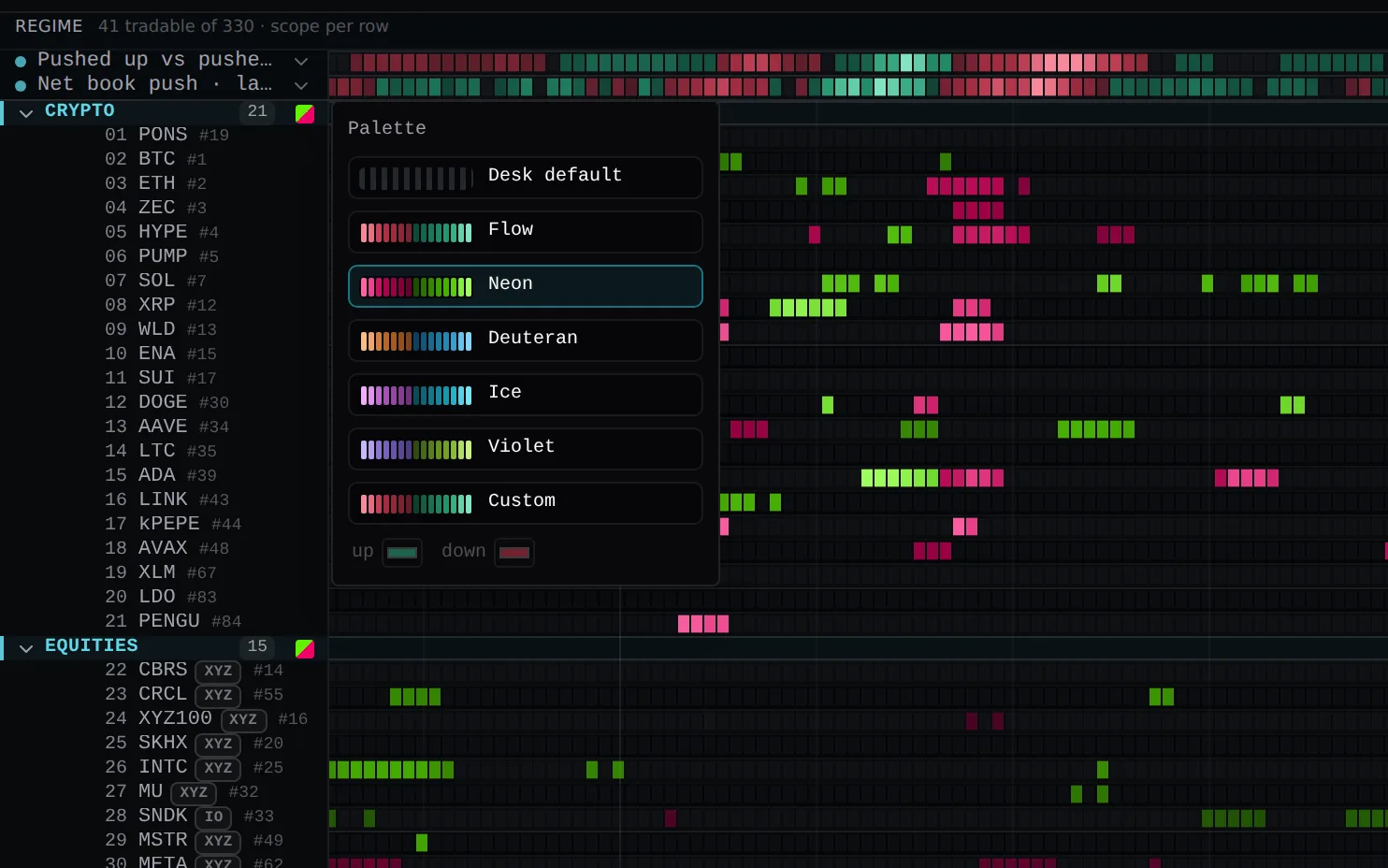
2 fixes
Fixed

Cascade intensity and CVD read real values

Cascade intensity, session CVD, venue premium, impact prices, the open-interest range and buy/sell print counts now read their real values on the board, in your analyst’s read and through the AI connector. They had been reading zero on every market, which left the Cascade Radar desk’s cascade reading dark.

Fixed

Book-depth metrics reach your analyst

Book-depth metrics (resting depth, per-level size, L1 order counts) now reach your analyst and connected AI the same way they reach your board, and a regime preview no longer calls a metric clean when no market produced a value.

Sep 22, 2026

The trade desk is open on every plan
New

Screens list every matching market

Screens: set a signal to match All and the new Screen face lists every market meeting your conditions right now, the ones that just left, how long each has held and the move since — with a match-history strip per row, columns you choose (any formula), and an alert when a market enters.

New

Screen keeps a 14-day History

The Screen keeps a History: a 14-day server-recorded log of every market that entered and left it, with when, the price, how long it held and the move since — and it is now on your phone as a tab too.

New

Formulas read another timeframe

Formulas can read another timeframe: tf(rsi(close, 14), 240) is the 4-hour RSI on any board, read from closed candles so it never repaints — screen a 15-minute board with a daily or 4-hour condition.

New

Trade panel returns on Free

The trade panel is back for everyone, Free included. Your practice book, open positions, resting orders and the order ticket all sit beside the board again, running against the $10,000 simulator that follows your account across devices — so you can work the whole loop on a live market before anything is at stake. Going live with real money on Hyperliquid is still part of the Trader plan and up.

New

Your AI trades practice books on Free

Your own AI can trade your practice book on any plan, Free included. Connect the vyx MCP server to Claude, ChatGPT, Cursor or any client that speaks it and the two of you can work a real setup end to end on play money — it reads the live board, you agree on the trade, it places it and manages the stop from the conversation. It was refusing every order on Free, practice books and all; now only the live wallet asks for a trading plan.

New

Regime rows can sit on the board

A regime row can now live on the board instead of above it. Pick a sector, theme, asset class or watchlist under Place in the row editor and the row drops in directly beneath that group’s divider, reading that group and nothing else — so a cohort carries its own read right where its markets are, and the band above stays for the market-wide rows.

New

Pick which sections the board groups

Choose which sections the board groups into. The grouping control now lists every section your board would draw — each with how many markets it holds right now — so you pick the handful of cohorts you actually trade, and your watchlists are a choice too rather than all of them at once. Nothing leaves the board: whatever you did not pick drops into an “Other” section at the bottom, which you can switch off for a strict view of just your cohorts. The choice is saved with the desk.

New

Trade and Info tabs under the chart

The trade column has two tabs, right under the chart: Trade and Info. Trade — where every session opens — is your account and the order ticket, with nothing stacked above them any more. Info is the market: its latest catalyst and what is scheduled next, volume, open interest, funding, how much the book can take, what is moving with it, and its tags — press a tag and the board shows you that whole group. A dot on Info tells you a headline landed today without leaving the ticket.

Improved

Nested formulas and event functions

Formulas now nest and name their parts — lowest(rsi(close, 14), 20), r = rsi(close, 14); r < 30 — and gain event functions (swing highs and lows, crossovers, "bars since", "value when"), so divergences and swing structure are something you write, not something you wait for us to build.

Improved

Trade column folds to a tab

The trade column folds. Tuck it away with the control in its top corner and it becomes a slim Trade tab you can open again any time; the width you set is waiting when you come back. Move the chart into the column and it opens and widens itself to fit — and if you fold it while the chart is in there, the chart returns above the board rather than disappearing with it.

Improved

Market Sentiment reads rotation in place

Market Sentiment now reads the rotation in place. Its band is the whole field — how much of it is above its own trend, what the middle market did, where it sits in its range, how much of it is beating BTC — and each cohort’s move against that field sits down on the board under its own divider: Majors, L1, L2, DeFi, Meme, Crypto infra, Payments, Semis, Macro, Commodities, AI and Crypto-linked. The strip tells you the market is bid; the section under it tells you who is bidding.

Improved

Grouping nests the long tail

Grouping the board is quieter and says more. Sections are now the cohorts you actually rotate between, so the long tail nests instead of fragmenting — a GPU cloud, an optical-interconnect maker and a power producer read as one AI build-out cohort rather than three one-name sections. Two new cross-cuts join AI and Crypto-linked: Solana (the chain, its DEXes and its memes in one read) and Perp DEX (the venues you are trading on). Nothing was dropped — every market still lands in a section you would name out loud, and a cohort read never appears over a section holding a single market.

Improved

Ticket shows expected fill cost

The ticket now says what an order costs to fill. Under Send, a market order shows its expected cost from mid — half the spread plus the depth your size eats — on the size that will actually go out, so the last thing you read before sending is what the fill will cost you.

Improved

Ticker named once on the chart

The market is named once. The chart used to print the ticker twice — in its header and again over the candles, with the instrument’s description spilling across the top. With the trade column open, the column names it and the chart is all chart; fold the column and the chart’s own line comes back.

1 fix
Fixed

Practice ticket places orders on Free

On a Free account the practice ticket now actually places orders. It was drawing the market a blank: no price, no stop, no size, and a Send that stayed greyed out reading "no market data". The ticket arrives with the focused market and a protective stop already on the chart, so your size in R resolves the moment it opens and one press sends. The rest of the practice desk came back with it — the Trade tab on your phone, order lines you can drag on the chart, your fills marked on it, Trades & PnL, and the Practice and Order ticket settings.

Improved

Phone trading lives in the Trade tab

On a phone, trading has one home. The order ticket no longer wedges itself between the chart and the heatmap on the scan faces — Map, Grid and Table give the chart and the board their full height again, and the Trade tab is the trading surface: chart on top, your positions below it, and the ticket docked under your thumb. Stage an order from a chart long-press anywhere and you land there ready to send.

Improved

Every market now sits in a group

Every market on the board now sits with its peers. The markets that were still in Unlabeled — the AI build-out names (memory, optics, power, GPU clouds), the rates and volatility feeds, the private AI labs — now have groups, and Neocloud, Networking, Power, Robotics and Quantum join as groups you can scope, group and build a regime on. New Hyperliquid listings get their group soon after they list, so grouping the board keeps working as the venue grows.

Improved

Plain-words message when chat can’t send

When a chat message genuinely cannot be sent, the chat now says so in plain words instead of showing a technical error code.

1 fix
Fixed

AI chat works on Free again

AI chat works again on the Free plan. For a few days it answered every message with an error instead of a reply — Composer AI chat is free, unlimited, and needs no card, exactly as our pricing says, and it is back to that for everyone.

Sep 20, 2026

Give the board the whole screen
New

Custom colors for rows and groups

Every row that paints cells can now carry its own colors — each metric row under the chart, each regime row, and each group of the board. Click a row’s name (or the swatch on a group’s header) and pick Flow, a red-green color-blind pair, Ice, Violet, or your own two. Stacked rows measuring different things stop looking like one instrument, and a board grouped by scope tells crypto from equities before you read a label. Colors belong to the Trade Desk, so each desk keeps the way you set it up. The picker tells you if a pair is hard to tell apart, merges under color blindness, or sits too close to the colors your own fills use — and your fills, stops and targets always keep their own colors, so a trade never disappears into the market.

New

Dock the chart in the trade column

The chart can now sit in the trade column instead of above the board. Two icons beside the Map/Grid/Table toggle move it: docked, it goes above your trade panel and hands its half of the screen back to the board, which runs floor to ceiling and shows roughly three times as many markets at once — with the ticket still right underneath. It is the same chart on the same timeline either way, so panning or zooming either surface moves both, and a cell still means the moment it always did. Drag the divider under the docked chart to size it; your desk remembers where you left it.

New

Score column on the board’s right edge

Every market’s score now reads as a number down the right-hand edge of the board, lined up under the chart’s own numbers — so one strip tells you where the whole desk stands without opening anything.

Improved

Patterns move to paid plans

Patterns now come with the paid plans, alongside trading. Capturing a window on the chart, reading its evidence and painting it across the desk are part of Trader and up; free accounts keep the full scanner, unlimited signals and the AI builder. Accounts from the beta already have it.

Improved

Newer AI apps connect first try

The vyx connector now speaks the newer releases of the assistant-connection standard, and an AI app that asks for one we don’t serve is told exactly how to connect instead of being left to guess — so newer clients attach on the first try.

Improved

Regime readings in the right column

Each regime row’s reading moved from its name to that same right-hand column, in line with the chart above it. The band now reads left to right — name, painted history, where it stands now — and the names have the room to be read in full.

Improved

Crosshair jumps every row to that bar

Put the crosshair on any bar, on the board, the regime band or the chart, and the whole column jumps to that moment — so you can scrub back through a move and read the scores that went with it.

1 fix
Fixed

Your AI gets a clean desk index

Asking your connected AI what desks you have now comes back as a clean index — each desk’s name, how many signals are lit, how many regime rows it carries and when it last changed. It used to hand back every desk in full, which could fill your assistant’s working memory before it read a single name. The whole desk is still one request away.

Sep 19, 2026

Desk switches that land at once; analyst cards that have to pay
New

Setups opens with the analyst’s read

The Setups tab now opens with the analyst’s read of your desk: each setup family marked hunt, selective or stand from its last pass, with how long ago it looked. Click the line for the environment, what decides each family, what would flip the read and what moved since — so an empty feed tells you why the analyst is standing aside.

New

Put a signal on the Workbench

Your AI can now put a SIGNAL on the Workbench, not just a chart: one signal’s score bar by bar for a market, scored by the same engine that ranks your board. It can plot a signal already on your desk, or compose one for the question and score it WITHOUT saving it — so you can see whether an idea would actually have fired before it goes anywhere near your signal rail. A drafted one is marked DRAFT and carries Keep as signal; only you decide whether it lands on the desk, and the study then records which signal it became.

Improved

Board controls move above the board

The board’s controls moved off the right-hand column and onto their own row across the top of the board, directly above the regime strip. The view switcher, the firing count, the ticker search and every filter now read left to right over the board they shape, and the board itself has the full width back.

Improved

Desk switching is near instant

Switching between trade desks is now close to instant: a desk you have opened before, or one sharing signals with your current desk, paints from memory instead of re-scoring the board, and desks you have not opened yet are scored quietly in the background while you work.

Improved

Switching timeframes no longer freezes the board

Switching to a desk on another timeframe no longer freezes the board for seconds: the new timeframe’s history arrives in one step, the size filter is already in place, and cells still being scored show a calm placeholder for a moment instead of blocking the page.

Improved

Analyst view shows status, controls, AI drafts

The Analyst view now says whether your desk has an analyst and whether it is hunting, with Start, Stop and the run interval right there. One AI button is always present: draft instructions from your desk, improve the draft in the box, or revise a running analyst — every suggestion opens in the form, labelled as drafted by AI, for you to apply. Create analyst makes it and starts it in one step, and an analyst can now be removed from the view. Setups filed by your own connected AI over the MCP now show on the Setups tab even when the desk has no analyst, and the empty tab points to both ways in.

Improved

Analyst cards need room to pay

Analyst setup cards now need room to pay: the second target sits at least twice the risk from the entry, or the card is not filed. The same floor applies to cards your connected AI files, and its reply says so.

Improved

Analyst narration keeps the names that matter

The analyst’s running narration keeps the names that matter: a name that has left the board is no longer carried along, and on a crowded board the names with live cards and the ones forming a plan keep their place ahead of the ones the read has ruled out.

Improved

Session shading on 1m through 30m

Session shading now draws on 1m through 30m only. On 1h a session was a handful of candles wide, so the bands traced the bar grid rather than a real open — the same reason they were already off on 4h and 1d.

Improved

Older history arrives in two steps

Older history after a timeframe switch now arrives in two steps instead of one long wait: the first stretch of bars lands as soon as it is in, and the deeper stretch follows. The desk’s quiet background catch-up also steps out of the way while history is loading, and polls less often when nothing has changed, so it no longer competes with the bars you are waiting on.

12 fixes
Fixed

Each desk shows only its own timeframe

Switching from a desk on one timeframe to a desk on another could briefly show bars from the previous timeframe mixed into the new board. Each desk now shows only its own timeframe.

Fixed

Gapped entries grade as real trades

A card whose entry was resting at or under the market and gapped through it now grades as the trade it was — filled at the open, then stopped or paid — instead of being voided as “the entry never printed”. The record no longer hides those losses.

Fixed

Analyst reads match regime row labels

The analyst’s read now lands when it names a regime row by its own label — “Memes −2.9%” for a row called “Memes · 24-bar move” — instead of being dropped for not spelling the whole name; a label two rows share still names neither. Cards that depended on those reads were being lost with them.

Fixed

Cards withdraw when their conditions trip

When the analyst writes that one of a card’s own end-conditions has tripped, the card is now withdrawn on that condition instead of held — and price conditions written as “a close back below the 29413 support” are tested by the desk on every bar like any other. A condition naming one regime row and a threshold (“Sweep Direction under −30000”) is now tested by the desk too.

Fixed

Signal settings open each signal’s menu

The settings button on a signal in your desk panel now opens that signal’s menu, so you can tune the weight of any signal on the list and open any of them in the editor — not just the one already being edited.

Fixed

Sign-in no longer prompts to leave

Signing in to a different account, or letting a new version take effect, could stop on a browser dialog asking whether to leave the site. It no longer appears — most visibly on a fresh signup, where the first sync now finishes on its own.

Fixed

Switching desks redraws the board cleanly

Switching trade desks while the analyst’s run controls were on screen could stop the board redrawing part-way through the switch, leaving stale panels until a reload. Desks now change over cleanly every time.

Fixed

Signal studies show gaps, not zeros

A signal study now shows a gap, not a zero, on bars it could not score — a condition unmet, a hole, or too little history behind the bar for the signal’s own lookback — with the warm-up shaded at the left. A flat line no longer means “nothing happened” when the truth is “this could not be worked out yet”.

Fixed

AI distance indicators keep their side

Indicators composed by AI that measure a distance from a reference — price against its own 200-bar mean, say — now keep the setting that preserves which side of the reference they sit on. They were being re-centred on the field’s middle, which could paint the wrong side.

Fixed

Sign-in form offers your saved password

The sign-in form now tells your password manager that it is a sign-in — so on a phone it offers your saved VYX password instead of pushing you to generate a new one.

Fixed

Trade-history sync retries quietly

A brief connection hiccup as the app started could leave your trade-history sync retrying in a tight loop instead of settling. It now waits and retries quietly, and no longer shows a sync error while you are still being signed in.

Fixed

Loading note stays until history lands

After a timeframe switch the board could sit on a short first window with the “Loading history” note gone and the older bars still to come. The note now stays up from the switch until the history is actually on the board, a switch made while an earlier page was still arriving no longer loses its follow-up load, and a board left short with nothing on the way now asks for its history again on its own.

New

Click a group to see its tickers

Click a regime’s group name to see its tickers on the desk. A temporary group filter works across Map, Grid and Table; × or Esc restores your previous view and place.

Improved

Set analyst run interval in Setups

Set your analyst’s run interval directly from Setups. New analysts follow the desk interval by default; choose a fixed interval from 1m to 1d or return to following the desk anytime.

Improved

Signals tab in the left panel

Your desk’s signals now live in a Signals tab in the left panel, beside Setups, Workbench and Analyst, with the desk name above them. The hover gear on the desk tabs is gone, switching tabs no longer resizes the board, and you can drag the panel’s edge to give the signal editor more room.

2 fixes
Fixed

Research column opens on Setups

The research column now opens on Setups for accounts with analyst access. Chat-created studies still open Workbench when they arrive.

Fixed

AI chat scrolls back without snapping

AI chat lets you scroll gently into earlier messages without snapping back to the bottom, including while a reply is arriving.

Sep 17, 2026

Research beside your conversation
New

AI chat saves charts to Workbench

AI chat can create saved charts, comparisons and flow studies in your desk’s Workbench, with links to reopen them and a mobile Chat/Workbench switch.

New

Analyst narrates every name on its board

The analyst keeps a running narration of every name on its board each pass — what it is doing against its levels, which gates are open, what would make it a setup — and follows its own cards from filing to resolution. Every number in it is one your desk shows. Available today to your connected AI over the API/MCP.

New

Analyst manages its own setup cards

The analyst now manages its own live setup cards each pass — holding, withdrawing when a condition the card stated has tripped, or tightening the frame (never widening the risk) — with every decision logged on the card.

New

New Market Sentiment starter board

A new starter board: Market Sentiment. It answers the question you ask before any other — is the market risk-on or risk-off right now, and which corner of it is leading — and it answers it from price alone: where each market sits against its own 50- and 200-bar means, how hard it has moved, how much of that move is its own rather than BTC's, and whether its range is widening. Above the board sits a read of the whole field, and then each cohort — majors, L1s, L2s, DeFi, memes, AI, semis, crypto-linked equities — as its move MINUS the field's, so a row above zero is a cohort being bid rather than one carried along. Every read is counted in bars, so the timeframe control moves the whole desk, from a session read on 5-minute bars to a multi-day one on 1-hour.

Improved

Analyst suggestions open the instructions form

Chat suggestions for your analyst open in its editable instructions form, preserving your draft and requiring review when saved instructions have changed.

Improved

Setup cards show reward-to-risk and why

Analyst setup cards now say why the entry and the invalidation sit where they do and list the conditions that would end the call, with each target’s reward-to-risk and the risk as a share of entry computed for you from the frame.

Improved

Live cards show the analyst’s latest line

Setup cards now show why the entry and the invalidation sit where they do, the conditions that would end the call (a tripped one reads in red), and — on a live card — the analyst’s latest line on that name with its state.

2 fixes
Fixed

Each desk keeps its own regime strip

Each desk now keeps its own regime strip: adding, editing or removing a row stays on that desk across devices, and older desks retain their existing rows.

Fixed

Regime rows name their sector scope

A regime row scoped to a sector or theme now says so. Its dot read "All tradable markets" however it was scoped, and picking Group in the row editor silently dropped the scope because there was no group to pick — the editor now offers the full list of sectors and themes, and the row names the one it reads.

Sep 16, 2026

Free is the research desk
New

Dispersion and vs-the-field regime rows

Two new ways to compose a regime row. Dispersion reduces a metric to how far apart the markets read — the standard deviation across the field, the instrument a mean-reversion desk needs. And a scoped row can now read "vs the field": its cohort minus the whole board in one signed number, so "memes against the market" is a single row instead of two you subtract in your head. Both paint on the band, read in the strip, and reach your AI the same way.

New

Desk Analyst can read price alone

The Desk Analyst can now have its flow faculty switched off for a desk that reads price alone: no tape, no absorption lines, no volume terms in its context — it times off price structure instead of being told to ignore evidence in front of it.

New

Desk Analyst reads your regime strip

Your desk's regimes are its read. The Desk Analyst now reads your desk's regime strip before it hunts, every pass — and reads nothing else. Its read names the environment, says for each of your setup families whether it is hunting, selective or standing aside, where the read holds, and the one regime reading that would flip it. Every line cites one of your desk's own tiles by name; a line that cites none is dropped before you see it. A setup card must descend from that read — a family marked stand-aside is never carded, and no read means no card. Your AI over the MCP reads the same read and composes regimes with the same intention: a new tile joins the desk's strip as it is created, and an analyst is not stood up on a desk with nothing to read.

New

Your AI builds scoped regime tiles

An AI working your account over the MCP can now build a scoped regime tile itself, not just a market-wide one — one sector or theme, a set of asset classes, or one of your watchlists. Ask it for a cohort strip and it can stand the whole thing up: majors against L1s against memes against semis, each reduced over its own markets.

New

Your AI sets a desk’s interval

Your AI can now set a desk's interval over the MCP. A desk it composes no longer lands on the 5-minute default with no way to move it — it can stand up a slow, hourly desk end to end, and the analyst and trader on that desk read the bar it chose.

Improved

Free plan is the research desk

The Free plan is now the research desk, end to end: the live order-flow board across every Hyperliquid market, unlimited signals, the AI builder, regimes, watchlists, shareable trade desks and read API access — with the trading half of the app put away. New free accounts no longer see the order ticket, positions and orders, the practice book, wallets or Trades & PnL, so the desk opens on the work of reading the market instead of a trading surface you have not asked for yet. Trading starts on Trader ($29): the chart becomes the order ticket, with the practice book and non-custodial live trading behind it.

Improved

Fund moves to Trader and up

Fund — the dashboard for your connected paper research workers — moves with it, and is now part of Trader and up.

Improved

Existing accounts keep Autopilot at no charge

Your existing account is untouched. Every account created before the plans launched sits on Autopilot at no charge, and every paid plan trades exactly as it did — this changes what a brand-new free signup sees, nothing else.

2 fixes
Fixed

Mobile view tabs stay tappable

Mobile view tabs stay visible and tappable when the chart is enlarged or the desk has many regime rows, restoring access to AI chat, Trader and the other views.

Fixed

Scoped regime tiles read their own cohort

A regime tile scoped to one sector, theme or set of asset classes was reducing over the whole market anywhere your AI read it — over the MCP, in the in-app chat, and through the API. So a tile you set to memes printed the same number as the field, and nothing said why. Scoped tiles now read their own cohort everywhere, so "memes down 3% against a field that is flat" is a rotation your AI can actually see. A tile scoped to a watchlist reads that watchlist in the chat for the first time.

Sep 15, 2026

Honest chart structure on quiet markets
3 fixes
Fixed

Chart structure reads true on thin markets

Chart structure now reads true on thin markets. On symbols with stretches where nothing trades — off-hours equity and index markets especially — a quiet bar could be read as a price of zero, so a name's support sat at 0, its range ran from 0, and its volatility read as an impossible number. Those bars are now skipped, and a symbol with too little real trading makes no structural claim at all. Your desk analyst, your AI trader and anything reading the board over the MCP see the levels that actually traded.

Fixed

Cascade score no longer drops out

Cascade score could go blank for a stretch of bars — up to ten hours on 1h and forty on 4h — and the daily bar never scored at all. It now holds steady, the daily bar scores, and every blank bar from the last month has been filled in from the recorded tape.

Fixed

Taker fields return on BTC and ETH

uniqueTakers, topTakerShare and repeatWhaleNotional were missing on the busiest BTC and ETH 4h and daily bars. The per-bar cap that hid them is sixteen times higher; bars from today onward carry them.

Sep 13, 2026

Your research team, in one view
New

Fund dashboard shows your paper traders

The private Fund dashboard shows your connected paper traders, positions, five-minute decisions, research comparisons and fixed instructions, with clear status when a worker or its data is unavailable.

1 fix
Fixed

New app pages load cleanly

New app pages load without repeatedly reopening an older cached version.

Sep 12, 2026

Your AI sees the candle that is forming
New

Candle history includes the live bar

Candle history over the MCP and API now includes the bar that is forming right now, updated every second from our own feed. Ask for a 4h read and you get the live 4h bar with its open, high, low and close so far, not a bar that closed hours ago. Your AI is finally reading the same right edge you are.

1 fix
Fixed

Forming bars carry the live price

On 15m and higher timeframes the forming bar used to arrive with no price at all. It now carries the live price alongside the order book fields.

Sep 11, 2026

Every market your AI can name, it can read
New

Your AI reads our replies to reports

When your AI reports a bug or sends us feedback, it can now read our answer back. We act on reports the same day and write a reply to the AI that filed it — fixed, answered, queued, declined, or waiting on more detail — and it sees where each of your reports stands the next time you work together, so it stops rebuilding a workaround for something we already fixed. It only ever sees reports filed from your own account.

Improved

The board your AI reads names itself

The board your AI reads now names itself: how many markets are on it, at which interval, and that it is your desk's universe rather than the whole venue — so your AI stops concluding a market doesn't exist when your desk simply isn't showing it.

3 fixes
Fixed

Higher-timeframe reads date the last close

Your AI no longer reads a higher timeframe bar close as the live price. Candle history is closed bars only, so on a 4h read the newest close can be hours old; it used to be labelled simply "now". Every read coarser than 1m now says how long ago its last bar closed and quotes the current price beside it.

Fixed

Your AI reads any Hyperliquid market

Your AI can now read any Hyperliquid market over the MCP, not only the ones currently on your desk's board. Asking about a market your desk filters out — or one that was on the board a minute ago and isn't now — used to come back "couldn't resolve"; it now returns the market's real structure, tape and microstructure, and says plainly that it carries no desk score and why.

Fixed

New bars stop faking an OI wipe

A bar whose open interest had not been measured yet no longer reads as a total open-interest wipe. Freshly opened candles were briefly reporting an impossible -100% OI flush, which could make a quiet market look like a violent deleveraging.

Sep 9, 2026

Your AI reads the whole move
New

Guided request to analyze a move

A new guided request for connected AIs: ask it to analyze a move end to end and it finds where the move started, reads what flow did through each stage of it, checks the frame around it and the catalyst behind it, and only then looks at what is happening right now.

Improved

AI chat defaults to GLM-5.3 Flash

AI chat now defaults to GLM-5.3 Flash. If you have access to the model picker, your saved choice is preserved.

Improved

Candle history opens with a window summary

When your AI pulls candle history over the MCP it now gets a summary of the whole window first: what price did across the entire slice, and what order-flow imbalance, cumulative volume delta and open interest did through each third of it. A rally that ran the whole way on negative book pressure now reads at a glance instead of bar by bar.

Improved

AI pages back to a move’s start

Your AI can tell when it is only holding part of a move. Candle history now says whether older bars exist and hands back the exact point to continue from, so asking about "the premarket" or "this whole rally" gets the window paged back to where the move actually began rather than the last few bars.

Improved

Switching markets clears the ticket

Switching markets now clears the unfinished order ticket. Parked setup chips are removed, and returning to a market starts a fresh ticket.

1 fix
Fixed

Heatmap columns line up with candles

Heatmap columns line up with their chart candles again after the Alerts/Pinned panel removal, including while zooming.

New

Chime when the Analyst posts a setup

Hear when the Analyst posts a new setup: enable the speaker beside Start/Stop to preview the alert chime. Your browser remembers the choice, and existing cards and outcome updates stay quiet.

New

Your AI can trade with you

Your AI can now trade with you. The AI you talk to over the MCP places and manages the positions the two of you agree on — open with a stop and a target, tighten or move protection, take partials, close, cancel or move a resting entry — in your practice books with no setup at all, and on the Hyperliquid agent wallet you approved once the live switch is on: a single switch on your account, off by default, that your AI flips when you tell it to trade live. Every live order passes your money guardrails against the venue's own account state, stops move cancel-first so the venue never holds two, the kill switch stops everything, a wallet a desk trader is running on is left to the trader, and the key it trades with can never withdraw.

New

Your AI shapes your desk analyst

Your AI has the desk analyst whole over the MCP: it can stand one up, write its standing orders, choose what it perceives and how often it looks, switch it on or off, and remove it — the analyst is the mind you co-work with, so it is yours to shape from the conversation.

New

Your AI reads the analyst view

Your AI can now read a desk the way the desk's own analyst does. Ask for the analyst view of the board and it gets the whole context the analyst hunts from — the session clock, the field, each regime as its recent series, every row with its percentile against its own history, price against range, higher-timeframe trends, fillability and chart structure, the tape, live setups and the record. Regimes can be read as their series too, and one market now reads top-down: structure and the tape first, the current bar last.

New

Desks carry a mandate for your AI

A desk now carries its mandate for the AI you connect: its description and explainer, the analyst's standing orders, and what already stands on it come back together, and your AI can write those standing orders — the same brief the desk's analyst obeys — so a new session starts from what the desk is for instead of guessing it from signal names.

New

Filed setups state top-down context first

Setup cards your AI files now state the top-down context — the regime, where price sits in the higher timeframe, and the market's group — before the thesis, and a card without it is not filed. Your AI can also withdraw one of its own live cards, with its reason kept, or revise it; the original stays on the record either way.

New

Your AI reads your open positions

Your AI can now read the positions you are actually holding — real money and practice books alike, in one list. Ask it what is open and it sees every position with its size, entry, mark, unrealized PnL, leverage and liquidation price, the stops and targets on each one, and which trade desk opened it. It covers builder-dex markets as well as the main exchange, so nothing you hold is left out, and a position VYX has no record of opening is shown as unattributed rather than guessed at. Reading only: the connection still cannot place, move or cancel an order.

New

Workbench tab in the Analyst column

The Analyst column now has a Workbench tab, where analyses land as your AI works. An AI you connect over the MCP can file a read on your desk — a market's bars with the next timeframe up drawn hollow behind them, a market against the ones it moves with, or one order-flow field over a window — and it appears on the bench the moment it is filed, drawn by VYX from the venue's own candles. Every analysis is kept and the bench scrolls back as far as the record goes.

New

Your AI files its own setup cards

Your AI can now file setup cards of its own over the MCP. A card it files is held to the same fence as the analyst's — entry near the last price, every level inside the recent range — is graded by VYX exactly the same way, and is marked as its author on the card. A setup links the analyses it leaned on, and its card carries a link that opens the Workbench at exactly those.

Improved

Chart room without the Alerts/Pinned panel

The Alerts/Pinned panel beside the chart is removed, giving the chart more room. Price alerts stay on the chart, starred markets stay on the board, and notification controls are available in Settings.

Improved

More compact desktop trade panel

The desktop trade panel is more compact: wallet, balances and history share one summary, the ticket is immediately available, and duplicate Trade and ticker headings are gone. Connection details now call the trading credential a trading key.

Improved

Setups that never enter grade as void

A setup card is now graded from the bar its entry actually prints. A stop or the 48-hour deadline reached before the entry ever prints marks the card void — no trade happened, so no result is claimed — where it used to book a full-risk loss or a priced expiry off an entry that never existed. The record line counts void and withdrawn cards beside the graded ones, and each card shows which it was.

Improved

Long AI reports survive whole

Bug and feedback reports your AI files are no longer cut short — a long design note survives whole instead of stopping mid-sentence.

Improved

Setup cards show the higher timeframe

Setup cards now draw the next timeframe up behind their bars as hollow candles, so a 5-minute card shows its 15-minute structure without leaving the card.

Improved

Faster history panning on every interval

Panning back through history is faster on every interval — a 4-hour page that took five seconds now lands in a quarter of one. Closed bars are kept ready-made, so a page of older history is read straight off the shelf instead of being reassembled from the raw feed each time.

Improved

API responses about a third smaller

API responses are about a third smaller: candle numbers now carry 8 significant digits — a price keeps its cents, a sub-cent asset keeps its relative precision — so large history pulls download faster.

2 fixes
Fixed

Analyst latest returns the desk analyst

Asking your AI for the analyst's latest now returns the desk analyst — its standing orders, its cards and the desk's record — scoped to the desk you named. It used to return a trader's decision log for the whole account, whichever desk you asked about.

Fixed

Setup chips stay inside the chart

A setup card's entry, stop and target chips no longer draw off the top or bottom of its chart when a level sits outside the bars shown.

New

Your AI reports bugs from the chat

The AI you connect to VYX can now report a bug or send feedback without leaving the conversation. When a tool errors or the data it reads back looks wrong, it files a report with the exact request it made and what came back — and it is told to do that rather than quietly working around the problem, so we hear about faults from the session that hit them.

New

Break-even move works on every market

The automatic move to break-even now works on every market VYX trades, not just the main Hyperliquid ones. Builder-dex markets — the ones with a small exchange badge beside the ticker — keep their positions on their own exchange account, which the check could not see, so the switch was hidden there; it now reads that account directly and the switch is available on every ticker you can trade.

New

Take-profit rungs get their own size

Take-profit orders now have a size you can set. Every stop and target row in the ticket carries a size cell — type a percent to set how much of the position that rung closes — and a target can close only part of it, leaving the rest to run. On a live position the same ledger sits above Flatten: type a new price or a new share for any resting stop or target and that one order is replaced at the exchange, the rest untouched.

Improved

Research column opens on Analyst

The desktop research column now opens straight to Analyst, with Match Log and the feed tabs temporarily hidden.

Improved

More room without the Catalysts column

The desktop Catalysts column is temporarily hidden, giving the chart and heatmap more room. News on mobile and catalyst evidence on charts and analyst cards remain available.

Improved

Signal history reads the whole desk

Asking your AI how a market has been scoring now reads your whole desk by default — every lit signal and the Total per bar, blended exactly as the board ranks — instead of one signal it picked for you. Signals that fire on a few bars list just those bars with side and score, so "when did we last fire on BTC, and which way?" is a single question. Quiet bars are described as quiet, with the condition that held them, rather than looking like errors.

Improved

Switch desks from the top bar

Trade desks now switch from the top bar on desktop. Hover a desk name to reveal its edit gear, open its signals beside the chart, and return to a full-height Analyst or Match Log. All desks keeps search and desk management close at hand.

Improved

Collapsed analyst cards keep charts

Collapsed analyst cards now keep their charts visible, so you can scroll through setups at a glance. Expand a card to read its signals, thesis, price table and catalyst.

Improved

Analyst reads regime rows over 100 bars

The desk analyst now reads each of your desk's regime rows over their last 100 bars, not just the current reading — so an extreme, a fade, or a crossing back through zero is evidence it can time a setup against.

Improved

Analyst moves below Trade Desks

Analyst now sits directly below Trade Desks. Expand a setup beside the chart and heatmap, or fold the feed while keeping Start and Stop within reach.

Improved

Analyst and Match Log share tabs

On Autopilot and Quant, Analyst and Match Log now share tabs below Trade Desks, while Catalysts stays to the right of Trade. Switching keeps your place, supports keyboard navigation, and respects reduced motion.

Improved

Board controls move beside the board

On the desktop the board controls moved off the top bar and into their own column down the right of the board, lined up under the chart’s price scale. The view switcher, the firing count, the ticker search and every filter now read top to bottom beside the board they shape, so the shape of your board is next to the board instead of a screen away.

Improved

Quieter regime band title row

The regime band’s title row is quiet now — the two add buttons that sat on it permanently are gone, and the band offers both ways to start a row where it says it has none.

Improved

Empty ticket no longer draws on chart

An order ticket you have not composed anything in no longer draws on the chart. Because the ticket stays open between sessions, every symbol you charted used to arrive wearing an entry line at the current price, a default stop with its full read-back, and a shaded risk band — for an order that did not exist. Now the chart carries only the market until you place a level; move onto it and the + SL / + TP handles come up so you can drag one out, and the moment you do, the whole plan draws exactly as before. Your open positions and your AI trader's plan are unchanged — those are always on the chart, ticket or no ticket.

8 fixes
Fixed

Releasing a setup returns to now

Letting go of a setup card now brings the chart back to now. Opening a card takes the chart to the moment of the call; releasing it — or locking a different market — could leave the chart parked hours in the past with live prices no longer landing on it, and only a reload got you back.

Fixed

Setups draw only on their own bars

A setup no longer draws its entry, stop and target on bars they do not belong to. When the chart was showing an older stretch of history than the setup was called on, the entry line was pinned to the newest candle on screen at a price nothing near it had traded at; the frame now waits for its own bars to be on the chart.

Fixed

Daily timeframe reads work again

Daily timeframe reads work again. Every market was grading as untradeable on the 1-day interval, which emptied the board and left daily level and history reads with nothing to resolve — a market is no longer judged idle just because the current day is still in progress.

Fixed

Higher-timeframe level reads use real bars

Level zones and signal history read through the VYX MCP connection now use the timeframe you asked for. A 4-hour request came back with 5-minute bars relabelled, so a higher-timeframe read your AI gave you could quietly have been built on intraday data.

Fixed

Break-even stop checks mark price

The automatic move to break-even now judges whether a break-even stop is safe to place against the exchange's mark price — the price it actually fires triggers on — rather than the mid. The two part company on a thin or one-sided book, which is exactly the tape where that stop is worth having.

Fixed

Chart holds the price scale you set

Dragging a stop or target after you rescale the price axis no longer snaps the chart back to auto-fit. Compress the axis to reach a level above or below the candles, drag the level up there, and the chart holds the scale you set — through new candles and through every drag — until you double-click the axis to hand it back to auto-fit. Dragging a level toward the edge of the chart no longer chases the scale under your cursor either.

Fixed

Analyst reads watchlist-scoped regime rows

A regime row scoped to one of your watchlists now reads over that watchlist for the analyst, exactly as it does on your desk.

Fixed

Price scale ignores stops you never set

The price scale no longer stretches to fit a stop you never set. A default stop worked out for sizing used to pull the chart's price range down to reach it, flattening the candles you were reading.

Sep 6, 2026

The orders you staged are the orders that go out
Improved

Analyst’s newest setup card folds

The analyst's newest setup card now folds. Its chart, thesis and frame collapse to the one line naming the symbol, the side and how old the call is, so the graded feed under it gets the rail's height back; the card stays folded until you open it again, on that device.

Improved

Break-even switch on open trades

You can now turn the automatic move-to-break-even on or off on a trade you are already in. The stop → entry switch used to be a decision you could only make while staging the order; now it sits above Flatten for as long as the position is open, so you can arm it on a trade already running or stand it down when you change your mind. Armed part-way through, it acts on take-profits that fill from that point on — a partial you already took will not trigger it. The setting belongs to the trade rather than the browser, so a trade armed on your phone reads armed on your desktop.

4 fixes
Fixed

No break-even switch in practice books

The stop → entry switch no longer appears in a practice book. It works against a connected exchange account, which a practice book does not have, so it was offering something it could not do.

Fixed

Multiple take-profits all get placed

A trade staged with more than one take-profit now places every one of them, each closing the share you set. Before, a two-target plan sent a single full-size target — the ticket and the chart promised a ladder the exchange never received.

Fixed

Added size brackets the whole position

Adding to a position now brackets the whole position, not just the size you just added, so the earlier part is never left without a stop.

Fixed

Crowded level labels fold into a count

A level label on the chart now always sits exactly on its own price. When levels stand close enough for their labels to overlap, they fold into one label that shows how many are there — hover it (or tap the count on a phone) and they separate so you can read and drag each one. Every level keeps its own line on the chart either way.

New

Analyst cards drive the real chart

Analyst cards now drive the real chart. Hover a card and the chart follows it to the moment of the call with the entry, invalidation and targets drawn on. Click a live card and the ticket opens with those levels already staged, so size is the only thing left to set. Cards from days ago load their window in one read, and the chart keeps the targets in view rather than pinning them off the edge.

New

Practice trades show on the chart

Practice trades now show on the chart. Your practice book gets the same fill marks, closed-trade plates and risk bands live trading has, so you can review a practice run the way you review a real one.

Improved

Older trades matched to their desk

Each desk's chart now shows only the trades placed from that desk. Older trades, made before VYX recorded which desk an order came from, were matched to their desk wherever that could be established for certain — for instance when only one desk existed at the time. Where it genuinely cannot be known, the trade stays off the chart rather than appearing on a desk it may never have belonged to.

Improved

Chart trades follow wallet and desk

The chart now shows only the trades that belong where you are looking: the wallet you are on — practice book or live account — and the desk in front of you. Switching practice books, or moving to another desk, changes what the chart draws. Trades placed before VYX recorded a desk still appear everywhere rather than vanishing.

Improved

Scroll-back history arrives sooner

Older history arrives sooner when you pan back. Each page of scroll-back now fetches only the data your board actually draws instead of everything ever recorded for those bars, so a page that took a second and a half lands in under one on the shorter intervals.

Improved

Panning far back stays fast

Panning far back no longer slows the desk down. The board now keeps only the stretch of history around what you are looking at and pages the rest in and out as you move, so a long look back costs the same as the live view. Once you are more than a screen off the live edge the board holds still and a Now chip appears above the chart — press it to jump back to the present and pick the feed up again.

Improved

Closed trades show where risk sat

A closed trade can now show where its risk sat. Orders you send through VYX remember the stop and target they were placed with, and the trade's plate on the chart draws them as dashed bands — so reviewing a trade shows how close the loss came, not just where you got in and out. It applies to trades opened from now on; the venue never recorded a bracket, so older trades have nothing to show.

Improved

Closed trades show as chart plates

Your closed trades now show on the chart as a plate — a bordered box running from the bar you entered to the bar you closed, spanning your average entry to your average exit, labelled with what it made or lost. Scaling in or out draws one plate for the trade rather than one mark per fill.

Improved

Your trades get their own colours

Everything about your own trading — fill marks, closed-trade plates, and the shaded risk and target zones on a staged order — is now drawn in its own green and warm red, colours the candles and your signal levels never use. Your trades used to share the exact shades of the analysis around them and got lost in it.

Improved

Second click releases the locked pair

Clicking an analyst card — or any ticker the AI names — a second time releases the pair it locked, so you can let the board go without hunting for the row you locked.

Improved

Adding to a position sizes in R

Adding to a coin you already hold now sizes in R like any other order. It takes its risk from the stop already protecting that position — because the added size exits there too — and the ticket names that stop so you can see what your size is measured against. It never places a second stop of its own.

Improved

Analyst reads a cleaner tape

The analyst reads a cleaner tape: volatility flips that reverse next bar, one-bar flow that never persisted, and one-touch levels no longer crowd out the sweeps, absorptions and tested levels that time an entry — and it is told plainly which evidence a market cannot show, so it never waits for it.

Improved

Analyst reads its own graded record

The analyst now reads its own graded record before each pass — what hit, what was invalidated, and the thesis behind each — so it calibrates on this desk's outcomes instead of re-posting a losing call in new words.

Improved

Open positions shade risk and reward

A trade you are already in now shades its risk and reward zones on the chart while the ticket is open, the same way a bracket you are staging does — so you can see what the position is still carrying without reading a number.

Improved

Mobile ticket spells out order types

The mobile ticket names its order types in full — Market, Limit, Post-only, Stop entry — instead of the old four-letter abbreviations.

3 fixes
Fixed

Daily desks measure liquidity again

Daily-interval desks measure liquidity again. On the 1d interval every market read as unfillable — even BTC — so a 1d desk showed sizes it could not act on, and the AI saw nothing tradable there at all.

Fixed

Analyst respects the tradable-size floor

The analyst now holds to your desk’s tradable-size floor on every desk, so it never cards a setup in a book too thin to fill you. On desks where that slider had never been moved it could propose markets the board itself hides.

Fixed

Ticket shows the size actually sent

When a limit trims your order — your risk ceiling, the book's liquidity, or your margin — the ticket now says what will actually be sent, in the same unit you typed in, and marks the box you typed in so the two are never confused. Before, that box kept showing what you asked for while the rest of the ticket showed the smaller real size.

Sep 4, 2026

The order ticket, redesigned
New

New tickets open with a protective stop

A new ticket opens with a protective stop already on the chart — one ATR from entry by default — so sizing in R resolves the moment you arrive. Set the distance as an ATR multiple or a percent, or turn it off, in Settings › Order ticket, which also holds the chart label units and confirm-before-send.

New

Your bracket draws on the chart

The bracket you are shaping is drawn on the chart: a rose zone from entry to stop for what you risk, emerald from entry to each target for what you aim for. A market order shows its entry line too. Right-click any price with a ticket open for Stop here or Target here.

Improved

Order ticket reads as one order

The order ticket now reads as one order: your size as four numbers side by side (risk in R, dollars, share of account, leverage — tap any to type in that unit), your levels as a ledger with a column each for price, R, $ and %, and a summary of what the bracket risks, what it aims for, and the reward-to-risk ratio. Send names the order it will place.

Sep 2, 2026

Practice accounts
New

As many practice accounts as you want

The simulator is now as many practice accounts as you want. Tap the SIM badge on the Trade panel to switch between them or create one — a name and a starting bankroll ($1k, $10k, $100k, or your own number) — and the panel, the ticket and Trades & PnL follow your pick. Rename, reset (fresh book, chosen bankroll) or remove them in Settings › Practice; they sync across your devices.

New

See and disconnect connected AIs

Settings › API & integrations now lists every AI you have connected through the MCP server — Claude, ChatGPT, Cursor, and the rest — with what each can reach, when you authorized it, and when it last acted. Disconnect cuts an app off immediately rather than at its next token renewal, so you can see and control who is reading your desk.

Improved

One gear for account and settings

Everything about your account now lives behind one gear in the desk bar: Account, Wallets, Notifications, API & integrations, Trades & PnL, the reference docs, and sign out — the same list on phone and desktop, and every settings section has its own link you can bookmark.

1 fix
Fixed

Hovered levels show their name

Hovering a drawn level on the chart now shows its name right on the band — centred on the line instead of floating above it — in readable, full-strength colour, including levels that have already been broken.

New

Trades & PnL includes the simulator

Trades & PnL now shows your simulator record too: the realized PnL row on the Trade panel reads the practice book you are actually trading, and opens a page with its fills, fees, and equity.

Improved

Simulator trades on first Send

The simulator now trades on the first Send — no "Arm trading" step to find first, and no silent 30-minute timeout that used to reject your orders while the ticket still said armed. Real prices, play money, from the moment you sign up.

Improved

Board history loads faster under load

The board loads history faster and more reliably when many people are on at once: everyone asking for the same stretch of market history now shares one copy instead of each fetching their own.

1 fix
Fixed

Quick refreshes reconnect the live feed

Refreshing the desk a few times in quick succession no longer leaves the live feed briefly showing offline — impatient reloads now reconnect cleanly every time.

Aug 31, 2026

Reliability day
New

Notifications section in Settings

Settings now has a Notifications section listing every email and push VYX is sending you — which desks, which traders, your armed levels, and each device — so you can see what is producing an alert and switch any of it off in one place.

Improved

Alert emails name their subscription

Every alert email now says which subscription produced it and links straight to that list, so a notification you did not expect is one click from being turned off.

4 fixes
Fixed

AI chat handles detailed requests

The AI chat no longer answers a detailed request with a blank "No response — try rephrasing." — it now works through complex, precisely-specified builds, and on the rare failure it says so honestly instead of pretending it replied.

Fixed

First-login setups reach your account

A rare first-login state could leave everything you set up living only in that browser — signals and desks quietly never reaching your account. That path is closed, and affected accounts heal on their next visit.

Fixed

Returning skips the starter rail

Coming back to the desk no longer hands you the starter rail a second time. If your desks are on your account, they are what you land on — even when the browser has forgotten which one you had open last.

Fixed

Board scroll-back keeps loading

Scrolling the board back through older history no longer stops at "History load failed". Loading a deeper page was being given up on before it could finish; it now gets the time that read actually takes, so the board keeps extending as you scroll.

Aug 29, 2026

Steer your analyst
New

Analyst takes standing instructions

The desk analyst now takes standing instructions — from the pencil on its rail or by telling the AI chat — so you decide what it hunts and how it times entries ("after an extreme, wait for the stall — never catch a falling knife"). It also reads a play-by-play of recent tape action (sweeps, absorption, liquidation cascades, level tests), so those timing calls are made on evidence rather than a score alone.

1 fix
Fixed

Analyst rail shows every past setup

The analyst rail now shows every setup it has posted on a desk, not just the most recent handful — so the feed and the graded record beside it always count the same calls, and you can open any past setup back into its own marked-up chart.

Aug 27, 2026

R sizing tracks your real equity
1 fix
Fixed

R sizing uses your live account equity

Sizing a live order in R now measures risk against the real equity of your connected account. Before, the R unit was pegged to the practice account, so on a small live account "1R" could quietly ask for far more than intended and hand you a maxed-out leveraged position — now 1R is 0.5% of the account you are actually trading, and the total-heat cap holds your combined open risk to what that account can honestly absorb.

Aug 26, 2026

The analyst posts setup cards
New

Scope the board by sector and theme

Scope the board by watchlist or by sector and theme, not just asset class. The scope control now holds three ways to narrow the field: the venue’s classes, any of your saved watchlists, and tags for what a market actually is — memes, L1s, DeFi, semis, metals — plus themes that cut across the classes, so picking AI puts TAO and NVDA on one board together. Pick across sections and they narrow each other: Crypto plus AI gives you the AI names in crypto and leaves the equities out.

New

Analyst hunts and posts setups

Your desk analyst now hunts setups — that is its whole job. On the rare pass where the board shows a clean setup — price at a real level with your desk’s flow reads agreeing — it posts a marked-up chart with the range, the leg into it and the levels drawn on, a short thesis citing your own signals, and an explicit frame: entry, invalidation, and two targets with the reward-to-risk each implies. Every price on a card is a level actually visible on the board, never an invented number.

New

Setup cards get graded for real

Cards are graded for real. The system — never the analyst — stamps each card against its own frame as it plays out: first target, second target, invalidated, or expired. The running record sits beside the feed, losses included, so you always know what the calls have actually been worth.

Improved

Watchlist filter works on every device

Filtering the board to one of your watchlists works everywhere now. It used to be a phone-only control tucked in the watchlist manager; it is the same scope control on every device, it can hold more than one list at a time, and deleting a list you were filtering by no longer leaves you staring at an empty board.

Improved

Analyst starts hunting with no setup

The analyst needs no setup anymore. The brief, the chat box, and the wall of notes are gone: your desk is its mandate — the signals you lit define what a qualifying setup looks like — so a new analyst hunts usefully from the moment you press Start, and the panel shows only cards and the graded record.

Aug 25, 2026

Steadier reads over the API and MCP
Improved

Decision logs return readable summaries

Reading your analyst notes and a trader’s decision log now returns recent entries as readable summaries — what it decided and why — newest first, with a limit you can raise to page further back. Previously a single request could return an enormous dump that overwhelmed the assistant you were talking to.

Improved

Watchlist controls sized for thumbs

Watchlists are built for thumbs on a phone now. Renaming a list, recolouring it, filtering the board to it or deleting it used to mean landing on targets sized for a mouse pointer; each one is now a proper finger-sized control in the Controls sheet, and the eight colours sit on a single row instead of a cramped huddle. On a desktop the same panel stays exactly as tight as it was.

1 fix
Fixed

API and MCP reads retry automatically

Market reads over the API and MCP connection no longer fail intermittently on a dropped connection. A read that arrives incomplete is now retried automatically, and on the rare occasion it still cannot complete you get a message that says the data arrived short — instead of a confusing error that looked like your levels or candles were malformed.

Aug 24, 2026

Every board control is on the bar
Improved

Board filters move onto the command bar

The board’s filters no longer hide in the ⋯ menu. Market scope, the tradable-size floor, the minimum score and row grouping now sit on the command bar as their own controls, each showing what it is currently set to — so you can read the whole shape of your board at a glance, and change any of it in one click. A control you have not touched stays quiet; one that is actively filtering lights up, so it is always obvious what is being held back.

Improved

Command bar gets its own phone row

The same controls now reach your phone properly. The command bar has its own full-width row under the app bar, so scope, size, minimum score, grouping, sort and refresh are all right there instead of squeezed into a sliver you could not scroll to — you can see roughly twice as many at once and swipe for the rest. The ticker search moves up into the app bar, where search belongs on a phone.

2 fixes
Fixed

Board settings stay with each desk

Your board settings now stay with the desk they belong to. The minimum score and the tradable-size floor used to follow you from desk to desk — set a $25k floor on one board and every board you opened after it was filtered the same way, whether or not you meant it. Each desk now opens with its own, and a desk you have never adjusted opens at the standard settings instead of inheriting the last board you looked at. The choice between dimming weaker rows and hiding them is now saved with the desk too, rather than being forgotten.

Fixed

Chat stops repeating itself

The chat no longer repeats itself while it works. When a reply takes several passes — read the board, build the signal, check it — each pass now picks up where the last one left off instead of starting the answer over, so you get one clean answer rather than the same paragraph two or three times in a row.

1 fix
Fixed

Ticket buying power uses your leverage

The order ticket was under-reading your buying power on live trading — it ignored your set leverage, so sizes were capped near your free collateral (about 1×) and came back trimmed with a "capped" note. Buying power now reflects your real openable size, so the % bar, the free figure, and the size cap all match what the venue will actually accept.

Improved

Board has Map, Grid and Table

The board now has three faces — Map, Grid, and Table. The Stream river showed the same scores the Map already paints but could only ever fit a handful of markets, so it has been retired in favor of the faces that show the whole board. If your saved desk or phone was on Stream, it opens on the Map instead — nothing else about the desk changes.

Improved

Chart Layers cut to three switches

The chart reads quieter. Layers is down to three microstructure switches — depth walls, mark/oracle, funding/OI — plus your own trades, which are on from the start. The spread ribbon, microprice, VWAP, sweeps and CVD lines are gone; anything you want drawn there you can write as a signal, which also scores your board and reaches your AI trader.

2 fixes
Fixed

Switching accounts opens on your own desks

Switching to a different account on a browser someone else had used could leave the previous account’s desks on screen, or an empty board. Every account now opens on its own desks.

Fixed

Your practice book is private

Your practice book is now truly yours. The built-in simulator used to run one shared account, so a brand-new signup could land on a book already showing someone else’s trades and PnL. Every account now gets its own private $10,000 simulator book that follows you across devices and persists between sessions.

Aug 20, 2026

Pick up on your phone exactly where your desktop left off
New

Your session follows you between devices

Your session now follows you between devices. Step away from the desktop mid-read and open VYX on your phone: the same desk, the same charted symbol, the same board face and inspector tab, your folded sections, watchlist filter, and refresh tempo are already there — zero taps. It works in both directions, and if both screens are open, the one you touched last leads.

New

Staged orders follow you too

Staged orders follow you too. An order you have half-built — entry, stops, targets — travels with your session: park it on the desktop, open your phone, and it is waiting, still staged. Nothing is ever placed by syncing; a draft only becomes an order when you send it, on whichever device you are holding.

Improved

Switching desks keeps your view

Switching desks no longer moves your view. A desk brings its signals, sort, and scope — but the symbol you are charting, your board face, and your inspector tab stay put, on every device. Saving a desk on one device can no longer nudge the chart or un-star a ticker on another.

Improved

New Hyperliquid listings join automatically

Brand-new Hyperliquid listings now join the scanner on their own — when the venue lists a market on any of its dexes, it shows up on your board with live candles within about an hour, instead of waiting to be added.

Improved

Delete your own signals from the list

You can now delete your own signals from the Add a signal list. Until now the only way to discard one was from a desk, so anything you built and never added was stuck in the list for good — a few attempts at the same idea and you were scrolling past your own dead ends. Each of your signals now carries a trash icon that asks once before it goes; templates keep theirs, since those are always re-addable.

Improved

Session shading off on 4h and daily

Session shading now stays off on the 4-hour and daily charts. A trading session is shorter than one of those candles, so the bands were drawing the bar grid instead of a real open — precision the chart did not actually have. On 1-minute through 1-hour they are unchanged.

2 fixes
Fixed

Deleted signals stay deleted

A deleted signal now stays deleted. Every desk carries its own copy of the signals it shows, so deleting one only cleared the desk you were on — open another desk that used it and it was back in your list and back on that desk's rail, with no way to be rid of it. Deleting now clears the signal from every desk at once.

Fixed

Signal cards can’t switch the timeframe

Clicking a signal's name in the rail no longer selects it or reloads anything. Your board's timeframe now belongs to the desk itself, so touching a signal card can never silently switch it — a card only lights up while you are editing that signal.

2 fixes
Fixed

Candles stay aligned after timeframe changes

Candles no longer drift apart on the chart. Changing timeframe could leave the chart drawing its layers on the timeframe you came from while the candles moved to the new one — which spread the candles out with empty space between them and slid the board columns off the bars underneath. Every layer is now held to the same grid as the candles on screen.

Fixed

Loading history shows placeholders

Switching timeframes no longer looks like half the market lost its history. While the older bars are still arriving, the columns that have not landed yet are drawn as placeholders instead of empty space — so you can tell which rows are still filling in, which ones genuinely start where they start, and when the board has finished loading.

New

Read the market by cohort

Read the market by cohort instead of one ticker at a time. Group the board by sector and theme, and every section header carries its own read — the median score of its members and how many are firing — so you can see at a glance that memes are offered while semis are bid, and whether that is the whole cohort or one name dragging it. Themes cut across asset classes, so the AI section holds TAO and NVDA together. Regime rows can read a single group too, which is how you watch two cohorts against each other, and your AI trader and the chat read the same cohort numbers you do.

New

Ask the chat why a market moves

Ask the chat why a market is moving. It now reads the same news wire the board does — headlines mapped to the markets they name, with how long ago each landed and which way the text leans — so "why is GOLD moving?" gets the actual catalyst, or a straight "nothing on the wire, this is flow" when there is none. Your own AI can read it too, through the MCP server and the API.

New

Reorder regime rows by dragging

Put your regime rows in the order you read them. Grab a row by its name in the band above the board and drag it up or down — the row travels with its painted history, so the band reads top to bottom the way you think about the market. With a row focused, Alt+↑ and Alt+↓ do the same. The order is saved to your account, so every device you sign in from shows the band the same way.
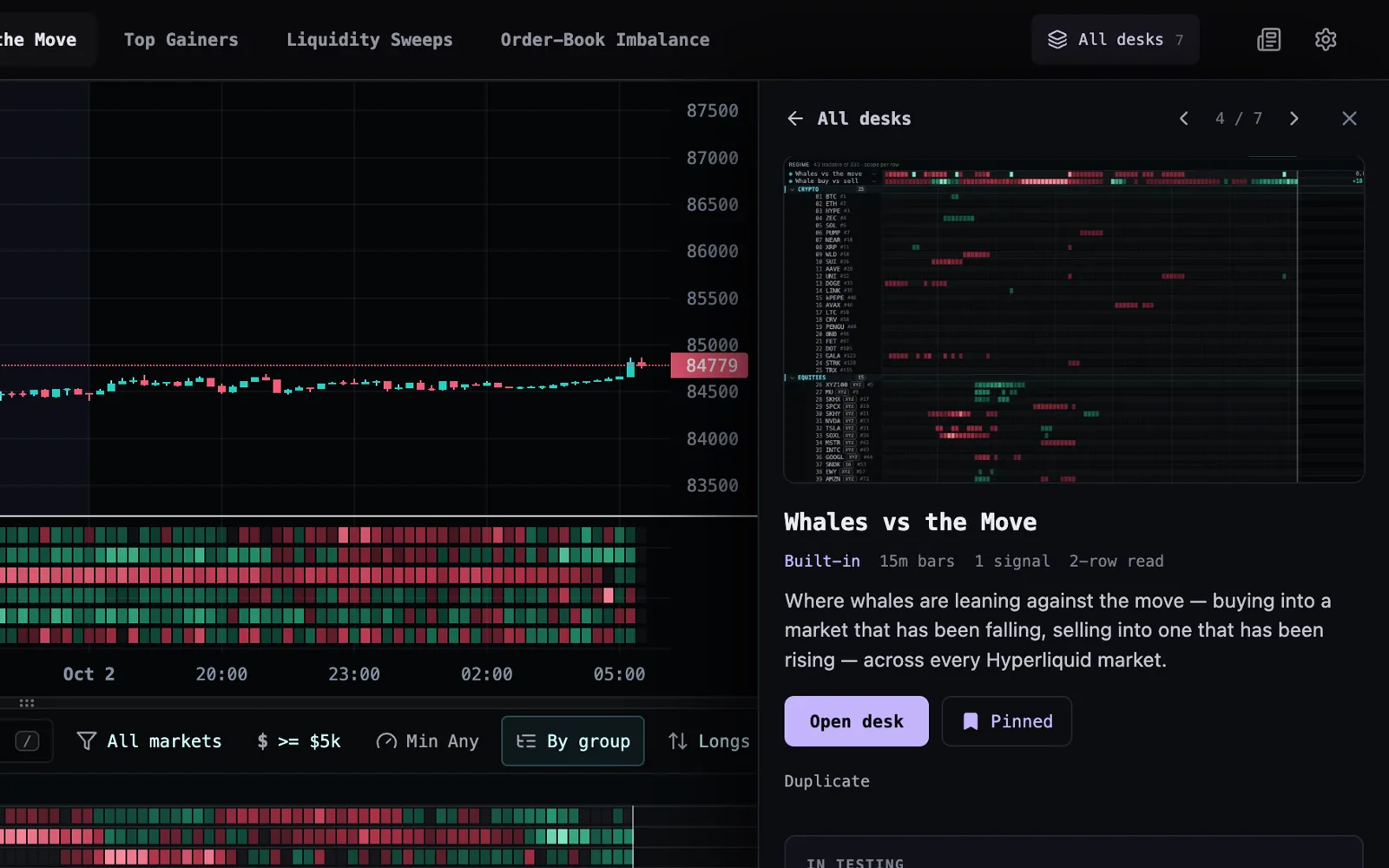
Improved

New desks open on the full universe

A new desk now opens on the whole tradable universe. The Tradable Size floor starts at $5k rather than $25k, so the markets you can realistically get filled in are all on the board from the first load — move the slider up when you want only the deepest books. Desks you have already saved keep the floor you set.

1 fix
Fixed

Long chat answers stop yanking scroll

Read a long chat answer while it is still being written. Scrolling up mid-answer used to snap you back to the bottom on every new word; now the chat only follows along while you are already at the bottom, and picks the follow back up the moment you scroll there again.

Aug 16, 2026

Stream reads on a phone
New

Scrub the Stream with your thumb

Scrub the Stream with your thumb. Drag up or down anywhere on the river and a crosshair follows your finger: the chart above marks the same moment, and a readout names the band you are touching with its score at that bar. Dragging sideways still pans the river and the chart together.

New

Colour the Stream by side

Colour the Stream by side. A switch in the river’s top corner flips between colouring each market its own hue — the read for how pressure rotates between markets — and the heatmap’s own green/red score ramp, painted along time, so you see who is bid, who is offered, and the moment a market flips.

Improved

Every Stream band carries its ticker

Every band in the Stream now carries its ticker. The river bands as many markets as the space can actually label — about ten on a phone, more on a tall desktop stack — and the names spread out instead of piling onto the same bulge, so you can tell one ribbon from another at a glance rather than guessing.

1 fix
Fixed

Starred tickers stay starred

A star sticks. Pinning a ticker on the board would take — the row jumped to the top — and then quietly un-star itself a second or two later. Your desk was re-reading its own saved copy over and over and putting the older list of pins back each time. Pins you set now stay set, and your desk stops rewriting itself in the background.

New

Stop moves itself to break-even

Your stop can now move itself to break-even. Stage a trade with both a stop and a target and the ticket offers one more switch — stop → entry. Leave it on and the moment your first take-profit fills, we move that trade’s stop to your entry price, so the rest of the position rides free. It runs on our servers against your exchange account, so it works with the tab closed, and it uses the exchange’s own average entry — slippage on the way in can’t leave your “break-even” at a small loss. It only ever tightens a stop, never loosens one; if price has already slipped back to your entry it waits instead of closing you out at market; and if anything goes wrong your original stop simply stays where you put it.

New

Typed Entry, Stop and Target fields

The ticket’s Entry, Stop, and Target are typed fields as well as draggable lines. Enter an exact price and the chart line moves; each row reads back what the level means for your size — expected dollars, R, and % — as you type or drag. A stop or target on the wrong side of your entry gets an amber tag naming the problem instead of a read-back that flatters it.

New

Stop entries arrive in the simulator

Stop entries arrive in the simulator. Pick STP on the ticket, or right-click above or below the market for Buy Stop / Sell Stop here: the order rests at your trigger and fills as market when price touches it — the breakout order. A trigger already through the market gets the same explicit “send anyway” treatment as a crossing limit. On a live connection the button is disabled and says why, until stop entries are wired to the exchange.

New

Optional confirm step before sending

An optional confirm step before every send: a compact preview of exactly what is about to go out — side, type, size in every frame, entry, and each stop and target with its R and dollars — with any warnings shown inside it, where confirming is the “send anyway”. On by default for live trading, off in the simulator, and the “don’t ask again” checkbox lives right inside the preview.

New

Shift-drag moves the whole bracket

Shaping a bracket got faster: hold Shift while dragging a staged entry and the stops and targets move with it, keeping their exact distances. On a ladder, tap a rung’s % chip to cycle its share through 25 / 50 / 75 / 100 — the other rungs rescale so the ladder always adds up.

Improved

Hovering a regime row lights its name

Hovering a regime row now lights its name as well as its cells, the same way the board highlights a pair. On a stack of regime rows you can tell at a glance which one you are reading, and moving onto the name from either side keeps the row lit.

Improved

Order labels show price and consequence

Chart order labels now read the price and the consequence together — SL 60,768 · -1.0R · -$29 — at rest and while you drag, and the ticket’s price rows follow the drag live instead of waiting for you to let go. On a ladder, each rung’s label also carries its share of the position, and the + SL / + TP handles stay on the chart after the first rung so you can build the whole ladder by dragging.

Improved

Staged orders look staged

A staged order now looks staged. Draft lines draw dashed with amber-washed labels, while a live position’s lines stay solid — so when both stand on the same chart, one glance tells you which stop you are about to drag.

Improved

Right-click menu drops market orders

The chart’s right-click price menu now only stages at the price you point at — rest a limit there, or set an alert. The instant buy/sell-at-market rows are gone from the menu (market entries belong on the ticket’s Buy/Sell and Send), so one mis-aimed click can no longer fire a market order. The menu also flips above the pointer near the bottom of the chart instead of clipping off it.

7 fixes
Fixed

Regime rows always show their name

A regime row always shows its name again. If a regime was built with a wordy unit — a description like “sweep composite” rather than a short suffix like % or bps — that text took the whole row and pushed the name out of sight. Units now stay short on the strip, the full wording is on the row’s tooltip, and your reading is unchanged.

Fixed

Grouped board top reachable on phone

On a phone, the top of a grouped board is reachable again. Scrolling up to the head of the list and letting go would settle a row too far and slide the first section — Crypto, Equities, or whichever leads your board — up behind the edge of the screen, so you could never quite see it. The board now comes to rest exactly at the top with that section heading in view, and the chart still follows the first pair beneath it.

Fixed

Order labels stay in one column

Order labels on the chart no longer drift sideways. When your stop, targets, and entry crowd together — or sit outside the visible price range — their labels used to scatter left across the chart. They now stay in one tidy column at the right edge: crowded labels make a little vertical room for each other, a level beyond the visible range shows as a short tag at the chart edge, and every line stays exactly on its price.

Fixed

Off-range levels get an edge counter

Levels priced outside the visible range no longer pile up as overlapping lines at the chart edge. Each edge now shows one small ▲ or ▼ counter — hover or tap it to list exactly what waits above or below, with prices — and nothing at the edge can be dragged as if it were at that price.

Fixed

Enter confirms send anyway

Pressing Enter to send a limit that would fill immediately now behaves like the Send button: the first press arms an explicit “send anyway”, the second press within a few seconds sends it. Before, the keyboard path was silently blocked with no way to confirm.

Fixed

Staged orders stay with their market

An order you are composing now belongs to its market. Switch symbols mid-composition and the draft parks as an amber chip on the ticket instead of carrying its prices onto the new market — return to pick it up exactly where you left it, or discard it from the chip. Before, a staged order could follow you across symbols with the old market’s prices still attached.

Fixed

Trading panel numbers read cleanly

Numbers on the trading panel behave: position sizes show at sensible precision instead of a sixteen-digit tail, an absurd “% to stop” reads >999% instead of five digits, and closing the ticket with an order still staged asks once before discarding it.

New

Give your desk an analyst

Your desk can now have an analyst — something that watches the board for you instead of trading it. You write a brief in plain English (what’s moving and why, what’s ahead, keep an eye on my positions), switch on what it may see — news, the macro calendar, sessions, your open Hyperliquid positions — and it keeps a standing read at the top of the panel, rewritten each time it looks. Below that it only speaks when something actually changed, so quiet stretches stay quiet. It won’t invent a reason for a move: when nothing on the wire explains one, it says so. You can tell it what to watch in the same panel, and it drops a watch once the level or event it was waiting on resolves — and tells you how it went.

New

Weight each signal on a desk

You can now weight each signal on a trade desk — from ×¼ to ×2, in the gear menu on its row. A ×2 signal presses twice as hard on the board’s combined score as a ×1 peer, the board re-ranks live as you tap through the stops, and a small ×2 chip on the row shows the ones you’ve moved off default. Weights save with the desk, sync across devices, and your desk’s AI trader reads the same weighted board you do.

Improved

Traders trade, analysts watch

A trader now always trades, and watching is the analyst’s job. The old “analyst mode” on a trader — which read the board and posted calls it never acted on — has been retired: it wore a trading panel with the trading taken out, which made it hard to tell what it actually did. Any trader you had on that mode is now an Analyst on the same desk, keeping what it was watching for, and you can edit its brief in plain English. A trader you don’t want risking money is a Simulated trader instead: it takes its own trades against a sim book, so you get a real forward record before anything touches the venue.

3 fixes
Fixed

Limit here works with an open position

“Buy / Sell Limit here” on the chart now works while you already hold a position in that coin. It used to look like the click did nothing: the order was staged, but its entry and stop lines were never drawn, so there was no way to see or shape the trade. The staged entry and its stop now appear as dashed lines beside your open position — dashed because nothing is resting at the exchange until you Send — and dragging them only moves the staged order, never the live stops protecting the position you already have.

Fixed

Sizing in R risks what you typed

Sizing an order in R now risks the R you typed. Asking for 5R built a 5R position but read back as 1R everywhere afterwards, and the total-heat ceiling was measured against that wrong number — so a multi-R order could quietly slip past the open-risk limit it should have been held to. The size, the read-back and the heat check now all speak in your own R. And when a cap does trim a size, the unit you typed in now joins the line beneath the box, so you can see you asked for 5R and are getting 4R instead of having to work it out.

Fixed

Heatmap cells match the Table score

On a desk with several signals lit, the heatmap’s painted cells now use exactly the same balanced multi-signal score as the Table and the readouts — crowded desks no longer look hotter on the map than the numbers say.

Improved

Busy desks keep their extremes readable

A desk running several signals now keeps its extremes readable. The board score is balanced for how many signals are lit, so a crowded desk no longer washes out into a wall of maxed-out cells where every strong market looked identical — the truly extreme reads now stand apart from the merely strong, and the minimum-score filter cuts a busy board down to just the standouts the way you would expect. Signals agreeing still outrank any one signal alone, and a one-signal desk reads exactly as before.

Improved

Updates download quietly in the background

Updates are simpler and stay out of your way. A new version downloads in the background with nothing on screen, and a single "New version available" card appears only once it is fully downloaded and ready — take it whenever you want, or dismiss it. There is nothing else to click and no state to interpret.

5 fixes
Fixed

Chart labels sit on their true price

Your stop, target and entry labels on the chart now sit exactly on the price they belong to. When several levels were close enough to crowd each other, the labels used to be pushed apart vertically to stay readable — which meant a label could show at a price several hundred dollars away from its own line. They now step sideways instead, so every label stays pinned to its true price. When a phone screen runs out of room, a label shortens to its tag rather than moving.

Fixed

Mainnet and testnet PnL kept separate

Your realized PnL and trade count on the Trade panel now report the network you are actually on. Because Hyperliquid gives you the same address on mainnet and testnet, a testnet ledger could be counted into your mainnet total — so the headline showed a loss you never took, on trades you never placed live. Mainnet and testnet are now two separate books, and switching between them switches the ledger, the equity curve and the chart markers with it.

Fixed

Trades counted entry to flat

A trade is now counted as a trade, not as each fill that closed it. Scaling out of one position in four partials used to read as four trades, which inflated the count and skewed your win rate. Trades are now counted from entry to flat — a flip counts as two — and a win is judged after fees, so a position that made less than it cost to trade is honestly recorded as a loss.

Fixed

App opens during a new release

Opening vyx in the moments right after we ship a new version no longer risks getting stuck on a retry screen. Launching during that short window could leave the installed app cycling on a "fetching a fresh copy" message that never finished, and reloading only restarted it. It now waits quietly and recovers by itself, and it always keeps the working copy it already has — so a launch succeeds even while a new version is still rolling out.

Fixed

Timeframe control keeps one chip lit

The chart timeframe control no longer looks like it doubled up when you hover it. Peeking a timeframe used to light a second chip and tack the peeked interval on beside the row as a separate tag, so the same timeframe was named twice and the control jumped wider as you swept across it. Now exactly one chip is lit — always the timeframe on screen — with a dashed edge while you are only peeking, and the control keeps its size in every state.

Improved

One-tap remove for chart levels

Dropping a stop or take-profit level on the chart is finally a one-tap job. Each level now carries a proper remove button of its own instead of a hairline ✕ tucked into the label, it grows to a finger-sized target on phones and tablets, and on a multi-rung ladder the levels sit far enough apart that a neighbouring level can never swallow the tap. Nudging a level and removing it are cleanly separated, so a near-miss no longer drops the level you meant to drag.

1 fix
Fixed

AI reads the board you’re looking at

Ask the AI about your board and it now reads the markets you are actually looking at. It used to answer from a fixed slice of the biggest names by volume, which meant it could miss a market sitting on your desk, describe one you had filtered out, and quote a market-wide reading — a regime tile, a median, a breadth count — taken across the wrong set. Your traders, your 24/7 alerts, your pattern watches and the API read that same board now, so a number the AI quotes and a number on your screen come from one place. Widen or narrow your desk with the liquidity slider and everything follows it.

Improved

AI trader takes its desk’s name

Your AI trader now takes its name from the desk it trades instead of carrying a separate name of its own. Copying a desk used to leave its trader wearing the old desk's name, so a desk you had renamed showed a trader that looked like it belonged somewhere else — and asking the AI chat about it got you an answer about the wrong strategy. Rename a desk and its trader is relabelled everywhere at once: the desk rail, its notifications, and the chat.

Improved

Faster scroll-back through history

Scrolling back through chart and board history is faster: past candles are now served from a datacenter near you instead of the origin, so deep history pages load quicker — especially outside North America — and heavy history browsing no longer competes with live data for server resources.

3 fixes
Fixed

AI chat sees every desk signal

The AI chat and your AI trader now see every signal your desk actually scores. A signal that lived only inside a desk (rather than your signal library) was scored on the board but read as "missing" in the chat and was silently left out of the trader's view — now the desk itself is the source of truth for what's on it.

Fixed

Regime band keeps its last read

The regime band no longer goes blank while the board refreshes or the data feed hiccups — it keeps showing your last good read, gently dimmed, until fresh values land. A truly empty interval still reads "–" honestly.

Fixed

Chart recovers after data bursts

Fixed a rare chart state where hovering after a burst of data updates could wedge the chart into repeated errors. The chart now heals itself by redrawing everything cleanly, and if it ever cannot, it says so instead of freezing.

New

Change each indicator’s scale in the editor

You can now see and change how each indicator in a signal is scaled, right on its row in the editor. The scale chip ("vs self", "vs field", "strength", "fixed") is clickable — pin one indicator to signed strength so green and red always mean above and below zero, and when a pin overrides the signal’s Compare to setting the chip turns amber so nothing is silently different from what the panel says.

3 fixes
Fixed

Moving averages read true on thin markets

Moving averages and other price lookbacks are now correct on thin markets. On symbols with quiet stretches where nothing trades for a while (off-hours equity and FX markets especially), a 200-bar MA line could sag far below price in stair-steps — no-trade bars were being counted as price zero. Those bars now carry the venue’s live quote, so MA lines and every price-based signal read true across quiet periods.

Fixed

Signal lines show gaps, not zero

A signal line drawn on the chart no longer plunges to zero on bars where its formula cannot be computed yet (for example while a long lookback is still warming up) — it shows an honest gap instead.

Fixed

Removing several levels cancels every order

Removing several stop-loss or take-profit levels from the chart in quick succession now reliably cancels every matching order on the venue. Rapid ✕ clicks could previously race each other and leave an order resting after its line was gone; edits to a level ladder now apply one at a time, and if the venue ever refuses a cancel the desk tells you and the level returns to the chart — an order can no longer rest invisibly after its line is gone.

New

AI chat plots lines on the chart

The AI chat can now place your chart lines. Ask it to "plot the 200-bar moving average over the candles" and it builds the read, switches the line to plot the real value, lays it over the candles, and puts a price-level value on the price axis — every choice lands in the same Plot control you can adjust yourself.

Improved

Two-sided AI reads keep their sign

Two-sided reads the AI composes — a distance from an average, a spread, buying minus selling — now keep their sign: green means above, red means below, always. Previously such a read could rank against the rest of the market and light green while price sat below the reference. You can also ask the chat to change how any existing indicator is scaled, in place, without rebuilding the signal.

2 fixes
Fixed

Failed AI proposals say why

When an AI proposal genuinely cannot be applied, the error now says why — a change the editor does not support, or a signal that no longer exists — instead of a generic "it may have changed since" that sent you hunting a conflict that never happened.

Fixed

Board follows the refresh tempo you set

The board refresh tempo you set is now fully honored. A background catch-up that keeps candle history complete could re-rank the board and snap it back to the latest bar between your refreshes — on short intervals that felt like the board resetting every minute. It still patches history quietly, but what you see now only moves at the tempo you chose.

2 fixes
Fixed

Chart switches show the just-closed candle

Switching the chart to a symbol right after a candle closed could briefly show a hole where that just-closed candle belonged, with the bar filling in seconds later. The chart now fetches that candle from the venue in the same breath as the rest of the history, so the picture is complete from the first paint. The current candle also lands faster on every switch.

Fixed

Regime rows fill all the way back

Regime rows now read all the way back across their history. A regime built on a lookback — a 1-hour price change, a cumulative imbalance — was leaving blank stretches across its strip as older bars loaded, so parts of the day looked like they had no data. The strip fills in completely now, and a regime only leaves a gap where there genuinely is not enough history behind it to compute.

Aug 3, 2026

More of the tape on the board
New

Three new flow leaderboards for your AI

The market pulse your connected AI reads gained three leaderboards: basis extremes (where a perp is trading richest or cheapest against its oracle), squeeze watch (crowded funding with price running against the crowd, with open interest as the remaining fuel), and absorbed flow (heavy aggression that price refused to answer).

New

Cascade Radar desk

A new Cascade Radar desk ranks every market by forced-flow bursts — same-side aggression far above that market’s own norm, the side driving it, and the open-interest flush it leaves behind. It ships as a ready-made desk in the gallery.

New

Eleven new formula variables

Eleven new formula variables for custom signals: session-anchored CVD, per-side print counts, perp basis in bps, the venue’s own impact prices and slippage spread, intracandle open-interest extremes, and resting order counts at the touch — the classic fake-depth tell. All documented in the formula reference.

Improved

API keys can compose from the start

An API key you create yourself now arrives able to do the same work a connected AI can: alongside reading your board, it can compose signals, regimes, desks, watchlists, and trader strategies from the start. Every permission is listed on the create screen and any of them can be unchecked for a read-only key. Placing orders and arming a trader remain off-limits to keys entirely.

2 fixes
Fixed

New symbol shows its live candle

Switching the chart to a new symbol now shows its in-progress candle immediately. Before, on quieter markets — stock perps especially — the current candle could sit at a stale price for seconds until the next trade printed, then snap to the real one.

Fixed

Your AI's open-interest leaderboard shows data

The open-interest leaderboard your connected AI and the API read was always empty, and untradable markets could top its price-impact board. Both now match what a real desk would show.

Aug 2, 2026

Bring the AI you already use
New

Economic releases show the market reaction

High-impact economic releases now show what the market actually did about them. Every scheduled print carries a measured read of the ten minutes after it: how many markets moved and which way, the biggest mover, net taker flow, the change in open interest, and whether volume picked up at all. When the tape ignored a release, it says so — which is usually the useful answer.

New

ChatGPT connects to VYX

ChatGPT can now connect to VYX. Paste one connector URL into ChatGPT, sign in, and it reads your board live and can set you up — composing signals, standing up a desk, and explaining what it built. Claude, Codex, Cursor, and any other AI that speaks the Model Context Protocol use the same URL. Connecting is free on every plan.

Improved

Connected AI can compose on your account

Connecting your own AI now grants it what it needs to actually get you running, not just look around: it can compose signals, regimes, desks, watchlists, and trader strategies on your account. You approve that on a screen that lists exactly what it can touch, and you can revoke it anytime. The hard line has not moved — no connected AI can arm a trader or place an order.

Improved

Open boards update themselves when idle

A board you keep open all day now picks up the latest version of vyx by itself once you have stepped away from it, instead of waiting until you switch tabs or click the refresh prompt. It never interrupts you mid-thought — any movement on the desk, or an open panel you are typing into, holds it off — so you simply come back to a current vyx instead of an older one.

4 fixes
Fixed

Economic calendar stays current

The economic calendar no longer gets stuck on stale figures. Releases are re-checked in the minutes right after they land instead of only once an hour, so a published number reaches your card while it still matters, and a calendar that stops updating is now caught instead of quietly showing old data.

Fixed

Trader card names trader and account

Your trader’s card now says which trader it is and which account it trades. It used to be headed by your wallet address — so every trader you owned looked identical — and it named the last account you connected rather than the one that trader actually trades, which meant a testnet trader could show the word “mainnet”. The card now carries the trader’s own name, its own account, and one venue label that cannot disagree with itself. A trader you have not given an account yet says so plainly instead of guessing.

Fixed

Trader notifications carry its name

A trader’s notifications are titled with the trader’s name, so you can tell which strategy spoke when several are running.

Fixed

Starter desks stop spawning copies

Opening one of the starter desks no longer quietly spawns a “copy” of it in your rail. Those duplicates were created fresh each time you visited the desk, which is why deleting them never made them stay gone — now a starter desk only becomes your own when you actually change something on it, and any copies you delete stay deleted.

Aug 1, 2026

Background desk tabs go quiet
New

Signal Line can draw over candles

A signal’s Line can now draw directly over the candles, not only in its own panel below the chart. Pick “On chart” under Draw in the Line settings to read a signal’s inflections against price in one glance; “Panel below” keeps today’s separate panel. The choice saves with your desk.

New

Signals replace overlays on the chart

Signals are now the one way onto the chart. A signal’s Line can plot each indicator’s raw value — an EMA drawn as an EMA at true price level — via Plots → Value in its Line settings, and the separate overlay system is retired: any overlay you had composed became a signal with the same formula, drawn the same way, that can also score the board and fire alerts. The chart’s small popover is now Layers — just the book, price, and flow renders plus your own trades.

Improved

Hidden desk tabs idle to save CPU

Desk tabs you are not looking at now idle instead of working at full tilt. A hidden tab uses a small fraction of the CPU and battery it used to, and the moment you switch back it catches up instantly — leave as many desks open as you like; only the one you are watching spends your machine. Server-side alert watching is untouched, so alerts still reach you while a tab rests.

Improved

Sessions, Macro events and News as signals

Sessions, Macro events, and News now live in your desk’s signal rail as built-in signals — tick them on or off, tune them from their gear, or remove them from a desk like any other signal. One place configures everything the chart shows, instead of a separate chart menu.

Improved

Overlay list holds only what you built

The chart’s overlay list no longer ships preloaded examples (EMA 20/50, RSI 14 and friends) — it now holds only what you composed. Any example you edited, renamed, or currently have drawn stays yours; the untouched ones are cleared away. The same reads are one Describe away as signals, which also score the board and fire alerts.

Jul 30, 2026

Your work syncs — and stays synced
5 fixes
Fixed

AI-built signals stay saved

A signal the AI chat built for you could silently disappear moments after it was created — the sync layer could mistake it for something you had deleted. Deletions now only happen when you actually delete something, so nothing you or the AI builds can vanish on its own.

Fixed

Desk syncing recovers after a snag

If syncing hit a snag when the app opened, your desks quietly stopped saving to your account for the whole session — renames and new signals stayed on that one device. The app now keeps retrying in the background until syncing recovers, and anything you composed while it was down is kept and synced up instead of being overwritten.

Fixed

AI chat remembers signals it built

The AI chat could lose track of signals it had just built for you — insisting they “didn’t survive”, showing an empty board, and re-creating the same signals over and over, leaving duplicates in your library. The chat now sees exactly what it built, first time, and validates it instead of rebuilding it.

Fixed

Cut-short AI replies stay in the transcript

If an AI chat conversation was cut short mid-reply, everything it had already said past the last completed reply could vanish from the saved conversation. Whatever the chat streamed to your screen is now kept in the transcript, marked as cut short.

Fixed

New desks from AI arrive with signals

Asking the AI chat to set up a new desk with signals in one message could leave the new desk empty — the signals landed on the desk you were leaving instead. The chat now carries out your request in the order you asked, so the new desk comes up with its signals already on it.

Jul 29, 2026

Pulse news you can check — receipts, freshness, and no re-dated stories
New

News ticks on the chart axis

News now marks the chart. Focus a market and every catalyst naming it plants a tick on the time axis next to the scheduled macro releases — toned by which way the read leans — so you can see at a glance whether a move had a headline behind it or moved on flow alone. Hover a tick for the item; switch the markers off under Overlays.

New

Catalysts feed on your desk

Your desk now has a Catalysts feed: press releases and headlines for the tickers your board is showing right now, newest first, next to the Match log. Hover an item to preview that market, click to focus it, or open the original source. On a phone it has its own News tab in the bottom bar.

New

News tab on phones

On a phone, Catalysts has its own News tab in the bottom bar — the board’s news without leaving the scanner.

Improved

Headlines naming your markets reach you

News reaches you when a headline names one of your markets, not only when the release is tagged with it — so a partnership, a treasury purchase, or a competitor’s result that moves a market you watch now shows up.

Improved

Headlines naming your markets reach you

News reaches you when a headline names one of your markets, not only when the release is tagged with it — so a partnership, a treasury purchase, or a competitor’s result that moves a market you watch now shows up.

4 fixes
Fixed

Update prompt refreshes across tabs

With VYX open in more than one tab, the update prompt could get stuck cycling “Updating… still fetching” even though the new version was already downloaded — because another tab had applied it first. That tab now recognizes the situation and refreshes instantly instead of retrying forever.

Fixed

Installed app opens past slow sync

The installed app (home-screen VYX on iPhone) could get stuck forever on “Syncing your desks…” when the connection was slow to wake up. It now opens your desks from the device after a few seconds and finishes syncing quietly in the background.

Fixed

Table view lists the firing pairs

The Table view now lists the same firing pairs the heatmap shows — ranked and sortable. It could previously go blank, saying no pairs were firing, even while the map was full of activity.

Fixed

Press releases show real headlines

Press releases arriving off the wire now carry their real headline instead of a placeholder line.

Improved

News coverage goes beyond crypto

The news vyx reads now covers the world, not just crypto’s. World, energy, and tech wires joined the crypto feeds, and instead of matching keywords, vyx reads each headline and works out which of its markets the event actually moves — so a shipping-lane closure lands on the oil and gold markets, a central-bank surprise lands on yen and the Nikkei, and a major AI model release lands on the AI complex, without anyone having predicted the event. It can only file news under markets and sectors that exist on the venue, and anything that moves nothing tradable is discarded.

Improved

Board draws a loading grid

The board shows you it is loading. While its candles are in flight the map used to be a black rectangle — indistinguishable from a desk that had failed — so it now draws its own grid, dimmed, with a light sweeping across it, and the real cells land straight into that shape. If the load genuinely fails you get a line saying so and a Retry, instead of a board that stays dark.

2 fixes
Fixed

Phone heatmap loads history up front

The heatmap arrives with its history on a phone. The board opened with only the handful of bars that fit the screen, and nothing asked for more — so the first time you dragged the board back in time you hit blank space, and the cells only lit up once that drag went and fetched them. A phone board now loads the same depth of history a desktop one does, before you touch it, so panning back moves over cells that are already there.

Fixed

Edit signal works on phones

Editing a signal now works on a phone. Tapping "Edit signal" on a signal card did nothing on mobile — the editor only had a home on a wide screen, so the tap looked dead. It now opens the full editor in a sheet over the board: rename, combine mode, what to compare against, level settings, every indicator’s direction, role and weight, adding indicators by formula, from the library or with AI, and Proof. The board stays behind it and re-ranks as you tune.

New

Stop the AI chat mid-turn

Stop the AI chat mid-turn. While it is working the send button becomes a stop button — press it and the turn ends there, with the request cancelled rather than left running out of sight. The reply keeps whatever it had already written, and anything it had already built stays on your board. Stopping works from any device, including one that did not start the build.

New

Edit patterns and jump to their source

Patterns are editable now, and you can go back to where you caught one. Open a saved pattern to change its name, threshold, hold, direction, weights and alerts — and click its provenance line to have VYX take the board back to the exact market, timeframe and moment you cut it from, with the captured window shaded on the chart. Drag a new window while you are there to widen, narrow or shift what the pattern matches; the evidence re-scans on the range you settle on and the pattern updates in place.

New

Sweep signal matches the chart marks

The chart’s Sweeps marks are now something you can build on, not just switch on. A new "Sweep (chart parity)" signal fires on exactly the same bars the overlay marks — so the same sweeps can rank your board, filter your table, and be read by your AI trader, instead of only being drawn on one symbol’s chart. Two new formula tools make it yours to tune: pctRank asks where this candle sits within the market’s own recent history, and median gives a baseline that one giant print can’t drag around. Together they let you say "big for THIS market" without picking a dollar threshold that fits BTC and misses everything else.

Improved

Chart markers can match the heatmap

Chart markers can now match the heatmap exactly. A signal’s markers count where each level BEGINS, which merges a run of fires into one handle and caps how many draw — so a row of lit cells could show a single marker, and no amount of tuning would line them up. There is now a choice, per signal, under the plot settings: Mark → Every fire puts a handle on every bar the signal fired, using the same test the heatmap uses to light a cell, so what you scan on the map and what you read on the chart are the same set. Level starts stays the default and is unchanged.

Improved

Remove from rail keeps the desk

Tidy up your desk rail without losing a desk. Remove from rail takes a desk card off the left rail and keeps the desk itself — and clicking + now lists every desk you own, with the ones already on the rail marked, so anything you parked is one click from coming back. The rail can hold just the boards you are actually trading this week while the rest wait in the list, and deleting a desk for good stays a separate, confirmed action.

Improved

API and MCP get a request budget

Your API and MCP key now has a real, enforced request budget instead of a published one — 60 calls a minute on Free, up to 1,200 on Quant, shared across REST and MCP. Someone else’s runaway script can no longer crowd out your calls, and if you run past your own budget you get a clear 429 telling you exactly how long to wait instead of unexplained slowness. The per-minute numbers are on the API docs page.

6 fixes
Fixed

AI chat builds exactly one signal

Ask the AI chat for a signal and you get exactly one. It used to save your signal, then look for it, fail to find it, and assume the save had not worked — so it built the same signal again, leaving several copies on your board while telling you it had failed. It now sees its own work and checks it once, so what it reports back matches what is actually on your board.

Fixed

Marker shape picks stick

Marker shapes stick now. Under a signal’s Marker settings you can draw its chart handles as a caret, stake, diamond, ring, spark or pulse — but on a signal whose colors you had left alone, the pick was dropped the moment you made it and the handles stayed carets. Choose a shape and the chart redraws that signal in it right away, so several marker signals on one chart stay tellable apart at a glance.

Fixed

Sweep marks stay put when you pan

Sweep marks on the chart no longer change when you pan or zoom. Each mark was judged against whatever range you happened to be looking at, so scrolling back could make a mark appear on a candle that had none — or quietly take one away. Every candle is now judged against the history that preceded it, so once a bar closes its mark is settled for good.

Fixed

Settings lists only the keys you made

Connecting Claude to vyx no longer buries your API keys. Each connection quietly renews itself about once an hour, and every renewal was being listed under Settings as another key — after a few weeks the one key you actually created sat under hundreds of expired entries. Connections are now kept out of that list, which shows only the keys you made yourself, and the expired ones clear themselves out.

Fixed

Phone tap moves focus without pinning

Tapping a pair on a phone no longer pins the board to it. Tapping opened the inspector and locked the chart to that pair at the same time — and because the inspector covered the board, releasing it again was close to impossible, so the chart stayed stuck while you scrolled. Now a tap simply moves the focus marker to the pair you tapped: the chart follows it, the inspector rises with its stats, and the moment you scroll on you are back to scanning.

Fixed

Stream view scrolls with the chart

The Stream view now moves with the chart on a phone, the way it always has on desktop. Its bands sat on their own frozen window of recent history, so they lined up with nothing above them and there was no way to travel back through them. The river is now drawn on the chart’s own timeline — every band sits under the candle it belongs to, dragging it sideways scrolls the chart back through history with it (flick it and it keeps going), and pressing and holding drops the shared crosshair on a moment so the chart and the river mark the same time.

New

Clear a trader back to blank

You can clear a trader back to blank — its strategy, setups, record, journal and thinking — while keeping its desk, account and sizing. It is refused while the trader still holds an open trade, so you can never leave a live position with nothing managing it.

Improved

Your trader reads chart structure

Your trader now reads the chart, not just the score. Until now it judged a market from its live signal reading and a handful of price numbers — so it could not see that a strong buy was printing a fresh low in a downtrend with no support beneath it. Every market it is seriously considering now comes with the read a trader takes off a chart: whether the market is trending or ranging, the support and resistance shelves it has actually touched (and how often), double bottoms and tops that are still live versus already broken, and whether heavy selling at the low was absorbed or simply ran price over. It uses that to decide whether a signal has structure behind it, and where the stop and targets belong.

Improved

Trader learnings read like a rulebook

Your trader’s learnings now read like a rulebook instead of a diary. After a busy session the list could fill with the same lesson written five slightly different ways, which pushed the rules that had actually earned their place off the end. A trader can now recognise a lesson it already holds and strengthen or sharpen it rather than writing it again, and the daily review does a proper clean-up pass — merging lessons that had drifted into near-copies and dropping what its own numbers no longer support. Fewer learnings, each one carrying more evidence.

Improved

AI keeps building after you leave

The AI keeps building even if you leave. Asking the chat for a desk, a signal, or a trader used to be tied to the tab you asked from — refresh mid-build and the work was silently gone, with nothing to show for it. That work now runs on VYX: reload, close the tab, or pick the conversation up on your phone and it is still going, still streaming, with everything it has already written waiting for you. Anything left for you to Accept waits too, on any device, for as long as you need.

Improved

Account section in Settings

Settings has a real Account section: the address you are signed in with, the plan you are on, and signing out — all in one place, instead of hunting through the app menu. The page also reads properly on a phone now, with the sections as a single row of tabs and the guardrail fields full width.

Improved

AI traders keep a running game plan

AI traders now think like traders, not scanners. Each trader keeps a running read of the market — its own game plan, revised every turn and carried forward with a timestamped history — and reads the full context before acting: the session and calendar, movers by sector and theme, and breaking news on the tickers it watches. When a headline is driving a move, the trader sees it next to the price action and says so.

Improved

Trader setup asks Manual or Automated

Setting up a trader now asks one clear question instead of two confusing ones. A desk is Manual or Automated: Manual means you place the trades and a started trader advises you as an analyst; Automated means it places them itself, on testnet or mainnet. The old wording asked twice, in two different places, and answered both with the word “analyst” — so a testnet trader could look like it disagreed with itself. Start and Stop replace On and Off throughout, and Stop tells you what happens to any trades still open before you confirm it.

Improved

Open positions are now called trades

Your trader’s open positions are now called what they are: trades. The panel used to head them “open plans”, which read as something the trader was still thinking about rather than a position it had already taken. And every place that names the venue now uses the venue’s own word — testnet or mainnet — instead of “live”, which was easy to read as “switched on” rather than “real money”. A trade’s stop also shows at the same precision as its take-profits, so a sub-dollar market no longer rounds the stop to two decimals.

5 fixes
Fixed

Settings pages clear the phone status bar

Settings, API & keys, and Trades & PnL no longer slide under your phone’s clock and battery. Each now opens under a proper top bar that clears the top of the screen, keeps the page title in view as you scroll, and puts the way back one tap away.

Fixed

Auto-disarm counts only positions opened

The auto-disarm safety breaker no longer shuts live trading off during normal operation. Its rate limit counted every exchange fill — so one trade with a stop and a scale-out counted as several, closing a position counted toward a “too much trading” halt, and re-arming after a trip could trip again within minutes. It now counts positions opened, ignores exits entirely, starts fresh when you re-arm, and is off by default — switch it on with your own limit if you want it. Your daily-loss and losing-streak limits are unchanged.

Fixed

Desk requests open in your own words

Describing a desk you want built now opens the chat with your own words. The first message used to be a wall of instructions for the AI rather than the sentence you wrote, which made the conversation start off reading like someone else’s. Your description is what you see — and what the conversation is saved and titled under.

Fixed

App fills the phone screen

On phones, the app now fills the screen properly. A band of empty black used to sit below the desk strip at the bottom — and dragging the page made it vanish, which is why it looked random. The app was sizing itself from a stale measurement of the screen instead of letting the browser track it as the address bar slides away; it no longer does, so the desk strip sits on the bottom edge whether the address bar is showing or hidden, on iPhone and Android, in the browser and installed to your Home Screen.

Fixed

Trader card shows its true mode

A trader set to testnet or mainnet no longer describes itself as an analyst. Its card showed the wrong mode, hid which wallet it trades, and badged its desk as manual — and over the API it reported no blockers even when the account was unarmed. It was only ever a labelling fault: the trader traded on the right account throughout.

Jul 25, 2026

Push notifications tell you how to turn them on
New

Market key stats on your phone

The market key stats now come to your phone, in full. Tap a row to lock a pair and the inspector opens with the dossier at the top — what your order size would cost in basis points, spread and depth, 24h volume and venue rank, open interest, funding, how the market tracks BTC and which markets are moving with it, plus its latest catalyst — with the signal breakdown below it. Same numbers as the desktop, nothing trimmed.

Improved

Timeframe peeks load twice as fast

Peeking a timeframe from the chart is roughly twice as fast, and re-hovering one you already looked at is instant — a peek now pulls a screenful of candles instead of your entire scrolled-back history, and remembers it for the next few seconds.

Improved

Pinned markets move beside the chart

Your pinned markets moved off the top of the chart into the rail beside it, which now carries two tabs: Alerts and Pinned. The chart keeps the height the old pinned row used to take, a pinned market is still one click from being charted, and the Alerts tab keeps showing its unread count while you are on Pinned — so a firing alert can never hide behind a tab.

2 fixes
Fixed

Sweeping across timeframes stays smooth

Sweeping across the timeframe buttons above the chart no longer snaps back to your locked timeframe between each one. The peek now holds until the next timeframe is ready and then swaps in one step, so running your eye across 1m through 1d feels continuous instead of stuttering.

Fixed

Push toggle explains why it’s blocked

The Push toggle in the Alerts panel no longer fails silently. If your browser refuses the subscription — Brave, for one, ships with web push switched off — the toggle now says so and links straight to a new guide with the fix for your browser, instead of quietly snapping back to "off". A toggle showing "blocked" is no longer a dead switch either: it points at the steps to unblock it. The guide covers Brave, Chrome, Edge, Firefox, Safari, macOS and Windows notification settings, Android battery optimization, and the extra Home Screen step iPhones need.

New

Key stats above the chart

Key stats for the market you are looking at now sit above its chart: 24h dollar volume and where that ranks on the venue, open interest, funding, and the size the book can absorb right now without slipping past the impact cap. Click the line to open the full dossier — what a $1k, $10k or $100k market order would cost you in basis points, the spread and depth behind that number, how the market tracks BTC and which other markets are moving with it (click any of them to jump there), and its latest catalyst plus the next scheduled economic event.

Improved

Faster pattern evidence scans

Pattern evidence scans pull their history faster. When your desk’s signals only read part of the market data, we now fetch that part at the source instead of assembling everything and trimming it — so each page of the sweep comes back quicker, and a scan over months of history across the whole board finishes in noticeably less time.

1 fix
Fixed

Capture pattern works on older bars

Capture pattern now works across the whole chart. Dragging a range over the older bars — further back than the heatmap below the chart reaches — used to do nothing at all: no save panel, no explanation. Those ranges now capture normally, and on the rare occasion a range really is outside the loaded history, the chart header says so and asks you to scroll there first instead of failing in silence.

Improved

Economic calendar shows awaiting figures

The economic calendar now shows “awaiting” on a high-impact event that has just been released but whose number hasn’t posted yet — so a print that’s already due no longer reads as missing data. The moment the figure lands it fills in, with the above / below / in-line-with-forecast read beside it.

Improved

Timeframe switch moves under the ticker

The chart header is cleaner and easier to scan. The timeframe switch (1m to 1d) is now one clear control on its own row just beneath the ticker — easier to spot and click — with the market’s name beside the ticker. The signal names that used to stack across the top of the chart are gone; the signals still draw on the chart, and you turn them on and off from the left rail as before.

Improved

Pattern capture re-runs in seconds

Saving a pattern no longer means watching a progress bar for minutes. The evidence scan now fetches only the market data your desk’s signals actually read, scores it in a fraction of the time, and keeps the just-loaded history warm — so reopening the capture dialog, redrawing the range, or adjusting channel weights re-runs in seconds instead of starting the whole sweep over. The threshold, hold, and direction controls stay instant even on short captures that match thousands of windows.

1 fix
Fixed

Pattern matching reads each market’s own history

Pattern matching now always reads each market’s own history when signals use moving averages or other windowed math. Markets with equally long histories could previously get their readings crossed during a scan, quietly colouring a pattern’s evidence numbers and board paint. If you saved a pattern whose signals use windowed formulas, Re-base it once to refresh its evidence on clean numbers.

Jul 22, 2026

The session pulse — the day, session by session
New

Grid and Stream board views

The board has two new ways to look at the same live scores. Grid shows the current candle as a treemap — every market a tile, sized by how strongly it is scoring right now and colored by its score, so the markets with the most conviction are the biggest tiles and you see what is hot across the whole board at a single glance. Stream shows the recent score history as a flowing river of the most active markets — each market in its own color — so you can watch which markets are carrying pressure and how it rotates over time. Switch between Map, Grid, Stream and Table from the board toggle on desktop or the bottom tabs on mobile. Every view reads the same score and shows the same markets as the heatmap; hover a tile or band and the chart follows it, click to lock it in. On desktop the Stream lines up with the chart, pans with it, and shares the chart’s crosshair, so you can scroll back through the history and read any one moment across both at once. Your chosen view now sticks when you switch Trade Desks — pick a different desk and it stays on Stream (or whatever you had), instead of snapping back.

1 fix
Fixed

Long-running tabs stay lean

Long-running tabs stay lean. Scrolling deep into market history used to keep everything you had loaded in memory for as long as the tab stayed open — an all-day session that explored far back could quietly hold hundreds of megabytes it was no longer showing. Now the board keeps deep history only while you are actually reading it: leave it off screen for under a minute and the memory is handed back, and panning back later reloads the same bars seamlessly. A second, smaller slow build-up in very long sessions was capped too. Nothing you can see changes — your live window, signals, and anything on screen stay exactly as they are.

Jul 21, 2026

Four new whale-flow variables for your signals
New

Signal formulas read who is trading

Your signal formulas can now read who is doing the trading, not just how much. Four new variables join the builder: topTakerShare (how much of a bar came from its single biggest taker — near 1 means one whale drove it), repeatWhaleNotional (dollars from takers hitting the tape again and again), uniqueTakers (how many distinct traders were in the bar — a crowd versus a lone actor), and cascadeScore (how much the aggression cascaded). Build a desk that surfaces single-actor whale bars — topTakerShare >= 0.8 && uniqueTakers < 50 — and it scores the whole Hyperliquid board live, works in the AI signal builder, and feeds your AI traders. cascadeScore reads differently on every market, so wrap it in a lookback like highest(cascadeScore, 50) before ranking; the ⓘ in the formula reference explains each one.

Jul 20, 2026

Alerts, simplified — notifications come from what you built
New

Market panel for advising AI traders

An advising AI trader now shows you the market it is reading. A Market panel sits on the desk rail with the same view the trader works from: which trading sessions are awake and what opens next, the higher-timeframe trend of BTC, ETH and SOL, the next high-impact economic release, your desk brief, and the trader’s latest one-line read of the board with how long ago it thought it. So even on a dead-quiet weekend the desk shows what it is watching instead of looking empty — it is context to read, never a call to act on.

New

AI trader notifies you off-screen

Your AI trader can now reach you off-screen. Turn on Notify in a trader’s alerts control and what it already logs comes to you — the plans it authors, the trades it closes (always honestly labeled simulated or live), and its daily review note — by email and push, tab closed or not. Quiet decisions stay quiet: you choose the significance bar, and routine holds never notify.

New

Desk Matches alerts by email and push

Your Trade Desk can now ping you when it lights up. Flip the new Matches toggle in the chart’s Alerts panel and VYX watches that desk around the clock — the moment a market newly matches its signals or one of its armed patterns, you get an email and a push, tab closed or not. What counts as a match is exactly what the desk already shows on the board: same signals, same score floor, nothing extra to configure. Repeat fires are muted for a cooldown window so a flapping market can’t spam you.

Improved

Alerts drop the formula builder

Alerts no longer have a separate formula builder to learn. Your price alerts work exactly as before — set a level on the chart, get a chime, an email, or a push when it crosses. The old build-a-formula alert composer is gone: it duplicated what your signals already express, and it made it easy to create alerts that fired constantly or never. Notifications now come from the things you already built.

Improved

Live board stays smooth on fast refresh

The live board stays smooth on fast refresh rates. On Live or a few-second cadence, the heatmap no longer re-scores its whole visible history on every update — it reuses the scores that haven’t changed and recomputes only the newest bar and the markets whose signals actually depend on the moving field. Panning, scrolling, and clicking stay responsive while the market moves under you.

Improved

Take-profit and stop labels stay readable

Take-profit and stop labels no longer hide behind each other. When you stack several exit levels close together — or they sit near the current price — each label now shifts just enough to stay readable on its own line, with its price, R-multiple and size share, while the lines themselves stay exactly on their prices. Every level in a laddered exit is legible and grabbable at a glance.

Improved

Every desk explains itself

Every trade desk now explains itself. The ⓘ on a desk card — what it shows, how it is built, and how to read it — is filled in for every desk, not just the six starters: clone a template or have the AI build you a desk from a description, and it comes with its own plain-language card instead of a generic note. When the AI builds or reworks a desk in chat, it writes that card to match what it actually put on the board.

2 fixes
Fixed

Multi-target exits keep every level visible

Building a multi-target exit no longer makes your other levels vanish. When you dragged a new take-profit or stop onto an open position, the levels you’d already set could briefly disappear from the chart until you refreshed the page — they were always safely resting on the exchange, but the chart stopped showing them. Every exit level now stays on the chart as you add and move them.

Fixed

Regime band holds through reloads

The regime band no longer blanks out when the board reloads. Switching timeframes or desks used to flash every regime row to a dash and make the coloured band vanish for a moment while the new data loaded. Now each row keeps its last reading and dims to show it’s refreshing, then updates in place the instant the new data lands — so your market-context read stays on screen instead of disappearing.

Jul 19, 2026

Multiple wallets — and Pulse Daily reads like a desk note
New

Connect more than one Hyperliquid wallet

You can now connect more than one Hyperliquid wallet, and every AI trader selects its own trading account — a main account or a sub-account, testnet or mainnet. Give each desk its own book and your traders run side by side without touching each other’s positions; the account you pick decides the venue, and choosing a real-money account always asks you to confirm first.

New

Wallet management moves to Settings

Wallet management moved into a proper Settings page: every connected account, its sub-accounts, and their live equity in one place, with arming, guardrails, revoke, and the kill switch alongside. The old live-execution page redirects there.

New

Manual live trading is free

Manual live trading is now free. Connect your Hyperliquid wallet, arm, and trade from the chart on any plan — non-custodial as always, with the same guardrails and kill switch. Paid plans are about the servers working for you: 24/7 mechanical traders, server-side alerts, and AI traders.

New

See your trader’s armed setups

You can now see what your AI trader is waiting for. When it arms a setup — a plan it will fire the moment a condition completes — that setup shows on the trader’s card and desk panel: the market, the side, the setup and its trigger, and how long it has left. Changed your mind on one? Cancel it right there and the trader won’t fire on it. And when the daily review leaves you a strategy suggestion, it now appears as a quiet note on the desk panel you can read and dismiss.

Improved

Traders never touch your manual positions

A trader now never touches a position it didn’t open — anything you’re holding manually on the same account is structurally off-limits to automation.

Improved

Market Brief learns from your traders

Your desk’s Market Brief now learns from your own traders. When a trader files its daily self-review, the takeaway feeds the Desk Analyst — so the brief reflects what has actually been working on that desk, not just the live market. It stays context, never a trade call.

Improved

Useless alerts can’t be saved

VYX now stops you from saving an alert that can never do its job — a threshold that would match every symbol on every candle (so it fires nonstop) or one that can never be reached (so it never fires). You’ll see a note explaining the range to aim for instead.

Improved

Panning back through history is faster

Panning back through history is much faster. The next stretch of older candles starts loading well before you reach the edge, the board fills in as each batch of markets arrives instead of waiting for all of them, and the chart fetches only the bars it doesn’t already have. The chart also reaches twice as far back now — the same depth as the heatmap.

4 fixes
Fixed

Open tabs stop growing in memory

Leaving vyx open for days no longer grows the tab toward a gigabyte of memory. The board now keeps a lean rolling window of live history per timeframe and releases deep scroll-back when you move on — panning left still loads the full history on demand, and nothing you are looking at ever disappears.

Fixed

Password managers recognize the sign-in

Your password manager now recognizes the VYX sign-in. The email and password fields are properly labeled for 1Password, iCloud Keychain, Chrome, and the rest — so they offer to fill your saved login and to save a new one, on both desktop and iPhone.

Fixed

Deleted alerts stay deleted everywhere

A deleted alert now stays deleted — everywhere. If you removed an alert (or a signal, regime, or desk) on one device while it was still open on another, the second device could quietly bring it back, so an alert you thought you’d killed kept firing and emailing you. Deletions now stick across every device you’re signed in on.

Fixed

History loads without stuttering the desk

Loading older history no longer stutters the desk. Arriving history now settles onto the board in at most two quiet updates instead of one per batch, background pre-loading waits for an idle moment, and a small “Loading history” note shows on the chart while older bars are on their way — with the error right there if a load fails.

Jul 18, 2026

Pulse Daily — the flow report
New

AI trader arms trades and reviews itself

Your AI trader now waits like a professional. When a setup is close but not complete, it can arm the trade — write the full plan and name the exact condition — and VYX watches that condition every minute between its turns, at no AI cost, firing it through every normal safety check the moment it completes. Entries the engine fires carry an amber armed badge in the decision log. And once a day the trader reviews itself against its measured ledger — win rate, how each of its named setups is really performing, whether its setups even fired this week — updating its lessons and, when the evidence is strong, leaving you one concrete suggestion only you can apply. Review turns carry a violet tag. The AI Trader docs now walk the whole system — what it reads, how it waits, how it learns.

Improved

Blocked traders say where the gate is

A blocked trader now tells you where the gate is. If your trader is enabled but held — its mode set to Testnet while the connected wallet is mainnet, or the account not armed — the desk says exactly that, and the Market Brief's Refresh now answers with the real reason on the spot instead of silently doing nothing.

2 fixes
Fixed

Saving a pattern completes reliably

Saving a pattern no longer fails with “Request timeout”. Building a pattern’s evidence scans months of history across the whole board, and on a large scan that read could stall and error out before you got to save. It now has the room that heavy read needs, and if one stretch of history comes back slow it uses what it loaded — honestly showing the shorter look-back — instead of throwing the whole scan away, with a Retry one click away if it ever does stall. Saving a pattern now completes reliably.

Fixed

Updates no longer interrupt the app

Updates no longer interrupt the app. Right after a new version ships it can take a few seconds to reach every edge of the network, and a reload caught in that window used to be able to land on a half-loaded app and the dead-end “vyx couldn’t load” screen. vyx now always launches the version already on your device and only switches to a new one once it has fully downloaded in the background — so opening or reloading during a release just works, every time. In the rare case it genuinely can’t load (a first visit on a flaky connection), the screen now retries on its own and comes back the moment the connection settles, with nothing to tap.

2 fixes
Fixed

Price alerts confirm against the live book

Price alerts no longer false-chime at a candle rollover. An alert now fires only when the live order book agrees with the price that tripped it — so a stale or empty just-rolled candle (worst on quiet overnight stock markets) cannot ring you at a price the market never traded. Real crossings still fire within a couple of seconds, and the alert stays armed until a confirmed price actually reaches your level.

Fixed

Canceling a filled order confirms quietly

Canceling an order that just filled or was already canceled now confirms quietly instead of flashing an error — the order is gone either way, which is what you asked for.

New

Peek at another timeframe from the chart

Peek at another timeframe without losing your place. The timeframe control now lives on the chart as six chips (1m–1d): hover one and the chart, the indicators under it, your levels and markers, the regime band, and the heatmap all show that timeframe while you hold — nothing re-sorts, so the board you were reading stays put. Release and you are back instantly; click to actually switch the desk (and because the peek pre-warmed the data, the switch is instant too). Press [ or ] to step timeframes from the keyboard. Your AI traders gained the same wider sight: every symbol they study now carries the 1h, 4h, and daily price trend, so a 5-minute desk stops fighting the bigger tape.

New

Connect your own AI to your desk

Your own AI can now run your Trade Desk the way the built-in chat does. Connect Claude, ChatGPT, or any MCP-speaking agent with one API key and it gets the same sight and hands: your board scored live on every plan (free included), one-market deep reads with the per-indicator why, universe screens, dry-run previews before anything is saved, proof-over-history validation, and full desk control — read a desk whole with its trader’s status and recent trades, set which signals it trades, switch desks, and compose or revise your AI trader’s strategy in the same plain-English shape the chat uses. The built-in chat stays the zero-setup way to do all this on us; your own AI subscription now goes just as far. The hard line is unchanged everywhere: nothing outside the app can enable or arm a trader or place an order — traders your AI composes are always born disabled.

Improved

Patterns live inside their Trade Desk

Patterns are now full desk citizens. A pattern’s row lives inside its Trade Desk’s card in the rail, right under the signals it was built from. When a market crosses a pattern’s match threshold, it lands in the Match Log like any signal hit — marked with the pattern glyph; click the row to paint that pattern across the board and jump to the market. And a pattern set to join the Total now genuinely sums its score into the desk’s one number — on the board, in the rankings, and in what your desk’s AI or mechanical trader reads — always on the timeframe the pattern was captured at.

Improved

Trade Desks follow you across devices

Your Trade Desks now follow you across devices. Set up a desk on your laptop — its signals, the chart levels and markers you turn on, overlays, colors, sort and scope — then open VYX on your phone and land on the same desk with the same board. Which desk you have open and the desks in your rail sync too, so you pick up exactly where you left off instead of on a different board. Only screen-specific layout, like panel sizes and the chart/heatmap split, stays per device so each screen stays comfortable.

Improved

AI replies and decisions arrive faster

Everything AI got faster. Chat replies start sooner, signal and strategy generation return quicker, and AI trader decisions that used to take half a minute now land in a fraction of that — same reasoning quality, much less waiting.

1 fix
Fixed

Updates switch over only when ready

Updating to a new version no longer risks the “vyx couldn’t load” screen. Right after we ship, the new build can take a moment to become fully downloadable — clicking the update pill used to reload you into that gap and could strand you on a reload screen. Now vyx only switches once the entire new version is safely downloaded; until then you keep working on the current version and the pill simply shows “Update rolling out · retrying” and finishes the switch by itself.

New

Strip toggle for signals under the chart

You can now show a signal under the chart without letting it score the board. Turn a signal’s Score off and switch on its new Strip toggle, and it rides beneath the candlestick chart as its own colored row on the same timeline as price — while a different signal keeps ranking the heatmap. So you can rank the board by one read, like consolidation to find where to look, and keep your direction signals — imbalance, CVD — right under the chart, without blending everything into one score and losing the read you built.

Improved

Secure Hyperliquid connection on every device

Your Hyperliquid connection is more secure and now follows you across devices. The delegated trading key is stored encrypted on our servers instead of sitting in your browser, and orders are signed server-side — so there’s no private key on your device to steal, and your connection is ready on every device you sign into without reconnecting. It stays fully non-custodial: the key can place and close trades but can never withdraw your funds, and you can disconnect to revoke it any time.

Improved

Drag the regime band to pan history

Grab any part of the timeline to move through history — not just the heatmap. You can now click and drag the regime band the same way you already drag the chart and the heatmap, and everything pans together: the chart, the indicator strip beneath it, the regime band, and the heatmap all scroll in step whichever one you grab.

2 fixes
Fixed

Switching accounts loads only your setup

Fixed account switching on a shared browser. If you signed out and into a different account on the same computer, some of the previous account’s Trade Desks and signals could linger on screen. Switching accounts now loads only your own setup — your desks, signals, and alerts are always tied to your account and sync back the moment you sign in.

Fixed

Calendar events without figures show cleanly

Economic-calendar markers on the chart no longer look like they’re missing data. Events that don’t publish numbers — central-bank rate statements, monetary-policy reports, press conferences — now show a clean card instead of an empty Prev / Forecast / Actual row. Events that do carry figures, like CPI and rate decisions, still show previous and forecast ahead of time and fill in the actual the moment it prints.

New

Build a board from a sentence

Building a board is now a sentence. Click + on your desks, describe what you want — "coins with a funding flip and a fresh sweep, crypto only" — and the AI builds that desk and switches you to it (templates and a blank desk are still there too). Every desk now carries a plain-language ⓘ that says what it shows, how it's built, and how to read it.

New

Group the board into sections on mobile

You can now group the board into collapsible sections on your phone, exactly like on desktop. Group by asset class or by your watchlists from the Controls sheet, and the focus lens scrubs straight through the sections — tap a section header to fold it away. Mobile is full parity now, not a lite version.

Improved

Longs-first board sort and Hide option

The board now sorts for a trader by default: the strongest longs ride the top and the strongest shorts sit at the bottom, so the reads that matter are where your eye lands — flip to shorts-first when you are hunting the down-side, or switch to Strength, Matches, or Volume any time. And the minimum-score control gained a Hide option — raise the floor and turn on Hide to collapse the board and the Table to only the pairs hitting right now, dropping the quiet rows instead of just fading them. Your pinned pairs always stay.

Improved

Scrolling the mobile Table switches the chart

On your phone, the Table view now works like the heatmap: scroll the list and the pair under the focus marker switches the chart instantly — no more tapping each row just to change markets (tapping still works to lock one), and you can drag the side rail to fly through the whole list. The rows are also tighter, so you see more pairs at a glance.

Improved

Mobile chart carries price and change

On your phone, the last price and its change now sit right on the chart, and the separate header row that used to hold them is gone — the Trade button moved up into the top bar. That clears the final strip between the top controls and the chart, so the chart and heatmap get even more room.

Improved

One menu for every desk card action

Your trade desk cards in the left rail are easier to read: every card action — add a signal, share, clone, remove, or delete — now lives in a single quiet menu (the ⋮), so the desk name gets the whole row instead of being crowded out by a cluster of icons.

Improved

Order ticket sizes in four units

The order ticket now lets you size in whichever unit you think in. One toggle switches the size box between dollars, a percent of your buying power, risk in R, and leverage — type in the one you think in and the other three convert live right beneath it, so you always see the dollar size, the risk, the leverage, and the coin quantity at once. Switching units keeps the same position, and risk-first sizing (R) stays the default. Works the same on desktop and mobile.

Improved

Open positions always show on the chart

Your open positions are now always on the chart. Whenever a trading account is active, a position's entry, stop, target, and liquidation lines show on that market's chart on every tab — you no longer have to open the trade panel to see the trade you are in. Open the ticket to adjust the levels; leave it closed and they stay as a clean read-only view. On mobile, the order ticket is also more compact, giving the chart back more room.

3 fixes
Fixed

Home screen app fills the iPhone display

If you added VYX to your iPhone home screen, the trading screen now fills the whole display — the empty black band that could appear below the bottom desk bar is gone.

Fixed

Tradable Size panel opens once

The Tradable Size panel no longer opens as two overlapping copies on desktop — it opens once, cleanly.

Fixed

Update button shows progress right away

When a new version is ready and you click to update, the button now shows progress right away instead of looking like nothing happened — and if an update ever gets stuck, it says so and offers a one-tap reload.

New

Weight patterns channel by channel

Patterns can now be weighted channel by channel. In the Save panel, each channel your pattern is built from — every signal, the Total, and the price shape — gets its own slider, and VYX balances them first so no single channel dominates just because it swings more. Turn one to zero to ignore it entirely: set price to zero to match purely on order flow, or turn every signal but one down to match on that alone. The evidence re-scans as you go, so you can watch a leaner match get cleaner.

Improved

Mobile top bar becomes one quiet row

The top of the mobile app is now a single, quiet bar. Your board controls — firing count, timeframe, symbol filter, scope, and size — sit up there in one row, and the desk name no longer repeats at the top since it already shows in the row of desk pills at the bottom. That hands the reclaimed height back to the chart and heatmap, so you see more of the market on a phone.

Improved

Patterns show their time horizon

A pattern now shows which time horizon its board colour is read from. On Auto, VYX decides a pattern’s direction — the green or red it paints — from whether price tended to rise or fall after it, measured at your chosen hold. A setup can be bearish at 20 bars but bullish at 100, so the Save panel now says “paints short — read from the 20-bar outcome; pick a Hold to re-aim it,” and every pattern in the rail carries its side and horizon (e.g. “short · 20b”). No more red board that reads as a mystery.

Improved

Patterns as short as 3 bars

Patterns can now be as short as 3 bars (the minimum was 20), so you can save a quick micro-shape, not just a long setup. Heads-up: fewer bars is a less distinctive shape, so short patterns match more loosely — raise the match threshold if you want fewer, tighter hits.

Improved

Mobile chart shows the indicator strip

On your phone, the chart now shows the same indicator strip as desktop — your Total score and each active signal, bar by bar, right under the candles. It’s laid out compactly so it fits the shorter mobile chart without crowding out price. Drag the divider below the chart to give it more room.

Improved

Refresh and sort on the top bar

Board refresh and sort are back on the command bar. On a wide screen, how fast the board refreshes and how the grid is sorted now sit right on the top bar as their own controls — one tap to change, instead of digging through the ⋯ menu. On a narrow window or phone they fold neatly into the Controls sheet.

3 fixes
Fixed

Pattern matches resemble the saved shape

Selecting a pattern no longer floods the heatmap red. The price shape used to quietly dominate the match — so a pattern really lit up wherever price had drifted the same way, even on markets whose signals looked nothing like your capture. Matching is now balanced across channels, so what lights up actually resembles the shape you saved.

Fixed

Heatmap respects your match threshold

The heatmap now respects your pattern’s match threshold. Before, selecting a pattern could flood the board with cells marked as matches at a far looser bar than the threshold you tuned against the evidence — so the board “matched” windows your evidence scan would never count. Now a cell only marks and counts as a match when its similarity crosses your pattern’s own threshold; weaker resemblance still shades in quietly, and raising Min score dims it to neutral.

Fixed

Save panel explains a greyed-out Save

The Save panel for a Pattern now tells you why Save is greyed out — for example, when your selected range is outside the 20–200 bar window it needs — right next to the button, instead of leaving you clicking a dead button. A too-short or too-long selection also skips straight to that hint now, so you redraw and move on.

Jul 12, 2026

The quant depth drop — deeper formulas, honest verdicts, a richer pulse
New

Alerts push to phone and desktop

Alerts can now push to your phone and desktop. Turn on “Push to this device” in the Alerts panel and vyx sends a notification the moment an alert fires — even with the tab closed — on top of the email you already get. On iPhone, add vyx to your Home Screen first, then enable it on each device you want buzzed.

New

Mechanical traders can fade the signal

Mechanical traders can now “fade the signal.” A new toggle in the trader settings makes a rule-based desk enter the OPPOSITE side — a buy setup opens a short — with the same stop and targets. It’s there because our own backtesting found that, on the hourly timeframe, a strong order-flow buy extreme tends to mark a short-term top rather than a launchpad: fading it tested better than following it. Start it in simulation to watch its track record before trading it live.

New

Formulas compare a market to the field

Your signal formulas can now compare a market against the whole field, not just its own history: xsRank(x) gives its percentile across every market scanned right now, xsZ(x) its z-score vs the field, and xsMedian(x) the field’s median. “In the top 5% of the universe for order-flow imbalance” is now one expression: xsRank(ofi) >= 95.

New

Rolling standard deviation and ln in formulas

New formula building blocks: stdev(x, n) for rolling standard deviation — write a self-relative z-score or Bollinger-style band of any variable inline — and ln() for log-based measures. Both work in the AI signal builder too.

New

Deseason compares against same-hour history

New formula function deseason(x, n): scores how unusual a market is right now versus its own history at the SAME time of day. It stops markets that always move at the US open — like the equity perps — from looking “unusual” just because it’s the open. Most useful on 1-hour and higher timeframes, where there’s enough same-hour history to compare against.

New

Formulas separate a market’s move from BTC

Three new variables separate a market’s own move from the market tide: btcRet (BTC’s bar return), betaBtc (how hard this market rides BTC), and residBps — the part of this bar’s move BTC does NOT explain. residBps > 25 finds coins genuinely moving on their own.

New

Seven new Impact and volatility signals

Seven new built-in signals: five Impact signals that read how fragile a book really is (price-impact spikes, depth concentration, book slope, Amihud illiquidity, and open interest stacked against exit liquidity) plus two range-based volatility estimators (Parkinson, Garman-Klass) that read intrabar range instead of just closes.

New

Edge-health dot in the Match Log

The Match Log now carries a live edge-health dot per signal: green while live fires keep paying inside the validated band, amber when the live edge decays or flips sign, grey until enough live evidence exists. Hover it for the numbers.

New

Save a chart stretch as a Pattern

Patterns: drag-select a stretch of chart where your desk’s signals told a story and save it as a Pattern. Before you arm it, vyx shows every time that same signal story played out before — how many matches, the win rate with its confidence range, and what typically followed — as history, never a prediction. Arm it and vyx watches every market your desk scans for it, 24/7, logging each match to the Match Log and emailing you if you opt in. Click a pattern to paint the whole board by how closely each market matches it right now, or hand it to your mechanical trader as an entry rule (paper-first).

Improved

Signal validation reports net of costs

Signal validation verdicts are now honest about trading costs and statistics. Every horizon reports gross AND net of a realistic taker round trip — a real-but-tiny edge now says “too small to trade” instead of quietly green — and significance counts co-moving markets as the single market move they are, so a verdict tells you “20,000 observations ≈ 79 independent bars” rather than pretending. Expect more “still accruing” and fewer false “validated” — that’s the point.

Improved

AI traders size by volatility parity

Every AI-trader desk — simulated, paper, and live — now sizes positions by volatility parity: a calm market gets a bigger position and a jumpy one a smaller position, so each contributes similar risk instead of a flat dollar amount per trade. Your per-order size becomes the average and your caps stay the hard ceiling. Traders also see a portfolio summary (total exposure, concentration, funding bleed) before every decision.

2 fixes
Fixed

Switching desks loads the new timeframe

Switching trade desks now truly flies the board to the new desk’s timeframe: scores, match counts, and the live feed all re-read that desk’s own interval data the moment you land. Previously the board could quietly keep scoring the previous desk’s timeframe until something else forced a reload. Desks that share a timeframe still swap instantly, and vyx now pre-warms your other desks’ timeframes in the background so cross-timeframe switches land on warm history instead of a cold fetch.

Fixed

Synced Hyperliquid connection shows as on

“Remember on my other devices” now shows as on when your Hyperliquid connection is actually synced. Before, a device that picked up the connection automatically — like your phone — could show the box unchecked even though syncing was working; the toggle now reflects your real synced state on every signed-in device.

1 fix
Fixed

New version updates load reliably

Updating to a new version is now smooth. Tapping “New version available” — or letting the app refresh itself in the background after a release — reliably loads the fresh version, instead of occasionally landing on a “vyx couldn’t load” screen that made you reload again.

Jul 10, 2026

Your AI trader trades only what your liquidity slider shows
New

Click a trade for its full story

Click any of your AI trader’s trades — open or closed — to see its full story in the panel: the outcome, the plan and what filled, the setup and conviction at entry, the trader’s reasoning turn by turn while it was in the trade, the venue fills, and the lesson it took away. One tap jumps the chart to the trade’s window.

New

More AI models to choose from

More AI minds to choose from: the compose-signals chat adds OpenAI’s GPT-5.6 (Sol and Terra) and Anthropic’s Fable 5, and your AI traders add GPT-5.6 (Sol and Terra) and xAI’s Grok 4.5 — all from the model menu. Your defaults are unchanged, and whatever you had selected stays exactly as you left it.

New

Composer chat edits your AI trader

The Composer AI chat can now see your desk’s AI trader in full and edit it. Just tell it what to change — rename the trader, tighten a setup, add a no-trade rule, rework sizing or management — and it shows the revision for you to Accept before anything changes. It only rewrites the strategy: it never enables, arms, or switches a trader’s mode, so those stay firmly your call.

Improved

Desk panel puts performance on top

The Desk panel now reads the way you think: performance on top (equity, PnL curve, record in one card), then open positions and recent trades, then the Market Brief — now open by default — and the decision log. The trader’s strategy moved behind the gear on its name.
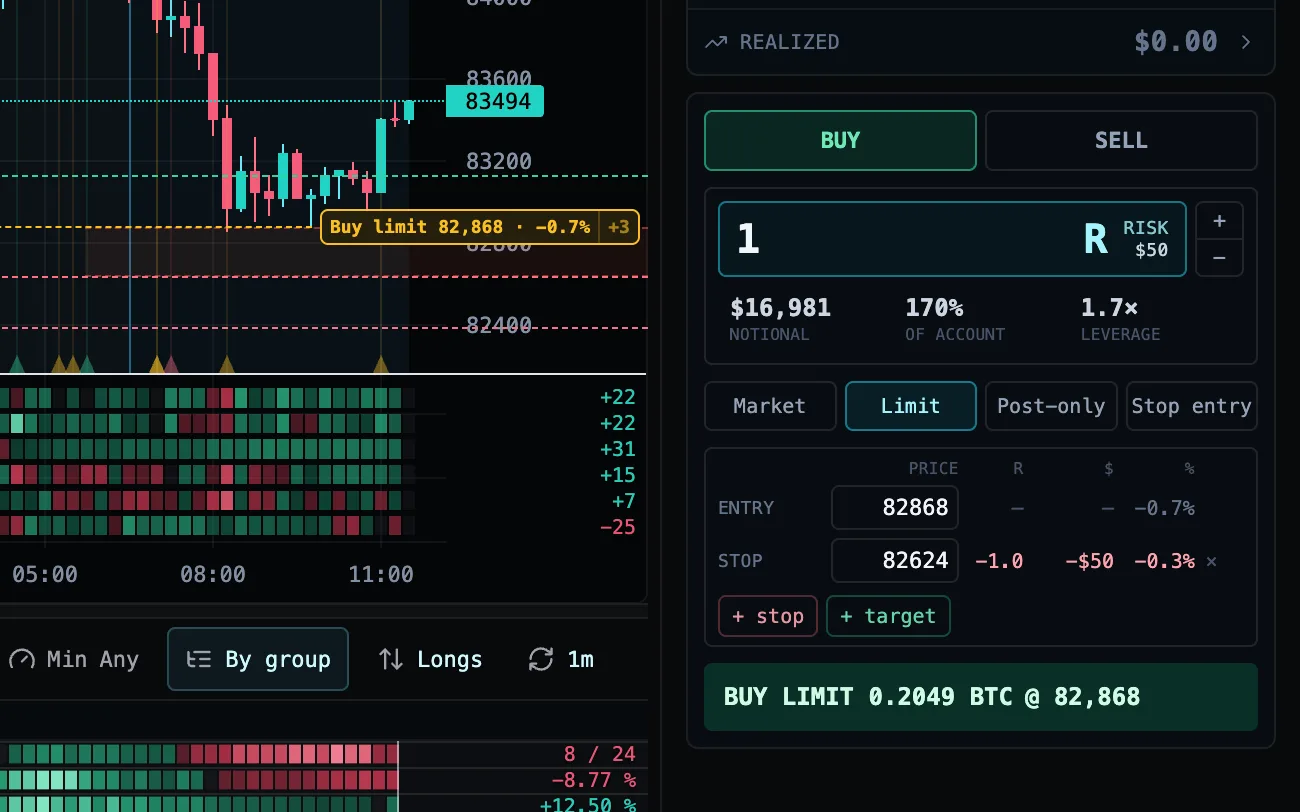
Improved

One quiet command bar on the desk

The desk went quiet: one command bar shows the board face, interval, and firing count; filters appear as chips only when you change them from the default; and every setup control now lives under a single ⋯ menu — the board is the headline again.

4 fixes
Fixed

AI trader honors the tradability slider

Your AI trader now honors your desk’s tradability (liquidity) slider, exactly like your heatmap does. Markets too thin to fill at your chosen floor are hidden from the trader just as they’re hidden from your board, so it stops trying to trade illiquid symbols it could never fill — and it reads each market’s real depth before it acts. Set the slider to All to let it consider everything.

Fixed

Discarded staged edits stay discarded

Discarding staged edits on an automated desk now sticks: the “these changes alter how your automation trades” warning no longer comes back on every visit after you resolve it, and it only ever names an edit you actually made — including the Tradable floor.

Fixed

Signal edits warning only when it matters

The “Signal edits” warning on an automated desk now appears only when you actually change a signal your automation trades. Just charting a signal, toggling a chart overlay, or opening the same desk on another device no longer trips a false alert that your automation is about to trade differently.

Fixed

Slash focuses and clears the ticker filter

The / search shortcut is cleaner: pressing / now focuses the ticker filter and clears it for a fresh search, and a slash can no longer be typed into the box — so tapping / a few times won’t leave “///” behind.

Jul 9, 2026

Edit a running trader without turning it off
New

Grok 4.5 joins the signal chat

The AI chat that helps you compose signals can now think with xAI’s Grok 4.5 — pick it from the model menu in the chat header, alongside GLM, Gemini, Claude and GPT. Your default is unchanged, and whatever you had selected stays exactly as you left it.

Improved

Edit a trader while it runs

You can now edit a trader while it is running. The Edit button sits right on the trader card, next to its On/Off switch, so its settings are one tap away — and saved changes take effect on the trader’s next check. Tuning a live trader no longer means turning it off first.

Improved

AI traders exit winners in two steps

AI traders exit with more discipline: a losing position still closes the moment its thesis dies, but on a winner the first exit call de-risks half and completes only if the trader confirms it on its next check — one wobbly reading no longer dumps a whole winning position.

Improved

AI traders avoid thin books

AI traders now refuse to open positions on books too thin to fill fairly, take only their highest-conviction setups during historically weak hours, and remember which recent orders were refused so they stop re-submitting them. Each closed trade also records the real reason it ended — stop, target, or the trader’s own call.

Improved

Desk Analyst paces Market Briefs daily

The Desk Analyst paces its Market Briefs through the whole day instead of spending its daily budget in one burst when the market flickers — so the brief your traders read stays fresh around the clock.

2 fixes
Fixed

Trader journal graded by real ledger results

An AI trader’s journal is now graded with the measured result from its own trade ledger instead of its self-estimate, so the lessons it learns from every close are built on real numbers.

Fixed

Closed positions clear from the trader panel

A trader that isn’t currently armed to trade now keeps its position list honest — if a position has already closed on Hyperliquid (a stop that fired, or one you closed yourself) it clears from the panel instead of lingering as still-open, so what the trader shows always matches your real Hyperliquid account.

Jul 8, 2026

Turn your trader’s alerts up or down
New

Desk Analyst writes a Market Brief

Your desk can now run a Desk Analyst — the AI layer a trading floor calls the morning meeting. Turn it on from the new Brief row on the desk panel and it writes a top-down Market Brief — the desk’s bias, the view in one paragraph, what would change it, and what it’s watching — re-written only when the market actually changes: a regime flips, London or New York opens, a high-impact economic print lands, or BTC makes a real move. Every AI trader on the desk reads the brief before it acts, with its age attached so a stale view gets discounted, never obeyed.

New

Every AI trade carries a playbook record

Every AI-trader trade now carries a playbook record from the moment it opens: the named setup it expresses, the trader’s conviction, and the market conditions at entry — including which trading sessions were open and how rare the signal reading was. This is the raw material for honestly grading which setups actually make money, per trader, over time.
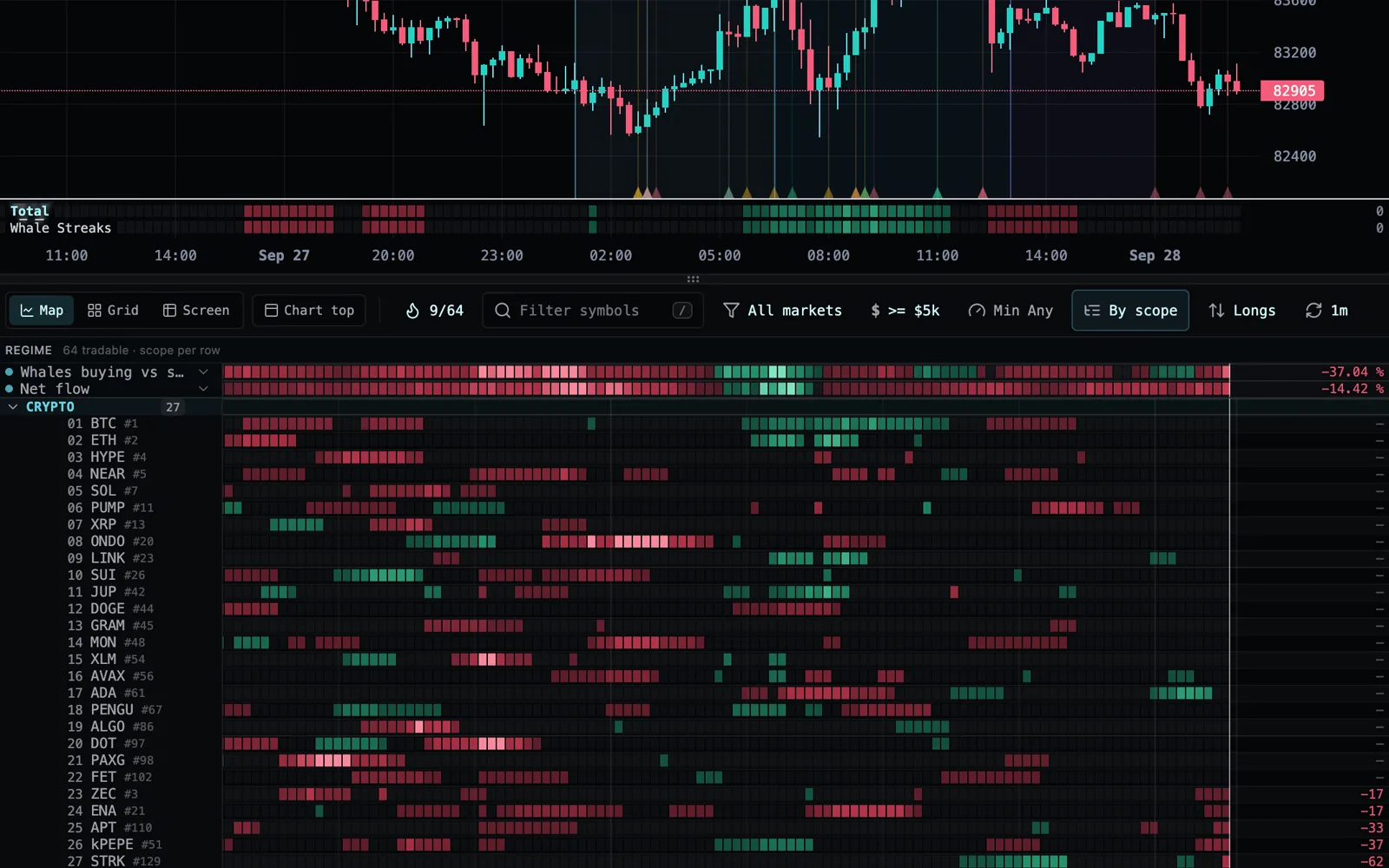
Improved

AI traders focus on what matters

AI Traders now pay attention the way a trader does. Instead of re-reading a fixed top-40 leaderboard every turn, a trader focuses on what matters: its open positions, its watchlist, setups that are firing or one signal away, fresh extremes just waking up, and the biggest movers — with the rest of the board summarized as counts. Quiet markets read quiet, hot markets surface more, and the trader’s notes stop drowning in symbols it was never going to trade.

Improved

Trader Alerts section with chime and voice

Your trader can now tell you the moment it makes a call. Its settings gained an Alerts section: a chime, a spoken voice line, and a desktop notification — each with its own on/off switch and a dial for how often it fires, from every notable read down to only the urgent ones. Tap test to hear the chime or the voice before you commit to it.

2 fixes
Fixed

Spoken voice is off by default

The spoken voice is now off until you switch it on, so nothing talks at you unexpectedly. Any trader that had been speaking goes quiet until you opt back in.

Fixed

Desks sharing a wallet are flagged

Running more than one automated trader on the same wallet could show mixed-up positions and activity between desks. The app now recognizes when two trading desks would share one wallet and clearly tells you which one is actually running, instead of quietly mixing their activity together — pause the other one, or connect a separate wallet, to run both at once.

Jul 7, 2026

Your trader trades exactly your desk
New

Trader’s stop and targets on the chart

See your AI trader's stop and take-profit levels — on the chart and in the Desk panel. While the trader holds a position on the charted symbol, its entry, protective stop, and remaining targets now draw right on the price, and the full target ladder shows in the Desk panel (it used to be a bare target count). The line style tells you where each order lives: a solid stop rests on Hyperliquid as a real protective order, while the dashed take-profit rungs are managed by vyx and closed at market as each level is hit — so you always know what's actually on the exchange.

New

Trader warns when a signal is unlit

Your trader now warns when its strategy needs a signal your desk isn't showing. If a trader is built around a signal that isn't lit on its desk, the card and Desk panel flag it — "Strategy needs Range Accumulation — not lit on this desk" — with a one-tap "light" to switch it on, instead of the trader quietly never finding that setup. It appears only on a real mismatch and clears the moment you light the signal.

New

Replay a trade’s whole life

Click any trade — open or closed — to replay its whole life. The trade panel now opens an inline timeline for a position: why the trader entered, every hold and adjustment it made while the trade was on, and how it ended — and it plays right on your chart, with the crosshair snapping to each moment as you read down. A trade with no AI behind it shows its venue fills instead.

Improved

Order ticket on the phone Trade tab

The Trade tab on your phone is now where you trade, not just where you review. It opens on the focused chart with a compact order ticket docked right underneath and your open positions filling the space below — buy or sell, size by your risk, set a stop and target, and send, all on one screen. Your full trade history and account stay one tap away on the wallet button.

Improved

Trader logs desk signal changes

When your desk's signals change, your trader says so. The moment it picks up an added or removed signal from its desk, it writes a plain line to its decision log — "Portfolio synced from desk — added Range Accumulation (now 4 signals)" — so a change to what it trades is never silent.

Improved

Trade tab hides on automated desks

On a phone, the manual Trade tab now hides on an automated desk — where a trader owns the wallet there's nothing to trade by hand, so the Trader tab is your window in. Desks you trade yourself (or with an analyst-only trader) keep the Trade tab as before.

Improved

Traders retry after a failed analysis

Your AI Trader no longer skips a turn when its analysis hiccups — it retries, and falls back to a second model if needed, so it keeps managing your open positions through momentary glitches. On the rare turn that still fails, the decision log now flags it clearly instead of mislabeling it.

3 fixes
Fixed

Traders follow their desk’s lit signals

Your AI trader now trades exactly the signals lit on its Trade Desk — always. Before, a trader remembered the signals it was built with, so if you later lit or removed a signal on the desk, the trader could keep trading the old set without telling you — and a strategy expecting a signal no longer on the board could act on a setup that wasn't really there. Now the trader reads its desk's lit signals live on every run, and if nothing is lit it stands down instead of guessing.

Fixed

Trader tab fills the phone screen

On the phone, the Trader tab now fills the whole screen. It used to squeeze a price chart in above the desk, leaving a big empty black band at the bottom — now the trader desk uses the full height.

Fixed

Desk view opens with an AI trader

On desktop, turning on an AI trader now shows its Desk view in the trade panel, the same as on your phone. Before, the panel could stay on manual buy/sell even while the trader was running your wallet — now it switches to the trader's frozen at-a-glance view (positions, P&L, and live decisions) and keeps manual trading out of the way while the trader is in charge.

Jul 6, 2026

Real order entry on your phone
New

Clone any trade desk

Clone any trade desk. Every desk card — yours or a built-in template — now has a one-click Clone that makes your own editable copy of the full setup, parked next to the original and ready to rename. Your live board never switches while you clone, and a copy of an automated desk always starts Manual, so cloning can never touch a running trader.

New

One trading focus per desk

Every trade desk now has one clear trading focus, shown in the top bar — Manual (you trade it), or an AI or Mechanical trader on Testnet or Live. When an automation is trading a desk, editing the board no longer changes what it trades behind your back: your changes are held as a draft that names exactly what moved, and you choose whether to apply them to the automation or branch into a fresh desk to keep exploring — with a deliberate confirm before you ever change a live, real-money trader.

New

Wallet switcher shows a trader’s book

See your trader's book everywhere. The trade panel now carries a wallet switcher: point it at a trader's wallet and you get its live positions with their resting stops, equity, recent fills, and full history — and its fills paint onto your charts as trade markers, right where your own do. History, PnL, and chart markers always follow the wallet you're viewing, together.

New

Manual and automated trading kept separate

Manual and automated trading are now cleanly separated. A desk run by an order-placing trader is marked AUTO on its cards, and its wallet is view-only — no manual order can collide with a running strategy, and VYX refuses the overlap at connect time too. A one-tap Take over pauses the trader when you want the wheel (its protective stops stay on the venue); turn it back on to hand back. Traders in Analyst mode leave your desk fully manual — they only advise.

New

Price alerts fire in real time

Price alerts fire in real time and follow your account. The levels you drop on the chart are now watched server-side within seconds — not at candle close — and they sync across your devices, so a level set on the desktop emails you even with everything closed.

New

Workspace pills on your phone

Switching workspaces on your phone is now one tap: your saved boards live as a row of pills at the bottom of the screen, right under the view tabs. Tap to flip boards — the view you were reading stays put — and scroll the row sideways if you have many.

New

Monitor pill for the whole account

A new Monitor pill sits first in that row: one screen with your open positions, what your traders and automations just decided, and the latest signal hits — the whole account at a glance, with every row one tap from the thing it shows.

New

Place orders from your phone

You can now place orders from your phone. Tap Trade above the chart and a compact order strip docks right under it — Buy/Sell, market or limit, your live size and risk, one-tap stop-loss and take-profit, then Arm and Send — while your stop and target stay visible as draggable lines on the chart.

New

Long-press the chart to trade

Long-press anywhere on the mobile chart to trade at that price — buy or sell at market, rest a limit right where you pressed, or set a price alert. The same menu desktop gets on right-click, now one gesture away on touch.

New

Every signal gets a Robustness tab

Every signal now has a Robustness tab: it sweeps the signal across a grid of its own settings and paints the result as a heatmap, so you can see at a glance whether its edge holds across nearby settings (a broad bright plateau) or you have tuned it to the past (a single lucky square). The fastest way to tell a real signal from a lucky one before you trade it.

Improved

Cleaner signal and fill markers

Cleaner chart markers. The signal and trade-fill markers on the chart were redrawn from scratch: crisp, consistent shapes with a subtle dark outline that keeps them readable on any candle, instead of the old soft glow that blurred them together. A trade fill now marks the exact price it filled at with a small tick, and the shape picker for a signal's marker shows the same shapes the chart draws. Your saved marker choices carry over unchanged.

Improved

Workspaces are now Trade Desks

Workspaces are now Trade Desks — same object, truer name. A desk is the setup you trade: signals, regime, scope, layout, and one trading focus. The rail, the mobile switcher, and the docs all speak the new name; nothing changes underneath — your saved desks, share links, and API integrations keep working exactly as before.

Improved

The $79 plan is now Autopilot

The $79 plan is now called Autopilot (was Desk) — the tier where AI traders fly your desks for you. Same price, same features; existing subscriptions and grandfathered beta accounts carry over automatically.

Improved

One Desk panel for automated desks

An automated desk is now one surface instead of two. The trade panel and the trader rail merged into a single, quiet Desk panel: the wallet's equity and PnL, the trader's performance chart with its recent closes, venue positions with its pending plans, and the live decision log — all at a glance, each fact stated once. A status line appears only when something needs you (not armed, kill switch) with the one tap that fixes it, and the board gets the old second rail's width back.

Improved

Trader card says when it needs arming

A Testnet or Live trader no longer looks like it started when it can't actually trade. If the account isn't armed (or has no matching wallet), the trader card now says "not trading — needs arming" with a one-tap way to fix it, instead of showing a green "Running" that quietly does nothing. Analyst traders still run the moment you enable them. Turn the trader to Testnet or Live, arm the account, and it begins right away.

Improved

Safety breaker trips are explained

When a trader's safety breaker halts live trading, it now tells you: the trip and its reason land in the trader's logbook the moment it fires, the Live Execution panel shows why and when the account disarmed, and every held turn explains what stopped it and how to resume — no more silently sleeping traders.

Improved

Alerts run around the clock

Alerts now simply run, 24/7. An enabled alert is watched on our servers automatically — no "Run on backend" switch to remember — chiming in the app when it fires and emailing you when your tab is closed. Repeat fires on the same market are muted for a cooldown so a flapping threshold can’t spam your inbox.

Improved

Desk shows live 24/7 status

The trader desk now shows a live 24/7 status line — how many alerts are armed and whether your trader is active on our servers — so you always know what’s running (and what’s emailing you) with your tab closed. Alerts are part of the Trader plan and up.

Improved

Ticket opens with a draggable stop

Opening the mobile order ticket now places a default protective stop as a draggable line, so your risk-based size is ready the moment you arrive — just drag the stop where you want it. On desktop, the ticket gained one-click "+ Stop", "+ SL" and "+ TP" buttons too.

Improved

Ticket shows size and buying power

The order ticket now shows you how big the position actually is. It leads with the dollar size and leverage, plus a bar for how much of your buying power the order uses — so you can tell at a glance whether it is too big — with the coin amount and dollar risk on a second line. You can also type an exact dollar or coin size right on the phone strip now, not just on desktop.

Improved

One decision log per trader

One decision log per trader. A trader's Logbook now shows a single, server-recorded decision history — the same log on every device, one entry per candle close, skipped turns shown with their reason, and every entry badged by its author (rule or ai). The confusing second in-browser log with its off-schedule timestamps is gone, and Analyze now asks the always-on server loop for an immediate read.

Improved

GLM 5.2 is the default model

AI traders, analysts and the AI chat now run on GLM 5.2 by default, for sharper board reads. Prefer another brain? Every model in the picker is still one tap away, and anything you already selected stays as you set it.

10 fixes
Fixed

Trader records count only real trades

Removed fake trades from trader track records. When a market's price was briefly unavailable, a closing trade could be recorded against a price of zero — one showed a +$1,000 win that never happened, another two showed −$500 losses. Those impossible rows are gone, the engine now refuses to record a trade without a real price, and a Testnet or Live trader's track record and verdict count only trades the venue actually confirmed.

Fixed

Board edits stick across tabs

Your board edits stick. Locking the chart to a ticker, starring a market, or renaming a regime no longer reverts a few seconds later when you have vyx open in more than one tab or on more than one device — the view you're working in stays put.

Fixed

Off-screen stop lines pin at the edge

Stop and target lines whose price sits outside the visible chart now pin at the chart edge instead of drifting over the toolbar, and every draggable line and remove button is easier to grab with a finger.

Fixed

Stops stay stops when dragged past entry

A stop-loss dragged across your entry no longer turns into a take-profit (which also zeroed every R read-out on the ladder). Stops stay stops and targets stay targets — the drag now pins at the entry on a staged order, and at the live price on an open position, so a break-even stop reads and places as the stop it is.

Fixed

Moving a stop replaces the old order

Moving a stop or target on a live position briefly created a duplicate order instead of replacing the old one. Drags are back on the proven replace flow; if you were affected, cancel any leftover duplicates from the Orders panel. (Multi-level scale-out ladders on open positions are pulled until they pass full testnet verification.)

Fixed

Staged entry can’t cross its stop

The same protection now works from the other end: dragging your staged entry line past a stop or target pins it just short of that level instead of crossing it. You can no longer stage an order whose stop-loss sits on the wrong side of the entry — a stop that would have triggered the moment your order filled.

Fixed

Order strip always arrives with a stop

The order strip could come back from a previous session without its default stop, leaving Send permanently greyed out — orders only worked from the chart menu. The ticket now always arrives with its draggable stop placed (so your risk-based size is ready), and if you remove the stop the strip tells you exactly how to add one back: tap SL.

Fixed

Alerts ignore bad price ticks

Price alerts no longer fire falsely on a bad price tick. A momentary zero reading from the feed could trip a "falls below" alert even though price never moved — now such readings are ignored, so an alert only fires when price truly reaches your line.

Fixed

Candle close keeps its final shape

Candle close is now seamless on the chart. The bar that just finished used to blink out — or sit flat for a few seconds — before snapping back once the exchange-confirmed close arrived. It now keeps its final shape the instant it closes, and the new bar starts ticking right away.

Fixed

Phone app repairs itself after updates

Opening vyx on your phone — especially the installed home-screen app — could land on a blank black or white screen right after we shipped an update, and stay stuck until you cleared the app. That dead end is gone: the app now refuses the stale files that caused it, repairs its own cache, and reloads itself to the latest version. If it ever truly can’t start (say, you’re offline), you get a clear reload screen instead of a blank one.

Jul 5, 2026

Plans: free to see, $29 to trade
New

Trader, Desk and Quant plans

vyx now has plans. Everything you use to research stays free — the live heatmap, unlimited signals, the AI builder, and reading over the API. Trader ($29/mo) unlocks live trading and 24/7 server-side signals and mechanical traders; Desk ($79/mo) adds AI traders and analysts; Quant ($149/mo) adds the highest API budgets.

New

Beta accounts keep everything free

Every account created during the beta keeps everything free — your live trading, server-side runs and AI traders continue exactly as they were, on us.

Improved

Dollar and percent labels on levels

Your stop-loss and take-profit lines on the chart can now show their dollar value and percent move, not just the risk multiple. A new Line labels toggle in the order ticket lets you pick R, $, %, or any mix — and it sticks. Drag a level and the size, risk and read-out all move with it.

2 fixes
Fixed

Mechanical traders run purely on rules

Mechanical traders now run purely from your rule everywhere, including live in the trade view — before, one could still consult the AI analyst there. Each entry in a trader's decision log is now marked as rule- or AI-written, so a trader you set to mechanical reads clearly.

Fixed

Each workspace shows its own trader

Each workspace's Trader panel now shows only that workspace's own trader — a trader from another workspace can no longer briefly appear on the wrong desk.

Jul 4, 2026

Your AI Trader can now trade for real
New

AI Trader places real Hyperliquid orders

Your AI Trader can now place real orders on Hyperliquid — start on testnet to prove a strategy with zero money at risk, then go live on mainnet by arming a non-custodial wallet it can never withdraw from.

New

Live traders keep a resting stop

Live traders keep a protective stop resting on the exchange itself, so your position is guarded even between turns, plus an always-reachable kill switch and an auto-disarm breaker that shuts live trading off if your daily loss, order rate, or losing streak crosses your limits.

Improved

Live P&L uses real exchange fills

A live trader's profit and loss is measured from your real exchange fills — the true number, not an estimate.

Improved

Trader logbook sits open on the rail

Your AI Trader's logbook — its forward track record, live plans, and every decision — now sits open right beneath the trader on the desk rail, so you can watch what it's doing at a glance without clicking to open anything.

Jul 3, 2026

Trade from the chart on your phone
New

Long-press to set alerts or orders

Long-press anywhere on the mobile chart to set a price alert or place an order at that exact level, and open the order ticket from the Trade tab.

Improved

Trading tools on the mobile chart

On a phone, the price chart now has the same trading tools as desktop — your live position, stop and target lines, plus draggable price alerts, all drawn right on the chart.

Improved

Analysts read right at candle close

Your AI Trader and signal analysts now make their call the moment a candle closes on their timeframe — a 5-minute trader reads right at each 5-minute close instead of drifting to an odd time mid-bar — so every read lines up with the bars you are watching.

Improved

Logbook markets are live links

In your AI Trader’s Logbook, any market the trader mentions is now a live link — hover to preview it on the chart, click to jump the chart and board straight to that market at the exact candle it was flagged. Each entry now shows its date too, not just the time.

2 fixes
Fixed

Trade markers on every timeframe

Your executed trades now show up as markers on the price chart across every timeframe — see exactly where each of your fills landed. They were previously missing on most intervals.

Fixed

No blank screen after an update

Opening the app right after an update no longer occasionally lands on a blank screen — it now refreshes itself to the latest version automatically instead of leaving you waiting.

Jul 2, 2026

The AI Trader goes autonomous
New

Give your trader a plain-English strategy

Give your AI Trader a strategy in plain English — describe the setups you would take and how to manage them, and it drafts a structured strategy built from your own signals.

New

Strategy traders run around the clock

Traders with a strategy now run around the clock on VYX servers: they spot setups, write full trade plans with stops, laddered targets, and scale-outs, manage each position, and journal every closed trade.

New

Logbook shows thought-log, journal and lessons

The Logbook now shows everything a running trader is thinking: its per-turn thought-log, its journal of closed trades, and the lessons it is carrying forward — alongside the tamper-evident decision log.

New

See what your AI Trader costs

See exactly what your AI Trader costs to run: the Logbook now shows the compute cost of each run plus a running total, average, and a per-run cost chart — right next to its measured P&L, on desktop and mobile.

New

Map and Table views on desktop

The desktop app gains a Table view: a Map / Table toggle at the top of the board flips the heatmap to a sortable list of every pair firing your active signal — the same table view the mobile app already had.

Improved

New vyx logo

VYX has a new logo — a forward mark that now carries the brand everywhere, from the browser tab to the top of the app.

Improved

Selected workspace stays a compact card

Switching workspaces keeps the rail tidy: the newly selected workspace stays a compact one-row card, and only opens when you click its chevron.

Improved

Smooth heatmap scrolling with marker signals

Scrolling the heatmap up and down is smooth again with marker signals armed — level rings keep up with the board instead of making it stutter, even with several signals marking cells at once.

2 fixes
Fixed

Workspaces panel stays open on select

Selecting a workspace no longer hides the whole workspaces panel — the rail stays put while the board switches.

Fixed

Sign out moved to the top bar

Sign out moved from a floating corner button into the top bar, so it no longer covers panel controls like the trader save buttons.

Jun 29, 2026

Workspaces
Improved

Switch workspaces from the signals rail

Switch workspaces right from the top of the signals rail — your saved workspaces now sit alongside the signals that define them, instead of a separate row of tabs.

1 fix
Fixed

Switching and saving workspaces works

Fixed a rare crash that could interrupt switching between saved workspaces or saving your current one.

Jun 28, 2026

Changelog
New

A day-by-day changelog

Introduced this changelog — a running, day-by-day list of what is new, improved, and fixed in VYX.

Improved

Workspaces autosave as you tune them

Saved workspaces now autosave as you tune them — change the scan, signals, regime band, scope, or layout and the active tab keeps itself up to date and synced to your account across devices.

1 fix
Fixed

Removed regime rows stay removed

Regime rows you remove now stay removed across devices and sign-ins, instead of the default examples reappearing later.

Jun 24, 2026

API, CLI & MCP
New

Public REST API and command-line tool

Connect VYX to your own stack with a public REST API and a command-line tool — pull live order-flow data and run your signals outside the app.

New

MCP server for AI assistants

Added an MCP server so AI assistants can read your board and a market’s microstructure directly. API access is included on every paid plan.

Jun 19, 2026

SignalMap is now VYX
Improved

SignalMap is now vyx

SignalMap is now VYX, with a new home at vyx.app. Your saved signals, layouts, and alerts carry over automatically.

Jun 11, 2026

Faster live data
Improved

Faster heatmaps in busy markets

Live heatmaps load faster and stay smooth during volatile, high-volume sessions.